EN - 42
Wireless
If you connect this unit to the Wi-Fi network, select
“Wireless” and set up necessary settings.
Please make a note of your Wi-Fi network name (SSID) and
its WEP / WPA key before proceeding with the setup.
Auto Scan
Search for Wi-Fi networks automatically and select the
Wi-Fi network name (SSID) from the list.
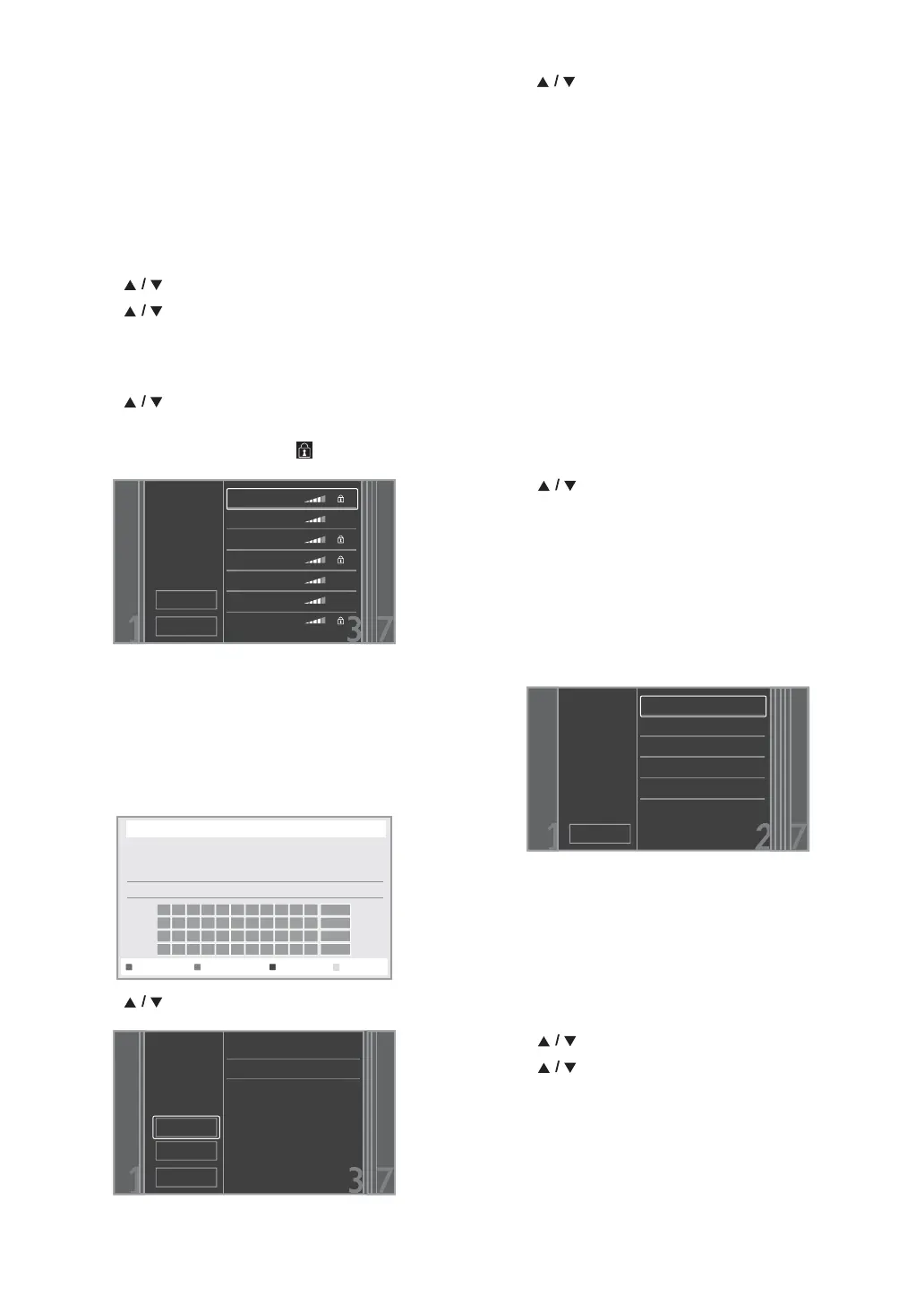
1. Follow steps 1 to 2 in “Auto Setup” on page 40.
2. Use [] to select “Wireless”, then press [OK].
3. Use [] to select “Auto Scan”, then press [OK].
• This unit will start searching for Wi-Fi networks
automatically.
4. The result of Wi-Fi network searching will be displayed.
Use [] to select the appropriate Wi-Fi network
name (SSID), then press [OK].
• If you select an SSID without “ ”, please go to step 6.
5. “Access Point Setting (Auto Scan)” screen will appear.
Enter the WEP / WPA key of the selected Wi-Fi
network using cursor buttons, number buttons and
color key, then press [Red].
• If you do not know the WEP / WPA key for your
Wi-Fi network, ask your ISP or the person who set
up your Wi-Fi network.
6. Use [] to select “Continue”, then press [OK].
7. Use
[]
to select “Auto Setup” or “Manual Setup”,
then press
[OK]
.
• If you select “Auto Setup”, follow step 5 in
“Auto Setup” on page 40.
• If you select “Manual Setup”, follow steps 3 to 12 and
14 to 16 in “Manual Setup” on page 40.
D Note
• The internal wireless LAN supports following
specifications.
- Wi-Fi standards :IEEE 802.11 b/g/n
- Frequency spectrum :2.4 GHz
- Security protocol :WEP / WPA / WPA2
Manual Entry
Set up the connection to the Wi-Fi network manually by
entering the Wi-Fi network name (SSID).
1. Follow steps 1 to 2 in “Auto Scan” on page 42.
2. Use [] to select “Manual Entry”, then press
[OK].
3. “Access Point Setting (Manual Entry)” screen will
appear.
Enter the SSID using cursor buttons, number buttons
and color key, then press [Red].
4. Security mode selection screen will appear. Select the
security mode of the entered SSID, then press [OK].
• If you select “None”, please go to step 6.
5. “Access Point Setting (Manual Entry)” screen will
appear.
Enter the WEP / WPA key of the Wi-Fi network using
cursor buttons, number buttons and color key, then
press [Red].
• If you do not know the WEP / WPA key for your
Wi-Fi network, ask your ISP or the person who set
up your Wi-Fi network.
6. Use [] to select “Continue”, then press [OK].
7. Use [] to select “Auto Setup” or
“Manual Setup”, then press [OK].
• If you select “Auto Setup”, follow step 5 in
“Auto Setup” on page 40.
• If you select “Manual Setup”, follow steps 3 to 12 and
14 to 16 in “Manual Setup” on page 40.
Rescan
Cancel
Access 1
Access 2
Access 3
Access 4
Access 5
Access 6
Access 7
Please select the
access point.
XXXXXXXXXX_
a/A/@
Access Point Setting (Auto Scan)
Please input the WEP/WPA key with keypad or software keyboard.
Done Cancel Clear
WPA-PSK(AES)
Access 1
XXXXXXXXXX
●
●
●
Please confirm the
setting.
Rescan
Continue
Cancel
SSID
Security
WEP/WPA Key
WEP-PSK(TKIP)
WEP-PSK(AES)
WPA-PSK(TKIP)
WPA-PSK(AES)
Please select the
security mode.



 To Next Page