EN - 43
Easy Connect
You can set up the Wi-Fi connection quickly.
(“Easy Connect” is available only when your router
supports it. For details, please refer to the user manual of
your Wi-Fi router.)
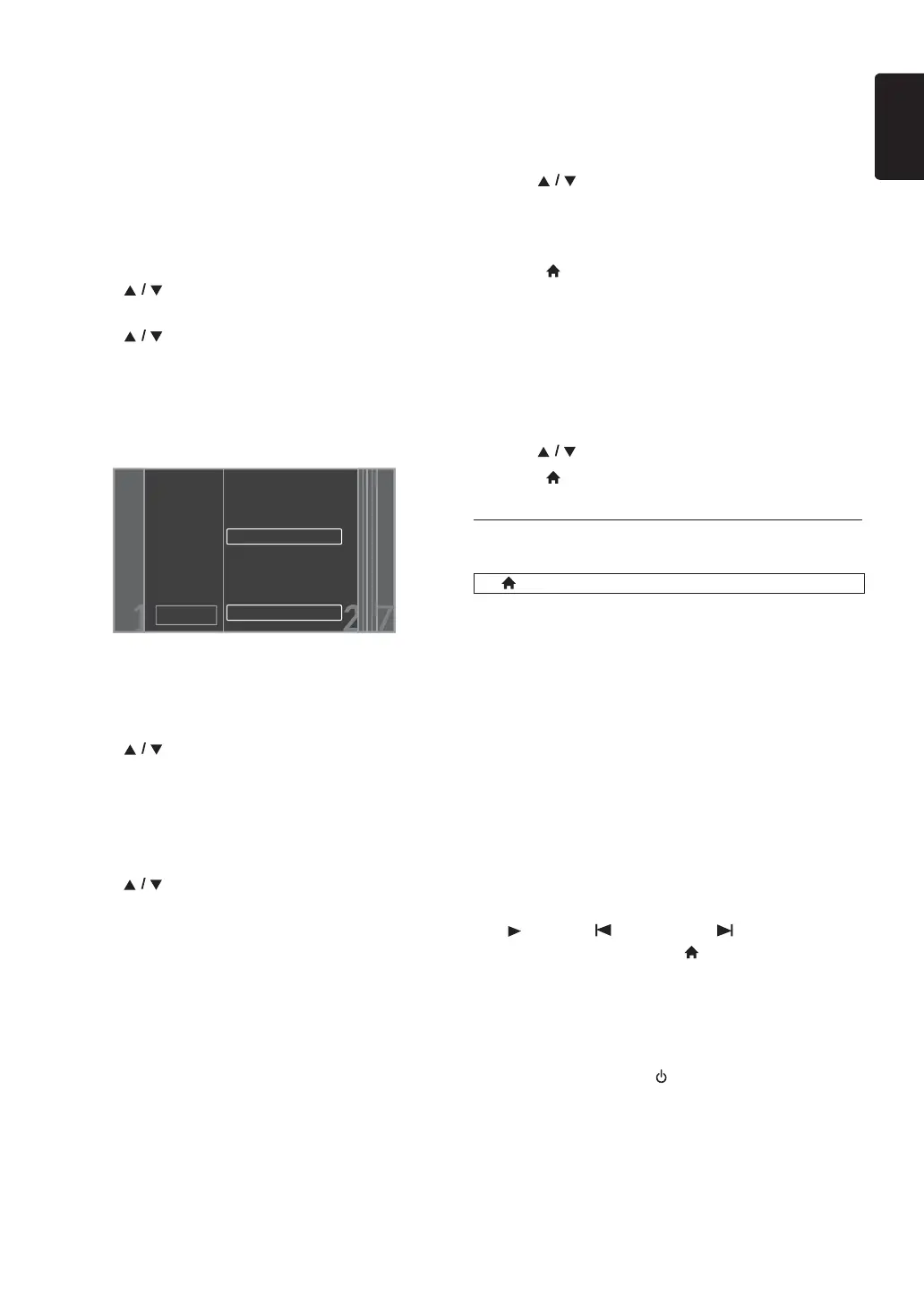
Push Button Method
Please confirm your Wi-Fi router has a PBC button.
1. Follow steps 1 to 2 in “Auto Scan” on page 42.
2. Use [] to select “Easy Connect”, then press
[OK].
3. Use [] to select “Push Button Method”, then
press [OK]. And push the PBC (Push Button
Configuration) on your Wi-Fi router.
• The unit will start the connection test automatically
and the test result will appear right after the
connection test finishes.
4. Select “Finish” to complete the settings.
PIN Code Method
1. Follow steps 1 to 2 in “Auto Scan” on page 42.
2. Use [] to select “Easy Connect”, then press
[OK].
3. Set up your Wi-Fi router with PIN code shown on the
TV screen.
• For details about setting method of your Wi-Fi
router, please refer to the user manual of the router.
4. Use [] to select “PIN Code Method”, then press
[OK].
5. The unit will start the connection test automatically and
the test result will appear right after the connection
test finishes.
6. Select “Finish” to complete the settings.
View Network Settings / View Wireless Settings
You can check the current status of network settings or
Wi-Fi settings.
1. Follow steps 1 to 2 in “Connection Test” on page 40.
2. Use [] to select “View Network Settings” or
“View Wireless Settings”, then press [OK].
• The current network settings or Wi-Fi settings will
be displayed.
3. Press [(home)] to exit.
Netflix ESN
You can view the ESN number which is a serial number
used by Netflix to identify a device. Netflix customer
service might ask you for this number during
troubleshooting.
1. Follow steps 1 to 2 in “Connection Test” on page 40.
2. Use [] to select “Netflix ESN”, then press [OK].
3. Press [(home)] to exit.
12.4. EasyLink Setup
This unit supports Philips EasyLink, which enables your TV
(limited to Philips brand EasyLink TV) to act in conjunction
with this unit, or vice versa. Compliant TV must be
connected to the HDMI OUT jack.
When “EasyLink” setting is set to “On”, functions listed
below will be available.
One Touch Play
When the operations with following buttons of the remote
control of this unit are performed, the TV will automatically
be turned on and switched to the appropriate input
channel. (“One Touch Play” can be turned off by setting it
to “Off”.)
Buttons for one touch play:
- [(play)], [ (previous)], [(next)],
[the Number buttons], [(home)], [Net-TV],
or [SOURCE]
-
[TOP MENU]
, or
[DISC MENU / POP-UP MENU]
(when a disc is inserted in the unit)
One Touch Standby
When you press and hold [ (standby/on)] for 2
seconds, it turns off the power of the TV first and then
turns off the power on this unit. When the connected
EasyLink compatible display device is turned off first, it then
turn off the power on this unit. (“One Touch Standby” can
be turned off by setting it to “Off”.)
Cancel
Please push the PBC(push button
configuration) on the wireless
router and select ‘Push Button
Method’ button on screen.
Please input the PIN number into
the wireless router and select
‘PIN Code Method’ button on
screen.
Push Button Method
PIN Code Method
65729403
(home) A “Setup” A “EasyLink Setup”



 To Next Page