14
Check wired network settings
1 Press (Home).
2 Select [Setup], and then press OK.
3 Select [Network] > [View Network
Settings], and then press OK.
» The current network settings are
displayed.
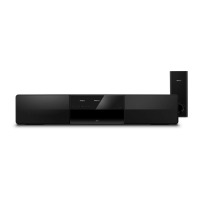
Wireless connection
Connect your home theater to your router
through a wireless connection.
What you need
• A network router (with DHCP enabled).
• A Wi-Fi dongle (Model: Philips WUB1110).
• For software update, make sure that the
network router has access to the Internet
and is not restricted by rewalls or other
security systems.
Set up the wireless network
Connect your home theater to your router as
shown below, and then switch on the devices.
1 Connect the home theater to a network
router through a wireless connection (see
‘Wireless connection’ on page 14).
2 Turn on your TV, and switch to the correct
source for the home theater.
3 Press (Home).
4 Select [Setup], and then press OK.
5 Select [Network] > [Network Installation]
> [Wireless (Wi-Fi)], and then press OK.
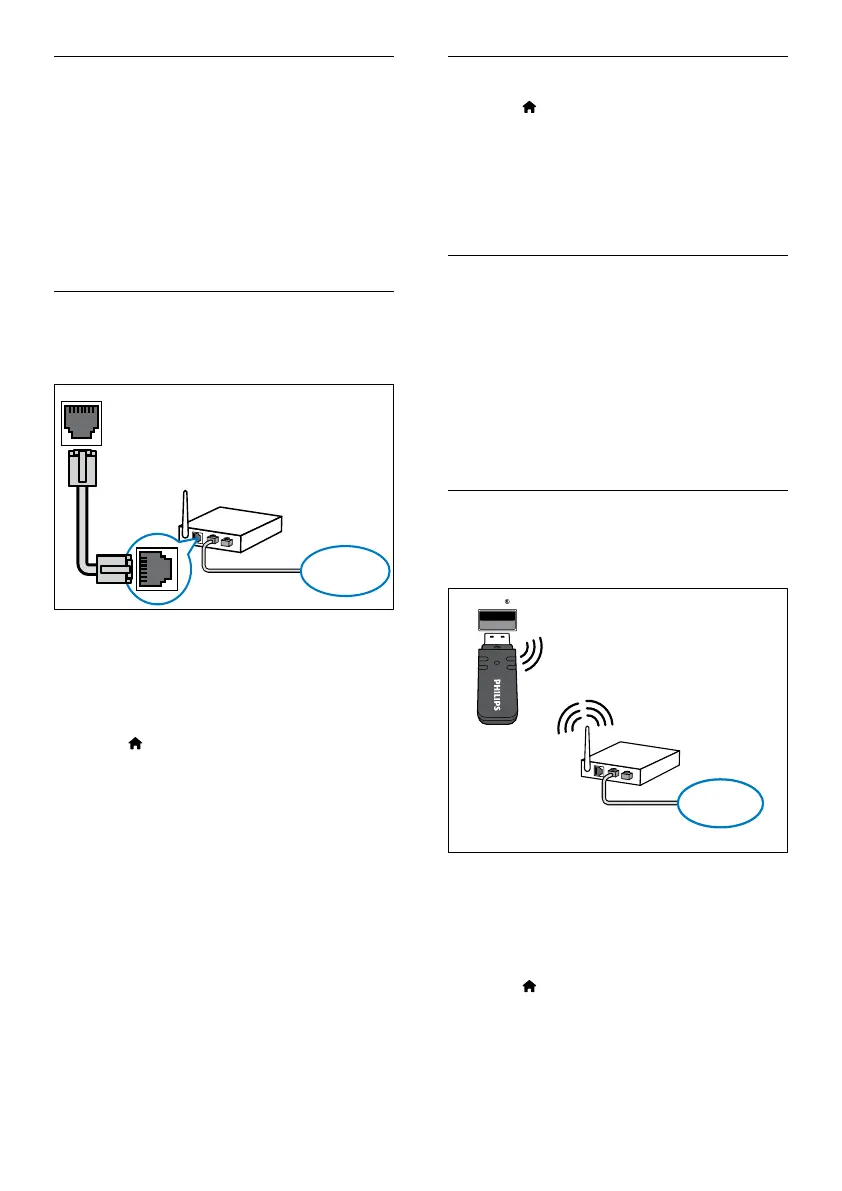
Wired connection
Connect your home theater to your router
through a network cable.
What you need
• A network router (with DHCP enabled).
• A network cable (RJ45 straight cable).
• For BD-Live application and software
update, make sure that the network router
has access to the Internet and the rewall is
disabled.
Set up the wired network
Connect your home theater to your router as
shown below, and then switch on the devices.
1 Connect the home theater to a network
router through a wired connection (see
‘Wired connection’ on page 14).
2 Turn on your TV, and switch to the correct
source for the home theater.
3 Press (Home).
4 Select [Setup], and then press OK.
5 Select [Network] > [Network Installation]
> [Wired (Ethernet)], and then press OK.
6 Follow the instructions on the TV to
complete the setup.
» The home theater connects to the
internet. If connection fails, select [Retry],
and then press OK.
7 Select [Finish], and then press OK to exit.
EN



 To Next Page