19
English
DivX
Play DivX videos from :
• a disc (see ‘Discs’ on page 16),
• a USB storage device (see ‘USB storage
devices’ on page 18).
Note
•
To play DivX DRM protected les from a disc
or a USB storage device, connect your home
theater to a TV through an HDMI cable.
VOD code for DivX
Before you purchase DivX videos and play them
on your home theater, register the home theater
on www.divx.com using the DivX VOD code.
1 Press (Home).
2 Select [Setup], and then press OK.
3 Select [Advanced] > [DivX® VOD Code],
and then press OK.
» The DivX VOD registration code for
your home theater is displayed.
Subtitles
If your video has subtitles in multiple languages,
select a subtitle language.
1 While playing video, press SUBTITLE to
select a language.
Note
•
Make sure that the subtitle le has the same
name as the video le. For example, if the
video le is named ‘movie.avi’, save the subtitle
le as ‘movie.srt’ or ‘movie.sub’.
• Your home theater can play subtitle les in the
following formats: .srt, .sub, .txt, .ssa, .ass, smi,
and .sami. These les do not appear in the le
navigation menu.
• If the subtitles do not appear correctly, change
the character set.
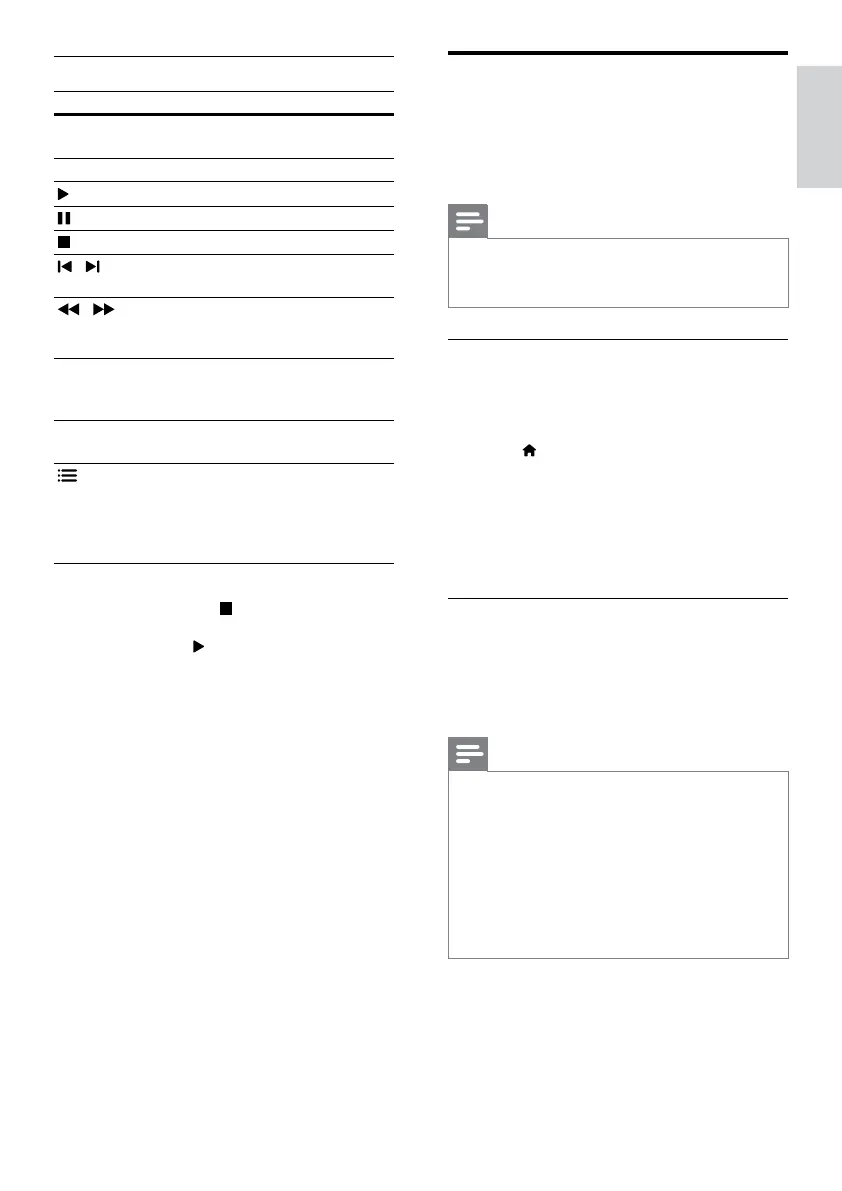
Play buttons
Button Action
Navigation
buttons
Navigate menus.
OK Conrm an entry or selection.
(Play)
Start or resume play.
Pause play.
Stop play.
/
Skip to the previous or next
track, chapter or le.
/
Fast backwards or fast
forwards. Press repeatedly to
change the search speed.
Navigation
buttons (up/
down)
Rotate the picture clockwise or
counter-clockwise.
SUBTITLE Select subtitle language for
video.
OPTIONS
Access the advanced options
when you play your audio,
video, or media les (see
‘Audio, video, and picture
options’ on page 20).
For video formats such as DivX:
• To stop play, press .
• To resume the video from where you
stopped, press
(Play).
• To play the video from the start, press OK.
EN



 To Next Page