INSTALLATION
15
You must be in USB mode to download light show files to the
iPlayer 3 or to use the ColorPlay 3 live play simulation feature.
You can initiate USB mode only from your PC/Mac, not from the
iPlayer itself. USB Mode is active when you are connected to the
iPlayer 3 via ColorPlay 3.
See Chapter 3: USB Mode on page 20 for details about USB
Mode.
Note: If using Windows®, you must install ColorPlay 3
software prior to connecting the iPlayer 3 controller to your
computer for the first time. The ColorPlay 3 Windows
installation installs the USB device drivers used by the
iPlayer 3. (MacOS does not need a special device driver.)
See the Installing ColorPlay 3 chapter in the ColorPlay 3 User
Guide for instructions on installing ColorPlay 3.
To set up the iPlayer 3 in USB Mode:
1. Verify that ColorPlay 3 is installed on your system.
2. Power on the iPlayer 3 by plugging one end of the power
cord into the power inlet on the iPlayer 3 and the other end
into an electrical outlet.
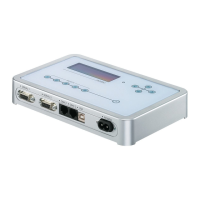
3. Using the supplied USB cable, connect the USB port on the
iPlayer 3 to your computer’s USB port. The USB light on the
iPlayer 3 will light and the LCD screen will read
USB
on its
bottom row, indicating that the USB connection is active.
Note: The maximum USB cable length is 5m.
4. Launch the ColorPlay 3 software on your computer.
5. There are two methods for initiating USB Mode from
ColorPlay 3:
– Open the ColorPlay 3 configuration layer and click
CONNECT. Once in USB mode, the LCD screen indicates
USB MODE, and you can now download show files,
triggers, and alarms. You can also manage iPlayer 3 files
from the ColorPlay 3 configuration layer. (See the
ColorPlay 3 User Guide for details.)


 To Next Page