English
11
Connections
Step 2: Connecting TV
IMPORTANT!
–You only need to make one video
connection from the following options,
depending on the capabilities of your TV.
– Connect the DVD system directly to
the TV.
–A SCART connection allows you to
use features both Audio and Video
features on the DVD Player.
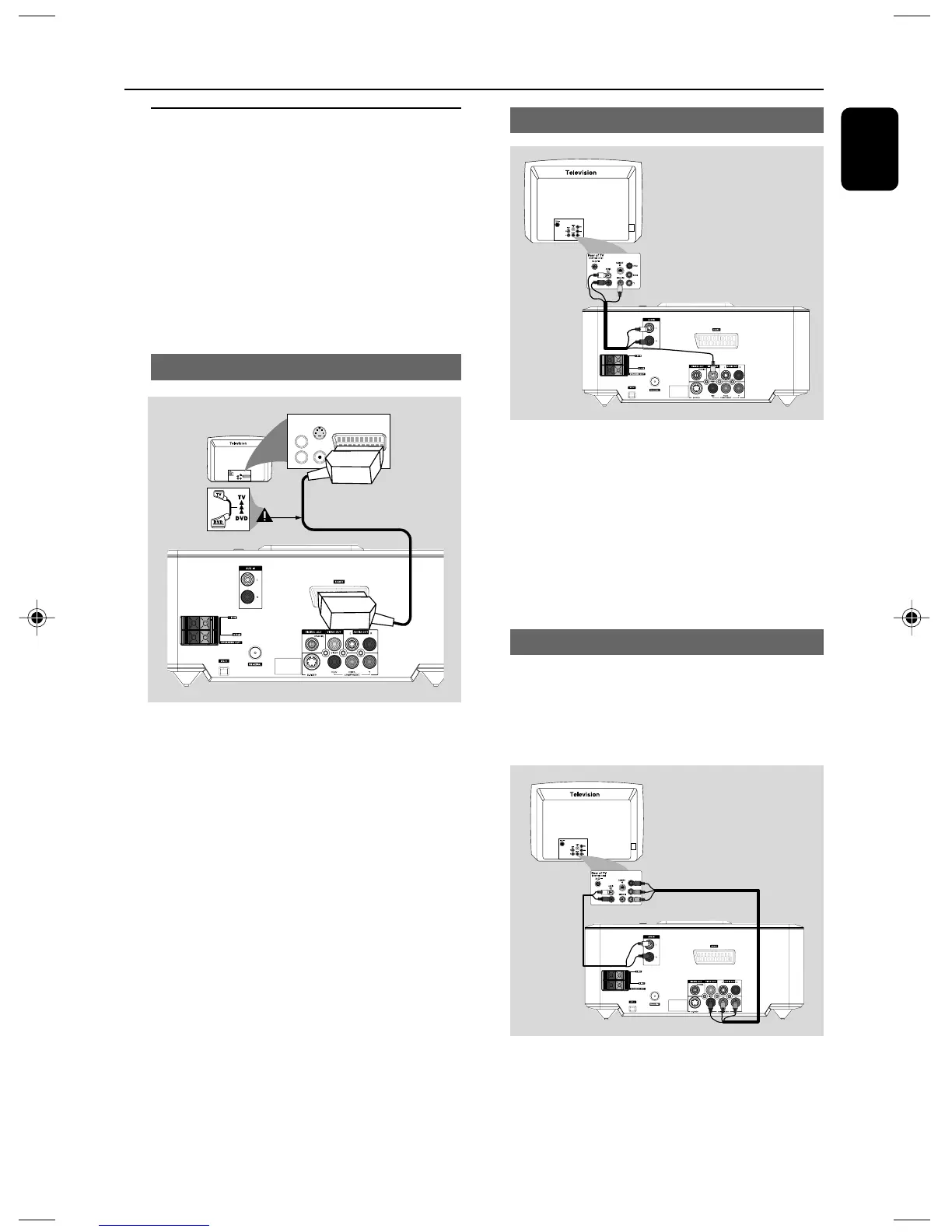
Using SCART jack
AUDIO
IN
S-VIDEO
IN
VIDEO IN
TV IN
AUDIO
IN
S-VIDEO
IN
VIDEO IN
TV IN
● Use the SCART cable (black) to connect the
DVD Player’s SCART jack to the
corresponding Scart input jacks on the TV (cable
not supplied).
Note:
– Ensure that the “TV” indication on SCART cable
is connected to the TV set and “DVD” indication on
SCART cable is connected to the DVD Player.
Using Composite Video jack
1 Use the supplied composite video connectors
(yellow) to connect the DVD system's VIDEO
OUT jack to the video input jack (or labeled as
A/ V In, CVBS, Composite or Baseband) on the
TV.
2 To hear the TV channels through this DVD
system, use audio connectors (white/ red) to
connect AUX IN (L/R) jacks to the
corresponding AUDIO OUT jacks on the TV.
Using Component Video jacks (Y Pb Pr)
IMPORTANT!
– The progressive scan video quality is
only possible when using Y Pb Pr, and a
progressive scan TV is required.
1 Use component video cables (red/blue/green -
not supplied) to connect the DVD system's Y
Pb Pr jacks to the corresponding Component
video input jacks (or labeled as Y Pb/Cb Pr/Cr or
YUV) on the TV.
pg 001-022_MCD710_12_Eng 2007.11.29, 14:2611



 To Next Page