English
20
Step 3: Setting language
preference
You can select your own preferred language
settings. This DVD system will automatically
switch to the selected language whenever you
load a disc. If the language selected is not
available on the disc, the disc’s default language
will be used instead. The OSD language in the
system menu will remain once selected.
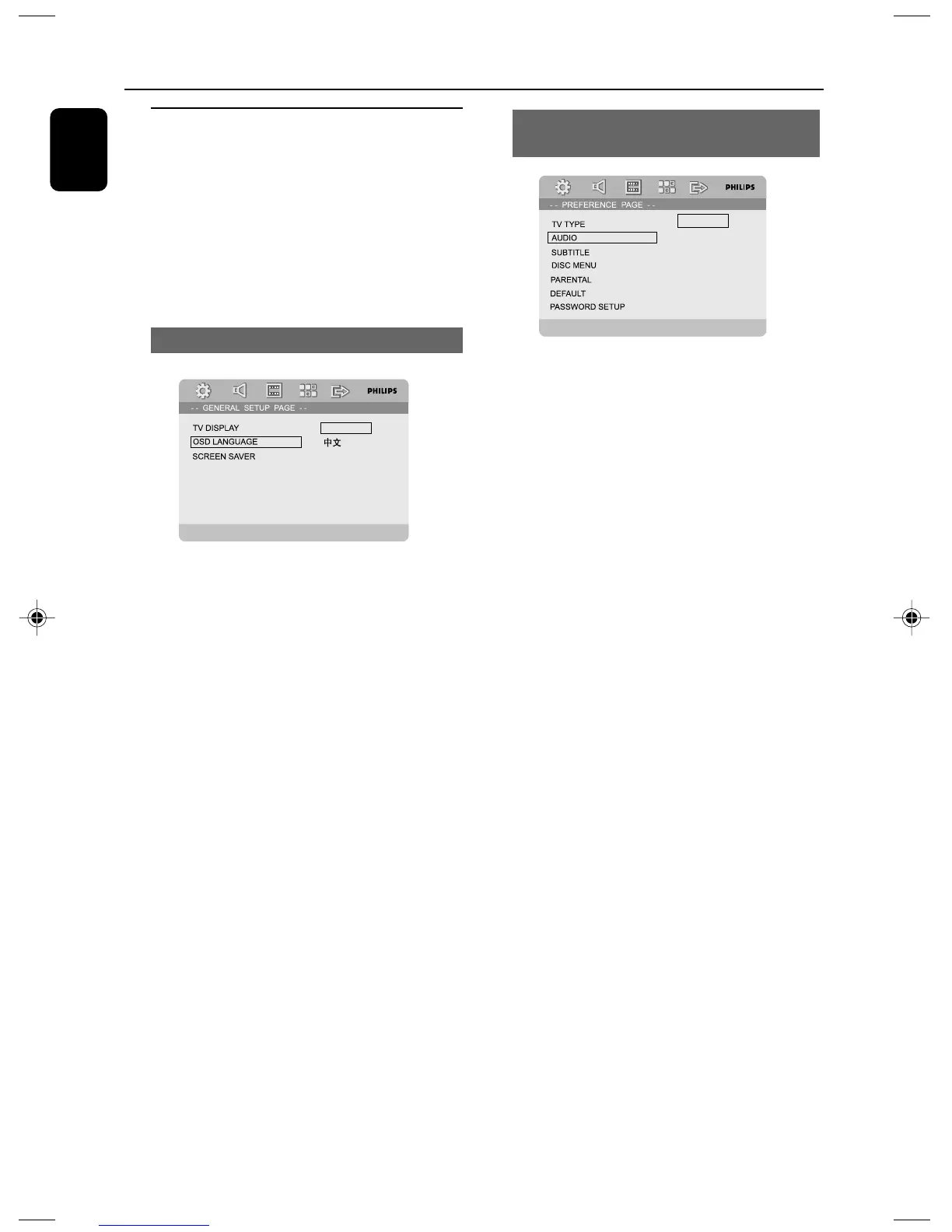
Setting the OSD Language
DIVX CODE
english
1 Press SYSTEM MENU.
2 Press 1 2 to select “GENERAL SETUP PAGE”.
3 Use 1 2 3 4 on the remote to navigate in the
menu.
Move to “OSD LANGUAGE” and press 2.
4 Select a language and press OK.
To exit from the menu
● Press SYSTEM MENU again.
Getting Started
Setting the Audio, Subtitle and Disc
Menu language
english
french
spanish
chinese
japanese
korean
russian
thai
1 Press SYSTEM MENU in stop mode.
2 Press 1 2 to select “PREFERENCE PAGE”.
3 Press 3 4 to highlight the following in the
Preference Page.
–“AUDIO” (disc’s soundtrack)
– “SUBTITLE” (disc’s subtitles)
– “DISC MENU” (disc’s menu)
4 Enter its submenu by pressing 2.
5 Select a language and press OK.
6 Repeat steps 3~5 for other language settings.
To exit from the menu
● Press SYSTEM MENU again.
pg 001-022_MCD710_12_Eng 2007.11.29, 14:2620



 To Next Page