18 EN
7 Videos
Transfer videos to the player
You can transfer videos to the player in two
ways:
Transfer through Philips Media
Converter;
With the video converter software,
\RXFDQFRQYHUWYLGHRVWRWKHÀOH
type that is supported on the player,
DQGWUDQVIHUWKHFRQYHUWHGÀOHVWRWKH
player.
'UDJDQGGURSYLGHRÀOHVVPYÀOHVLQ
Windows Explorer.
By doing so, you can organize your
YLGHRFROOHFWLRQE\ÀOHIROGHU
Install Philips Media Converter
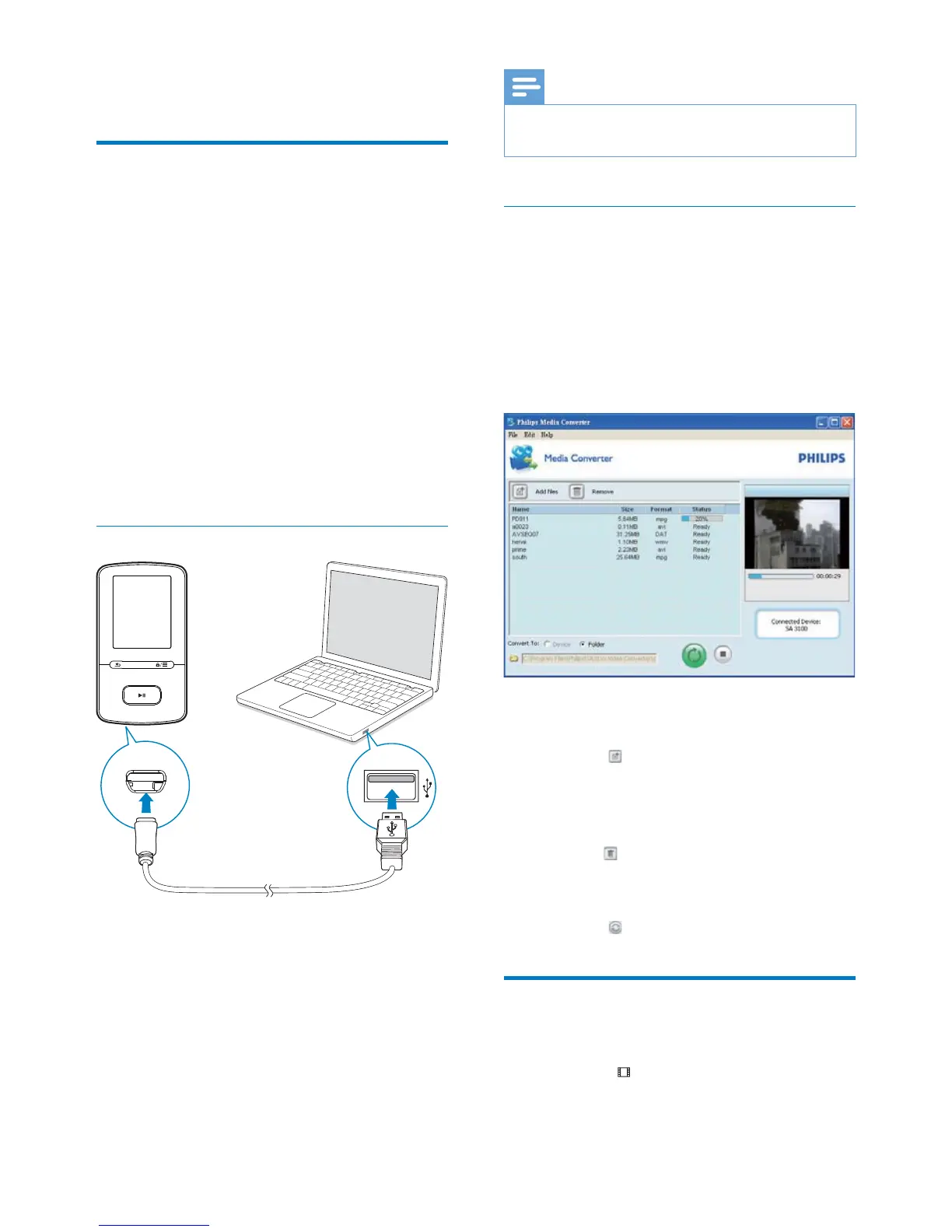
1 Connect the player to the PC by using the
USB cable.
2 On the PC, select My Computer
(Windows XP / Windows 2000) /
Computer (Windows Vista / Windows 7).
3 Click the Philips GoGear VIBE icon.
Double-click the PMCsetup.exe.
4 Follow the onscreen instructions to
complete the installation of the software.
Note
The installation requires you to agree to the license
terms.
Use Philips Media Converter
1 On your PC, launch Philips Media
Converter.
2 Connect the player to the PC by using the
USB cable.
Wait until the player is recognized by
Philips Media Converter.
3 In Philips Media Converter, add videos
from your PC library:
Click
.
» The video is added to the list of
ÀOHVIRUFRQYHUVLRQDQGWUDQVIHU
7RUHPRYHDYLGHRIURPWKHOLVWRIÀOHV
click
.
4 In Philips Media ConverterVWDUWWKHÀOH
conversion and transfer:
Click
.
Find videos on the player
)LQGYLGHRVE\ÀOHQDPH
Go to
.
» 9LGHRVDUHOLVWHGE\ÀOHQDPHLQ
alphabetical order.


 To Next Page