28 EN
7KHÀUVWWLPH\RXODXQFKPhilips Songbird on
a PC, do the following as prompted to import
H[LVWLQJPHGLDÀOHVLQWRPhilips Songbird:
Select the iTunes media folder to
import an existing iTunes library;
Select the central folder to search and
LPSRUWWKHH[LVWLQJPXVLFÀOHV
» The central folder is set as the
watch folder of Philips Songbird.
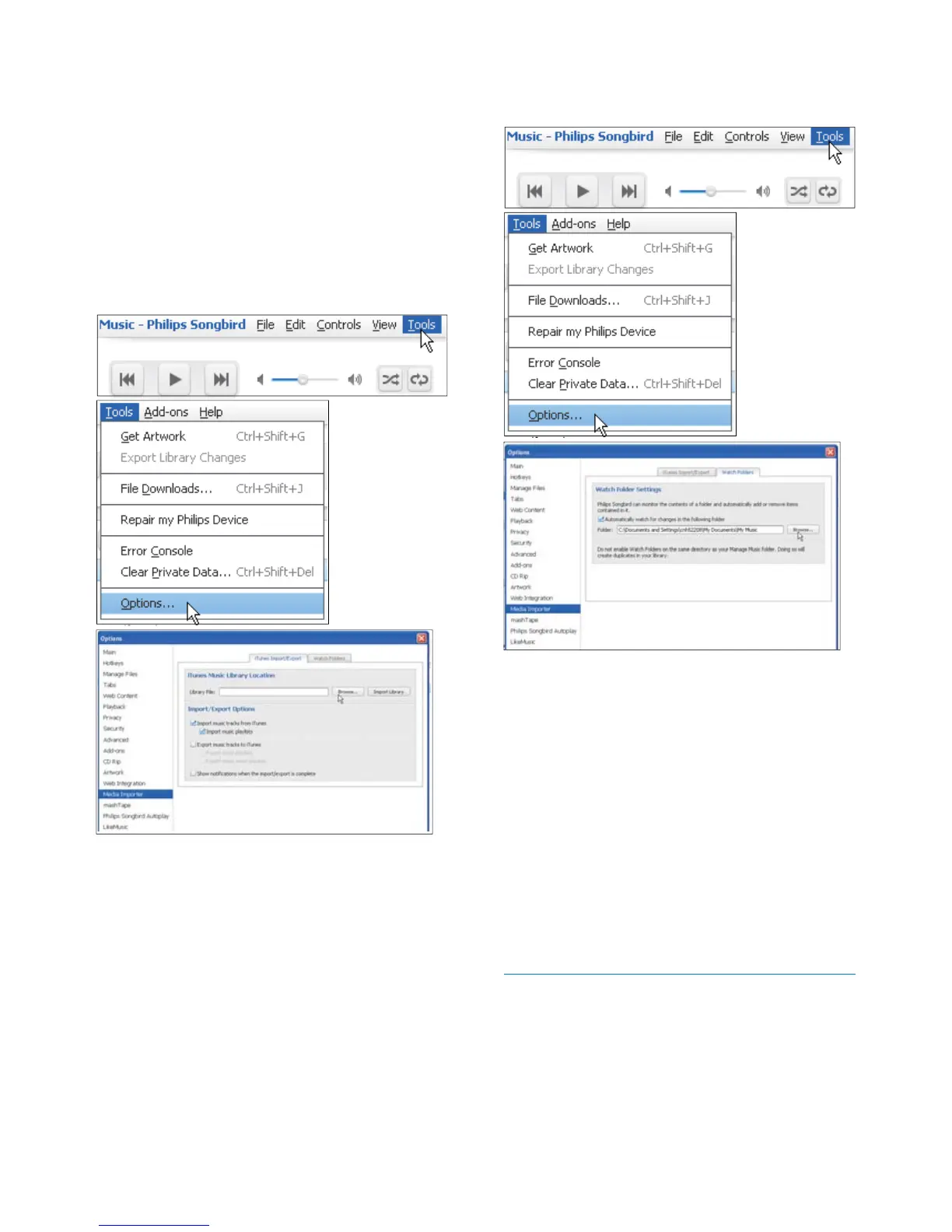
Set iTunes media folder
1 On Philips Songbird, go to Tools >
Options...
2 Select Media Importer, and then the
iTunes Importer tab.
3 Verify your library location and options.
4 Click the Import Library button next to
the library location.
» The software imports the iTunes
library into Philips Songbird.
Set the watch folder
In Philips Songbird, set the watch folder as
follows:
1 Select Tools > Options.
2 In Options, select Media Importer. Then,
select the Watch Folders tab.
3 In Watch Folders, tick the check box as
shown.
4 Click Browse, and select the central folder
HJ'?6RQJELUGPHGLDDVWKHZDWFK
folder.
» In Philips SongbirdPHGLDÀOHVDUH
added or removed as they are in the
central music folder.
,PSRUWPHGLDÀOHV
,PSRUWPHGLDÀOHVIURPRWKHUIROGHUV
In Philips Songbird,
go to File > Import Media to select
folders on the PC.


 To Next Page