User Guide
37
Creating and Editing Timers
With the Timer Tool you can define actions to be carried out at predefined times.
For instance, you can switch on the lights or program your VCR to record your
favorite daily TV-show.
Note When a timer is executed, you will hear a beep and a Timer message appears on
screen.
If Pronto NG is performing another task (sending out IR codes, testing a macro, ...)
when a timer is due to be executed, Pronto NG first continues performing the
current task.
Creating and Editing Timers
Adding a Timer
1Tap and hold the Pronto NG icon in the upper left corner of the
touch screen for 3 seconds. The Tools Menu appears.
2Tap in the Tools Menu.
The ‘Timer Tool’ information screen appears.
3Tap .
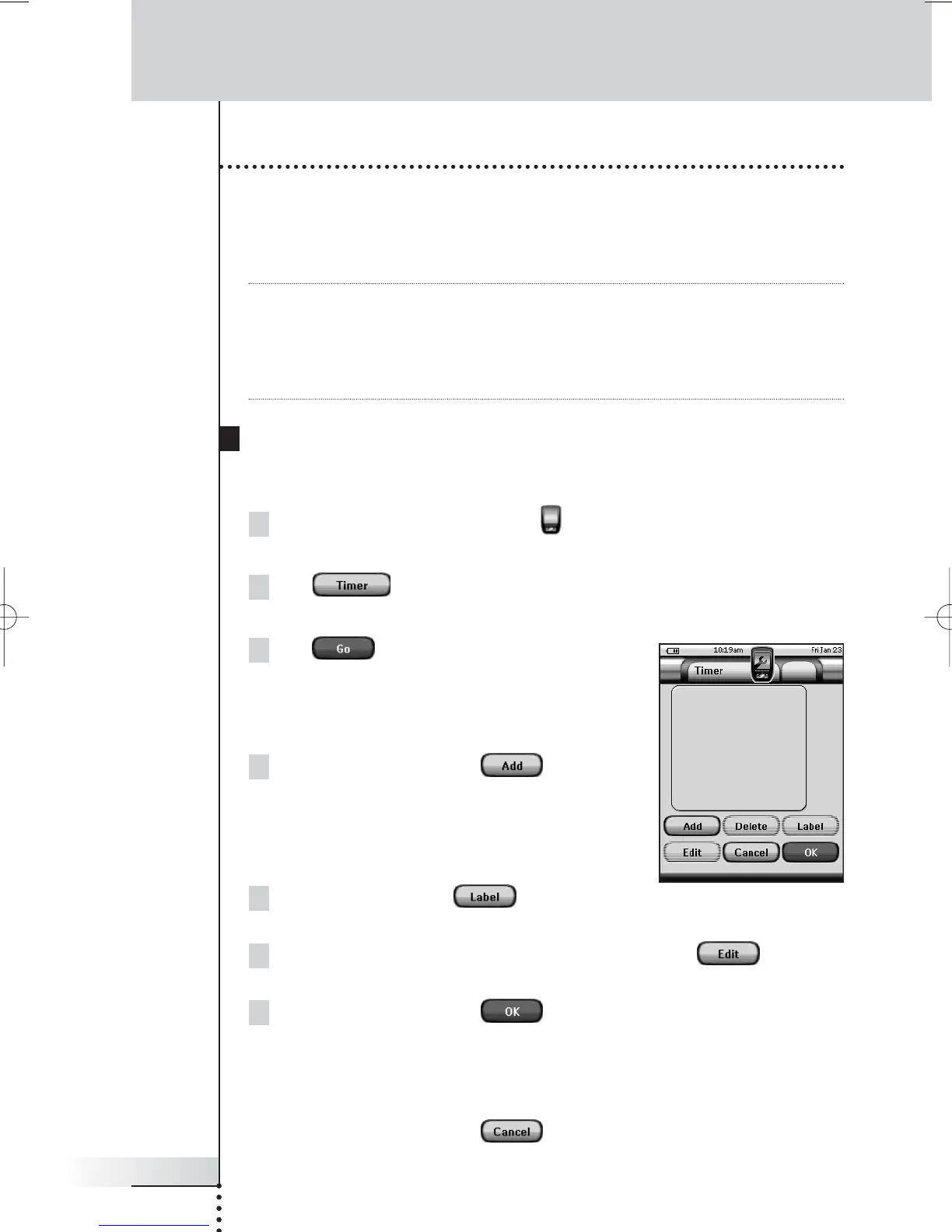
The ‘Timer’ screen appears.
4 In the ‘Timer’ screen, tap to add a
new timer to the list.
A new timer is added to the Timers list.
By default a new timer is labeled Timer and a
number. It has no start and stop actions defined.
5To label the timer, tap , as described
in ‘Labeling a Timer’ on page 38.
6To define the start and stop actions for the timer, tap , as
described in ‘Editing a Timer’ on page 39.
7 In the ‘Timer’ screen, tap .
The ‘Timer’ screen closes and the Tools Menu appears again. The timer is
added.
-or-
In the ‘Timer’ screen, tap .
The Timer screen closes without adding the timer.
Using the Power Features





 To Next Page