EasyManua.ls Logo

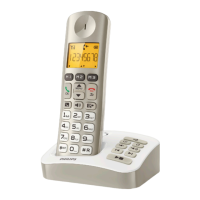
Philips XL300 - User Manual

Philips XL300
44 pages
Print Icon
To Next Page IconTo Next Page
Loading...
www.philips.com/welcome
User manual
Always there to help you
Register your product and get support at
XL300
XL305
Question?
Contact
Philips

Table of Contents

Other manuals for Philips XL300

Question and Answer IconNeed help?

Do you have a question about the Philips XL300 and is the answer not in the manual?

Summary

Important Safety Instructions

Power requirements

Specifies the electrical supply needs and network voltage classification for the phone.

Warning

Highlights hazardous electrical network conditions and safe unplugging procedures.

To avoid damage or malfunction

Lists precautions to prevent product damage and ensure proper operation.

Caution

Advises on using correct accessories, battery handling, and avoiding hazardous environments.

About operating and storage temperatures

Defines the recommended temperature and humidity ranges for phone operation and storage.

Your phone

What is in the box

Lists all items included in the product packaging upon purchase.

Overview of the phone

Provides a visual and functional description of the handset's main components and controls.

Overview of the base station

Describes the physical layout and key buttons of the telephone base station.

Display icons

Explains the meaning of various icons displayed on the handset screen during operation.

Get started

Connect the base station

Step-by-step instructions for connecting the base station to power and the telephone line.

Install the handset

Guidance on preparing the handset for use, including battery installation and charger connection.

Configure your phone

Initial setup process for the phone, including country-specific settings.

Set the country;language

Instructions for selecting the appropriate country and language for the phone's operation.

Set the date and time

Procedure for configuring the current date and time on the phone's display.

Phone Management

Change the remote access PIN;passcode

Steps to modify the PIN for remote access to the answering machine for security.

Charge the handset

Instructions on properly placing the handset on the base station or charger for charging.

What is standby mode?

Explanation of the phone's idle state and what information is displayed on the screen.

Check the signal strength

How to determine the quality of the connection between the handset and the base station.

Switch the handset on or off

Method for powering the handset on or off using a specific button or key combination.

Calls

Make a call

Overview of different methods available for initiating phone calls.

Normal call

Basic procedure for dialing a phone number directly to make a call.

Predial call

Steps for dialing a number before connecting to the line, allowing for number editing.

Call through the direct key

How to make calls using pre-saved direct access memory keys (M1, M2, M3).

Set the direct keys

Instructions for assigning phone numbers and names to the direct access memory keys.

Answer a call

How to respond to an incoming call when the phone rings.

Make a second call

Procedure for initiating a new call while the first call is on hold.

Answer a second call

How to accept an incoming call when already engaged in another call.

Switch between two calls

Method for toggling between active calls on the phone.

Make a conference call with the external callers

Steps to combine multiple calls into a single conference call.

Intercom and conference calls

Make a call to another handset

Guide to establishing direct internal calls between handsets sharing the same base.

While you are on the phone

How to manage calls and switch between external and internal contacts during a conversation.

Switch between calls

Procedure for switching between an external call and an intercom call.

Transfer a call

Instructions on transferring an external call to another handset without staying on the line.

Make a conference call

Guides on establishing 3-way conference calls involving external parties and other handsets.

During the conference call

Details on managing calls during an active conference call session.

Text and numbers

Enter text and numbers

Instructions on how to input text and numbers using the phone's keypad for various entries.

Phonebook

View the phonebook

How to access and browse the list of stored contacts on the phone.

Search a record

Methods for finding specific contacts within the phonebook by name or character.

Scroll the contact list

Navigating through the phonebook entries using the handset controls.

Enter the first character of a contact

Using the first letter to quickly locate contacts in the phonebook.

Call from the phonebook

Making a call directly from a selected entry in the phonebook.

Add a record

Steps to add new contact names and numbers to the phonebook.

Edit a record

How to modify existing names and numbers stored in the phonebook.

Delete a record

Procedure for removing a single contact entry from the phonebook.

Delete all records

How to erase all entries from the phonebook simultaneously.

Call log

View the call records

Accessing and reviewing the history of incoming, outgoing, and missed calls.

Save a call record to the phonebook

Option to save a number from the call log directly into the phonebook.

Return a call

How to dial a number directly from an entry in the call log.

Call list type

Setting preference for viewing all calls or only missed calls in the log.

Delete a call record

Steps to remove a single unwanted call entry from the call log.

Delete all call records

How to clear the entire call log history at once.

Redial list

View the redial records

Accessing the history of recently dialed numbers.

Redial a call

Making a call using a number from the redial list.

Save a redial record to the phonebook

Option to add a number from the redial list to the phonebook.

Delete a redial record

Removing a specific entry from the redial list.

Delete all redial records

How to clear all entries from the redial list simultaneously.

Phone settings

Sound settings

Adjusting audio-related preferences like ringtone volume and key tones.

Set the handsets ringtone volume

Adjusting the loudness of the ringtone for incoming calls.

Set the handsets ringtone

Selecting a preferred melody for incoming call alerts.

Set the key tone

Enabling or disabling audible feedback for button presses.

Set the docking tone

Enabling or disabling the audible alert when placing the handset on the charger.

Set the battery tone

Enabling or disabling audible alerts for low battery status.

Set the hearing aid compatibility

Activating features to improve compatibility with hearing aid devices.

ECO mode

Reducing transmission power for energy saving and reduced radiation.

ECO+ mode

Further reducing transmission power in standby mode for enhanced energy savings.

Set the backlight of the LCD screen

Configuring the display backlight for visibility and keypad flashing.

Set the date and time

Setting the phone's internal clock for accurate time display and call logging.

Set the display language

Choosing the language for menus and text displayed on the handset screen.

Telephone answering machine

Turn the answering machine on or off

Instructions for activating or deactivating the built-in answering machine.

Set the answering machine language

Selecting the language for the answering machine's announcements and prompts.

Set the answer mode

Configuring the answering machine to record messages or only announce.

Announcements

Managing the outgoing messages callers hear when the answering machine answers.

Record an announcement

Steps to record a personalized outgoing message for the answering machine.

Listen to the announcement

How to play back the current outgoing announcement recorded on the machine.

Restore the default announcement

Reverting the outgoing announcement to the factory-set message.

Delete an incoming message

Procedure for removing a specific received message from the answering machine.

Delete all old incoming messages

How to clear all previously received messages from the answering machine.

Set the ring delay

Configuring the number of rings before the answering machine answers incoming calls.

Call screening

Allows listening to callers leaving messages without answering the call.

Remote access

Operating the answering machine remotely using a touch-tone phone and PIN.

Activate;deactivate the remote access

Controlling whether remote access to the answering machine is permitted.

Change the PIN code

Modifying the PIN required for remote access to the answering machine.

Behavior of the LED display on the base station

Explains the status indications provided by the LED on the base station unit.

Services

Call list type

Setting whether to view all calls or only missed calls in the call log.

Select the call list type

Procedure to choose the desired call history view.

Auto conference

Feature to automatically join an external call with another handset.

Activate;Deactivate auto conference

Enabling or disabling the automatic conference call feature.

Auto prefix

Formats outgoing call numbers by adding a prefix to the dialed number.

Set auto prefix

Configures a detect number and prefix for automatic number formatting.

Network type

Settings related to the phone's network compatibility and features.

Select the recall duration

Setting the time delay for answering a second call.

Dial mode

Information about tone (DTMF) and pulse dialing supported by the phone.

Set the dial mode

Configuring the phone to use either tone or pulse dialing.

Auto clock

Synchronizes phone date and time automatically with the public telephone network.

Register additional handsets

Instructions for adding extra handsets to the base station.

Unregister handsets

Removing previously registered handsets from the base station.

Restore default settings

Resetting all phone settings to their original factory configurations.

Technical data

Notice

Declaration of conformity

Philips' statement of compliance with EU directives for the XL300/XL305 models.

Use GAP standard compliance

Explains the DECT GAP standard and its implications for handset compatibility.

Compliance with EMF

Information regarding electromagnetic field (EMF) emissions and Philips' safety approach.

Disposal of your old product and batteries

Guidance on environmentally responsible disposal of the product and its batteries.

Environmental information

Details on packaging materials and recyclability, plus responsible disposal of electronic waste.

Frequently asked questions

No signal bar is displayed on the screen.

Troubleshooting steps for when the handset shows no signal or is out of range.

If I fail to register the additional handsets to the base station, what do I do?

Solutions for failed handset registration, possibly due to full base memory.

No dialing tone

Steps to resolve issues with not hearing a dial tone when lifting the handset.

No docking tone

Troubleshooting for the absence of a tone when placing the handset on the charger.

I cannot change the settings of my voice mail, what do I do?

Guidance on contacting service provider for voice mail settings management.

The handset on the charger does not charge.

Troubleshooting steps for when the handset fails to charge on the base station.

No display

Steps to troubleshoot a blank screen on the handset, checking power and battery.

Bad audio (crackles, echo, etc.)

Solutions for poor audio quality, including range, interference, and wall obstruction issues.

The handset does not ring.

Troubleshooting steps to ensure the handset ringtone is enabled and functioning.

The caller ID does not display.

Reasons and solutions for when caller ID information is not shown on the display.

Appendix

Text and number input tables

Provides reference tables mapping keypad keys to characters for text entry.

Summary

Important Safety Instructions

Power requirements

Specifies the electrical supply needs and network voltage classification for the phone.

Warning

Highlights hazardous electrical network conditions and safe unplugging procedures.

To avoid damage or malfunction

Lists precautions to prevent product damage and ensure proper operation.

Caution

Advises on using correct accessories, battery handling, and avoiding hazardous environments.

About operating and storage temperatures

Defines the recommended temperature and humidity ranges for phone operation and storage.

Your phone

What is in the box

Lists all items included in the product packaging upon purchase.

Overview of the phone

Provides a visual and functional description of the handset's main components and controls.

Overview of the base station

Describes the physical layout and key buttons of the telephone base station.

Display icons

Explains the meaning of various icons displayed on the handset screen during operation.

Get started

Connect the base station

Step-by-step instructions for connecting the base station to power and the telephone line.

Install the handset

Guidance on preparing the handset for use, including battery installation and charger connection.

Configure your phone

Initial setup process for the phone, including country-specific settings.

Set the country;language

Instructions for selecting the appropriate country and language for the phone's operation.

Set the date and time

Procedure for configuring the current date and time on the phone's display.

Phone Management

Change the remote access PIN;passcode

Steps to modify the PIN for remote access to the answering machine for security.

Charge the handset

Instructions on properly placing the handset on the base station or charger for charging.

What is standby mode?

Explanation of the phone's idle state and what information is displayed on the screen.

Check the signal strength

How to determine the quality of the connection between the handset and the base station.

Switch the handset on or off

Method for powering the handset on or off using a specific button or key combination.

Calls

Make a call

Overview of different methods available for initiating phone calls.

Normal call

Basic procedure for dialing a phone number directly to make a call.

Predial call

Steps for dialing a number before connecting to the line, allowing for number editing.

Call through the direct key

How to make calls using pre-saved direct access memory keys (M1, M2, M3).

Set the direct keys

Instructions for assigning phone numbers and names to the direct access memory keys.

Answer a call

How to respond to an incoming call when the phone rings.

Make a second call

Procedure for initiating a new call while the first call is on hold.

Answer a second call

How to accept an incoming call when already engaged in another call.

Switch between two calls

Method for toggling between active calls on the phone.

Make a conference call with the external callers

Steps to combine multiple calls into a single conference call.

Intercom and conference calls

Make a call to another handset

Guide to establishing direct internal calls between handsets sharing the same base.

While you are on the phone

How to manage calls and switch between external and internal contacts during a conversation.

Switch between calls

Procedure for switching between an external call and an intercom call.

Transfer a call

Instructions on transferring an external call to another handset without staying on the line.

Make a conference call

Guides on establishing 3-way conference calls involving external parties and other handsets.

During the conference call

Details on managing calls during an active conference call session.

Text and numbers

Enter text and numbers

Instructions on how to input text and numbers using the phone's keypad for various entries.

Phonebook

View the phonebook

How to access and browse the list of stored contacts on the phone.

Search a record

Methods for finding specific contacts within the phonebook by name or character.

Scroll the contact list

Navigating through the phonebook entries using the handset controls.

Enter the first character of a contact

Using the first letter to quickly locate contacts in the phonebook.

Call from the phonebook

Making a call directly from a selected entry in the phonebook.

Add a record

Steps to add new contact names and numbers to the phonebook.

Edit a record

How to modify existing names and numbers stored in the phonebook.

Delete a record

Procedure for removing a single contact entry from the phonebook.

Delete all records

How to erase all entries from the phonebook simultaneously.

Call log

View the call records

Accessing and reviewing the history of incoming, outgoing, and missed calls.

Save a call record to the phonebook

Option to save a number from the call log directly into the phonebook.

Return a call

How to dial a number directly from an entry in the call log.

Call list type

Setting preference for viewing all calls or only missed calls in the log.

Delete a call record

Steps to remove a single unwanted call entry from the call log.

Delete all call records

How to clear the entire call log history at once.

Redial list

View the redial records

Accessing the history of recently dialed numbers.

Redial a call

Making a call using a number from the redial list.

Save a redial record to the phonebook

Option to add a number from the redial list to the phonebook.

Delete a redial record

Removing a specific entry from the redial list.

Delete all redial records

How to clear all entries from the redial list simultaneously.

Phone settings

Sound settings

Adjusting audio-related preferences like ringtone volume and key tones.

Set the handsets ringtone volume

Adjusting the loudness of the ringtone for incoming calls.

Set the handsets ringtone

Selecting a preferred melody for incoming call alerts.

Set the key tone

Enabling or disabling audible feedback for button presses.

Set the docking tone

Enabling or disabling the audible alert when placing the handset on the charger.

Set the battery tone

Enabling or disabling audible alerts for low battery status.

Set the hearing aid compatibility

Activating features to improve compatibility with hearing aid devices.

ECO mode

Reducing transmission power for energy saving and reduced radiation.

ECO+ mode

Further reducing transmission power in standby mode for enhanced energy savings.

Set the backlight of the LCD screen

Configuring the display backlight for visibility and keypad flashing.

Set the date and time

Setting the phone's internal clock for accurate time display and call logging.

Set the display language

Choosing the language for menus and text displayed on the handset screen.

Telephone answering machine

Turn the answering machine on or off

Instructions for activating or deactivating the built-in answering machine.

Set the answering machine language

Selecting the language for the answering machine's announcements and prompts.

Set the answer mode

Configuring the answering machine to record messages or only announce.

Announcements

Managing the outgoing messages callers hear when the answering machine answers.

Record an announcement

Steps to record a personalized outgoing message for the answering machine.

Listen to the announcement

How to play back the current outgoing announcement recorded on the machine.

Restore the default announcement

Reverting the outgoing announcement to the factory-set message.

Delete an incoming message

Procedure for removing a specific received message from the answering machine.

Delete all old incoming messages

How to clear all previously received messages from the answering machine.

Set the ring delay

Configuring the number of rings before the answering machine answers incoming calls.

Call screening

Allows listening to callers leaving messages without answering the call.

Remote access

Operating the answering machine remotely using a touch-tone phone and PIN.

Activate;deactivate the remote access

Controlling whether remote access to the answering machine is permitted.

Change the PIN code

Modifying the PIN required for remote access to the answering machine.

Behavior of the LED display on the base station

Explains the status indications provided by the LED on the base station unit.

Services

Call list type

Setting whether to view all calls or only missed calls in the call log.

Select the call list type

Procedure to choose the desired call history view.

Auto conference

Feature to automatically join an external call with another handset.

Activate;Deactivate auto conference

Enabling or disabling the automatic conference call feature.

Auto prefix

Formats outgoing call numbers by adding a prefix to the dialed number.

Set auto prefix

Configures a detect number and prefix for automatic number formatting.

Network type

Settings related to the phone's network compatibility and features.

Select the recall duration

Setting the time delay for answering a second call.

Dial mode

Information about tone (DTMF) and pulse dialing supported by the phone.

Set the dial mode

Configuring the phone to use either tone or pulse dialing.

Auto clock

Synchronizes phone date and time automatically with the public telephone network.

Register additional handsets

Instructions for adding extra handsets to the base station.

Unregister handsets

Removing previously registered handsets from the base station.

Restore default settings

Resetting all phone settings to their original factory configurations.

Technical data

Notice

Declaration of conformity

Philips' statement of compliance with EU directives for the XL300/XL305 models.

Use GAP standard compliance

Explains the DECT GAP standard and its implications for handset compatibility.

Compliance with EMF

Information regarding electromagnetic field (EMF) emissions and Philips' safety approach.

Disposal of your old product and batteries

Guidance on environmentally responsible disposal of the product and its batteries.

Environmental information

Details on packaging materials and recyclability, plus responsible disposal of electronic waste.

Frequently asked questions

No signal bar is displayed on the screen.

Troubleshooting steps for when the handset shows no signal or is out of range.

If I fail to register the additional handsets to the base station, what do I do?

Solutions for failed handset registration, possibly due to full base memory.

No dialing tone

Steps to resolve issues with not hearing a dial tone when lifting the handset.

No docking tone

Troubleshooting for the absence of a tone when placing the handset on the charger.

I cannot change the settings of my voice mail, what do I do?

Guidance on contacting service provider for voice mail settings management.

The handset on the charger does not charge.

Troubleshooting steps for when the handset fails to charge on the base station.

No display

Steps to troubleshoot a blank screen on the handset, checking power and battery.

Bad audio (crackles, echo, etc.)

Solutions for poor audio quality, including range, interference, and wall obstruction issues.

The handset does not ring.

Troubleshooting steps to ensure the handset ringtone is enabled and functioning.

The caller ID does not display.

Reasons and solutions for when caller ID information is not shown on the display.

Appendix

Text and number input tables

Provides reference tables mapping keypad keys to characters for text entry.

Philips XL300 Specifications

General IconGeneral
BrandPhilips
ModelXL300
CategoryCordless Telephone
LanguageEnglish

Related product manuals