EasyManua.ls Logo

Phonak ComPilot II - Troubleshoot Manual

Phonak ComPilot II
3 pages
Print Icon
To Next Page IconTo Next Page
Loading...
Thank you for visiting the Phonak website and for your inquiry. By following the instructions below, we will delete all the pairings
in the Phonak ComPilot II and then pair all devices one by one. Turn o other Bluetooth enabled devices while pairing to eliminate
interference. I have provided step-by-step instructions on the Phonak ComPilot II for your convenience:
Follow the steps below to delete existing pairings and then reset the ComPilot II.
ComPilot II Troubleshooting
Deleting Pairings
1. Verify ComPilot II is “on” with green ashing light
above Power.
2. Press the < > button on the side and the + button
on the front of ComPilot II simultaneously and hold
them until the Audio indicator starts to rapidly blink
blue. Continue to hold them for approximately 10
seconds until the blue light is gone and the only light
ashing is the green power light.
3. Delete the ComPilot II pairing entry on your cell
phone phone and restart (power down then back up
again) your cell phone before any re-pairing.
The pairings have now been deleted in the ComPilot II.
Proceed to the reset instructions below:
1. Turn the ComPilot IIo.”
2. Wait 30 seconds.
3. Turn the ComPilot II “on.”
The ComPilot II has been reset. Proceed to
the appropriate section below to pair with
the desired device.
ComPilot II Bluetooth
®
Pairing
with a Cell Phone
1. Put your phone into Bluetooth pairing mode.
2. Verify the ComPilot II is “on” with green ashing light
above Power.
3. Press the “< >” button on the side and the “+” button
on the front of ComPilot II simultaneously and hold
them down for 2 seconds until the Audio indicator
starts to rapidly blink blue. Release as soon as you see
the rapidly blinking blue light.
4. Place the ComPilot II and cell phone next to each
other. Access the Bluetooth menu of the cell phone.
5. The ComPilot II will be listed under Bluetooth devices
on the screen of the cell phone.
6. Select the ComPilot II from the available devices on
the cell phone.
7. Input the pairing code “0000” if prompted by the cell
phone. Not all phones require this.
8. The ComPilot II will show “connected” on the cell
phone once pairing has been successful.
9. The blue light will slow to a pulse on the ComPilot II
like the green power light.
You can now use the ComPilot II with your cell phone.

Other manuals for Phonak ComPilot II

Questions and Answers

Summary

Deleting Pairings and Resetting ComPilot II

Deleting Existing Pairings

Instructions to remove all previous Bluetooth pairings from the ComPilot II device.

Resetting the ComPilot II

Steps to perform a factory reset on the ComPilot II after deleting pairings.

ComPilot II Bluetooth Pairing with a Cell Phone

Initiating Cell Phone Pairing

Guide to put the ComPilot II into pairing mode for a cell phone connection.

Pairing ComPilot II with Devices

Pairing with the TVLink II

Step-by-step instructions for pairing the ComPilot II with the TVLink II.

Pairing with the RemoteMic

Instructions on how to pair the ComPilot II with a RemoteMic device.

Using ComPilot II with Roger Microphones

Connecting to Roger X and Roger Microphone

Procedure for connecting the ComPilot II to a Roger X receiver and Roger microphone.

Overview

The ComPilot II is a versatile wireless accessory designed to enhance the listening experience for individuals using compatible Phonak hearing aids. It acts as an intermediary device, facilitating seamless audio streaming from various Bluetooth-enabled devices, dedicated Phonak accessories, and Roger microphones directly to the hearing aids. This allows users to enjoy clear, high-quality audio from their cell phones, televisions, and other sources, transforming their hearing aids into personal wireless headphones.

Function Description:

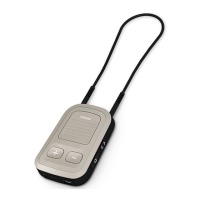
At its core, the ComPilot II serves as a universal remote control and a streaming hub. It connects wirelessly to Phonak hearing aids, typically worn around the neck for optimal signal transmission. The device features a set of intuitive buttons for control, including a main button on the front, and "< >" and "+" buttons on the side, which are used for various functions such as pairing, volume control, and accepting audio signals. LED indicators provide visual feedback on the device's status, such as power, audio streaming, and pairing mode, using different colors and blinking patterns (e.g., green for power, blue for Bluetooth activity, orange for Roger signal).

The primary function of the ComPilot II is to enable audio streaming. When paired with a Bluetooth-enabled cell phone, it allows users to answer calls, listen to music, or follow navigation instructions directly through their hearing aids. The device handles the Bluetooth connection, receiving audio from the phone and transmitting it to the hearing aids. This eliminates the need to hold the phone to the ear or use separate headphones, providing a hands-free and discreet listening solution.

Beyond cell phones, the ComPilot II extends its streaming capabilities to other Phonak accessories. When paired with a TVLink II, it enables users to stream audio from their television directly to their hearing aids, offering a personalized volume experience without disturbing others. Similarly, when connected to a RemoteMic, the ComPilot II allows for clear reception of speech from a distance, making conversations in noisy environments or lectures much easier to follow.

A significant feature of the ComPilot II is its compatibility with Roger microphones, specifically when used with a Roger X receiver. The Roger system is designed to improve speech understanding in challenging listening situations by transmitting a speaker's voice directly to the listener's hearing aids, bypassing background noise. The ComPilot II, with an attached Roger X receiver, acts as the conduit for this advanced audio signal. When a Roger microphone is connected, the ComPilot II receives the clear speech signal and streams it to the hearing aids, significantly enhancing clarity and comprehension. The device provides auditory cues, such as "ComPilot Direct Audio Found" and "ComPilot Direct Audio Still Active," to inform the user about the status of the Roger connection.

Usage Features:

The ComPilot II is designed for ease of use, with clear instructions provided for various pairing scenarios.

  • Power Management: The device is turned on and off with a simple action, and a green flashing light indicates it is powered on.
  • Bluetooth Pairing with a Cell Phone:
    • Initiating pairing involves putting the cell phone into Bluetooth pairing mode and simultaneously pressing the "< >" and "+" buttons on the ComPilot II until the Audio indicator rapidly blinks blue.
    • The ComPilot II will appear as a discoverable device on the cell phone's Bluetooth menu.
    • A pairing code (typically "0000") may be required for some phones.
    • Successful pairing is indicated by "connected" on the cell phone and a slow blue pulse on the ComPilot II's blue light, mirroring the green power light.
  • Pairing with TVLink II:
    • Both the ComPilot II and TVLink II must be powered on.
    • Pairing is initiated by pressing the "< >" and "+" buttons on the ComPilot II until the Audio indicator rapidly blinks blue.
    • The TVLink II also has a pairing mode, activated by pressing and holding its "P" button until it rapidly blinks blue.
    • Once placed near each other, the devices will connect, and their lights will turn solid blue within two minutes.
  • Pairing with RemoteMic:
    • The ComPilot II must be on, and the RemoteMic should be turned on while holding its volume up (+) button to enter pairing mode (indicated by a rapidly flashing blue light).
    • Similar to other pairings, the ComPilot II's "< >" and "+" buttons are pressed until its Audio indicator rapidly blinks blue.
    • Proximity between the devices facilitates connection, resulting in solid blue lights on both within two minutes.
  • Using with Roger X and Roger Microphone:
    • The ComPilot II is worn around the neck and turned on.
    • A Roger X receiver is physically connected to the bottom of the ComPilot II.
    • The Roger microphone is turned on, and its "Connect" key is pressed while holding it within 4 inches of the Roger X receiver until a fast, blinking blue light appears on the microphone.
    • Upon successful connection, the user hears "ComPilot Direct Audio Found" and beeping in their hearing aids, and the light above the audio indicator on the ComPilot II turns orange.
    • The main button on the ComPilot II must be tapped to accept the Roger signal, after which the user hears "Direct Audio" in their hearing aids.
    • The system provides auditory feedback ("ComPilot Direct Audio Still Active") every 15 minutes if no sound is coming from the Roger microphone, ensuring the user is aware the streaming program is active. The streaming program remains active until the main button is pressed, the ComPilot II is turned off, or the Roger X receiver is removed.

Maintenance Features:

The ComPilot II incorporates features for maintaining optimal performance and troubleshooting common issues.

  • Deleting Pairings: This is a crucial maintenance step to resolve connectivity problems or prepare the device for new pairings.
    • With the ComPilot II on, the "< >" and "+" buttons are pressed simultaneously and held until the Audio indicator rapidly blinks blue, then held for approximately 10 more seconds until the blue light disappears, leaving only the green power light.
    • After deleting pairings on the ComPilot II, it is recommended to delete the ComPilot II entry from the cell phone's Bluetooth settings and restart the phone before attempting to re-pair.
  • Resetting the ComPilot II: A simple reset can often resolve minor glitches.
    • This involves turning the ComPilot II off, waiting 30 seconds, and then turning it back on.
  • Deleting Pairings on Associated Devices: For accessories like the TVLink II and RemoteMic, specific procedures are outlined to delete their existing pairings, ensuring a clean slate for new connections. This typically involves pressing and holding certain buttons until a specific light pattern (e.g., rapidly blinking blue, then green) indicates the deletion is complete and the device is in pairing mode.
  • Troubleshooting Guidance: The manual emphasizes turning off other Bluetooth-enabled devices during pairing to minimize interference, a practical tip for successful connection. It also advises contacting a hearing healthcare professional if the provided instructions do not resolve concerns, indicating that more complex issues may require expert intervention.

In summary, the ComPilot II is an indispensable tool for Phonak hearing aid users seeking to integrate their hearing aids seamlessly into their daily digital lives. Its robust streaming capabilities, intuitive controls, and clear maintenance procedures make it a user-friendly device designed to enhance communication and entertainment experiences.

Phonak ComPilot II Specifications

General IconGeneral
BluetoothYes
Power sourceRechargeable battery
Water ResistanceNo
CompatibilityPhonak hearing aids with a wireless connection
StreamingYes, audio streaming from Bluetooth devices and FM receivers
Remote ControlYes, via app or device buttons
MicrophoneBuilt-in microphone for phone calls
FM compatibilityYes, with optional FM receiver
Audio input3.5mm audio jack
NeckloopIntegrated
Operating RangeUp to 10 meters
Bluetooth VersionBluetooth 2.1 + EDR
Charging Time3 hours

Related product manuals