15
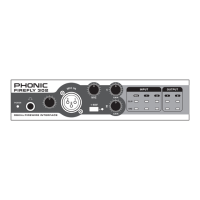
FireFly 302
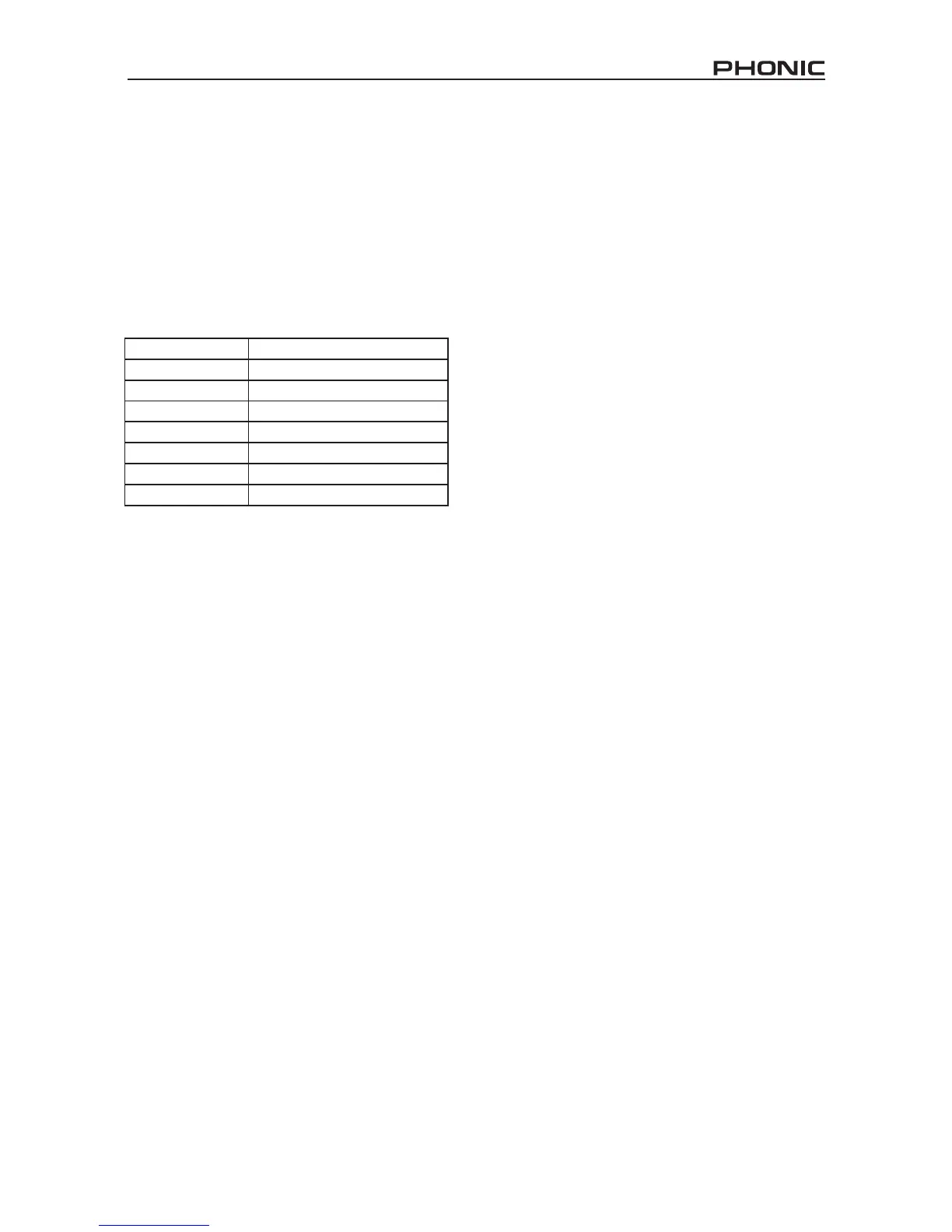
Channel Assignment
When using a Digital Audio Workstation
on a PC, and within the included Phonic
FireFly 302 control panel software, the
following names have been attributed to
the input channels of the FireWire mixer.
They can be altered through the control
panel software included with the mixer.
To alter an input channel’s name on your
computer, open the FireFly 302 control
panel software. On the left hand side of
the control panel, users will nd the set-
tings categories. By clicking “Input Chan-
nels”, the main window will display the
titles input channels. You can then high-
light the channel names and press the
“Edit Channel Name” button on the bot-
tom of the control window. A new window
will appear that will allow users to adjust
the channel name.
If you would like to use the FireFly 302 as
your default audio output device on you
PC, simply go into the Windows control
panel, and select “Sound and Audio De-
vices”. Select the Audio tab, and use the
pull-down menu to select the FireFly 302
from the list of available output devices.
The FireFly 302 can also be selected as
the default output device for individual
programs by editing said programs’ set-
tings / options.
Operating With DAW Software
After successfully completing the installation
process, the following process must be fol-
lowed to work efciently with the FireFly 302
mixer.
1. Open the Cubase LE program.
2. Go to the ‘Devices’ pull-down menu and
select ‘Device Setup’. On the left, select
‘VST Multitrack’.
3. From the ASIO Driver drop-down list se-
lect the ‘Phonic ASIO’ Driver. A pop-up
box will ask you if you want to switch the
ASIO driver. Click ‘Switch’. This com-
pletes the basic installation and setup.
4. Activating audio tracks received from the
FireFly mixer.
a. Go to the “devices” pull-down menu
and select ‘VST Inputs’. This will dis-
play the various inputs (“Phonic Fire-
Fly 302 Ch 1”, “Phonic FireFly 302 Ch
2”, etc.)
b. Activate 4 of these channels by click-
ing the “Active” button located next
to each channel name. Please note,
only 4 input channels can be activated
at any one time. This is a limitation of
Cubase LE, and if more input chan-
nels are needed, we suggest upgrad-
ing to a higher version of Cubase, or
use other DAW software.
5. For further instructions on the operation
of Cubase, please consult the user man-
ual by pressing F1 while the program is
open.
If you wish to reset the FireFly 302 ASIO
driver, simply go to the ‘devices’ pull-down
menu and select ‘device setup’. Simply click
“reset” and select the “Phonic ASIO Driver”.
Click ‘ok’ to continue and the FireFly 302
should once again become functional.
Channel Name FireFly Channel
Analog In 1 1/4” and RCA Analog Input 1
Analog In 2 1/4” and RCA Analog Input 2
Mic In Microphone Input
Mic In Microphone Input
S/PDIF In S/PDIF Input
S/PDIF In S/PDIF Input
Midi In MIDI Input


 To Next Page
 Loading...