5
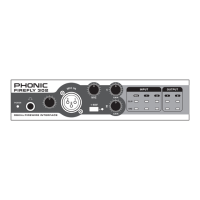
FireFly 302
Quick Installation
1. Turn your computer on and connect
the FireFly 302 to the computer via
the FireWire interface. Turn the
FireFly on by setting the power select
switch to DC IN - if using the 4-pin
connector and DC power supply - or
BUS - if using the 6-pin connector.
2. Run the setup.exe le on the included
driver CD, and follow the installation
instructions displayed on screen.
3. When prompted to “disconnect and
reconnect” the FireFly, change the
power select switch on the rear of the
device to OFF, then to DC IN (4-pin)
or BUS (6-pin).
4. Continue to follow the on-screen
installation instructions.
5. Open your audio editing / DAW soft-
ware, and check the FireFly’s ASIO
driver has been read successfully by
the program. This is usually one in the
“Devices” submenu. You may also
want to edit the FireFly’s properties.
This is usually done by clicking on the
Tools pull down menu, and selecting
“Properties”. In this area, you can
usually select the FireFly’s different
inputs and outputs, and assign them
to various channels. This, of course,
depends on the software you are
using, so check the software’s user’s
manual for more information.
Quick Start
1. Connect the DC converter to the 9-
12V jack in and change the power
selector switch to the DC IN position
(if using the 4-pin FireWire connector.
This is usually used with Notebook
computers). Alternatively, change
the power selector switch to BUS,
and use the FireFly’s 6-pin FireWire
connector.
2. Plug your FireWire cable into Fire-
Fly’s and your Computer’s FireWire
ports. The computer should detect
your FireFly 302.
3. Connect a microphone to the XLR
input connector. Talk into the mic and
check the LED level meter; adjust the
Mic level control as you see neces-
sary.
4. Connect any analog inputs you wish
to use. Remember that using the
corresponding RCA and 1/4” inputs
simultaneously will mix the signals,
and sount terrible; you’re better off
using only one at a time.
5. Open your audio software and con-
gure it so the FireFly 302 is set as
your input/output device. Please note
that the analog and S/PDIF outputs
cannot be used to output the signal
from the computer simultaneously.
6. Plug your headphones into the head-
phone output of the FireFly to monitor
the return signal.
7. Now you are ready to design high
resolution audio productions.


 To Next Page