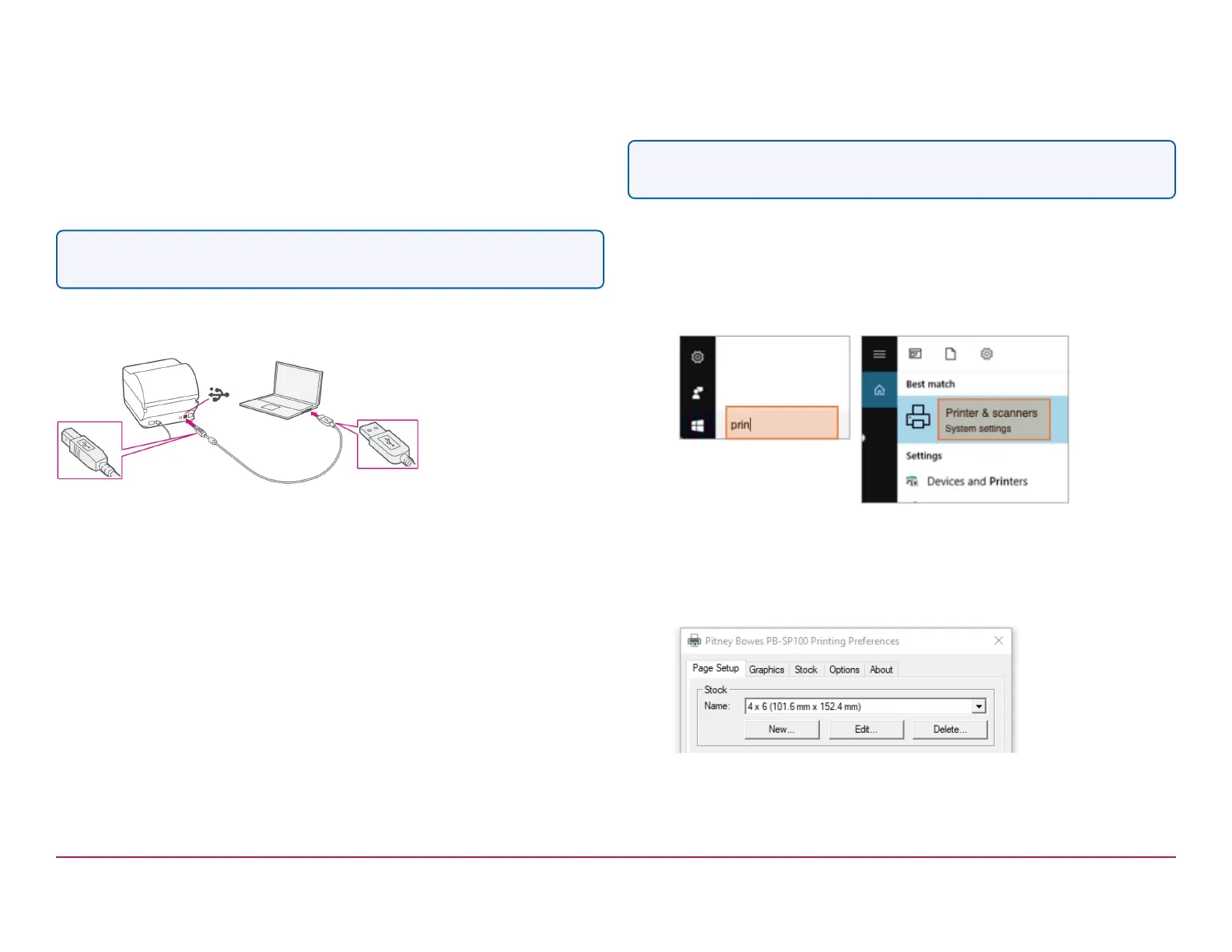
Connecting the Printer USB Cable
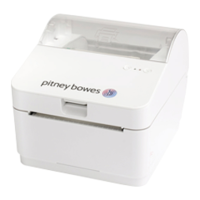
Connect your printer to your computer with the USB cable. Your Printer
Driver should automatically download and install. If this does not happen,
please follow Manually download the Printer Driver below. Otherwise
continue to Set the Stock and Print the Test Label.
Note- Ignore Windows errors that occur at this time.
Manually Download the Printer Driver
1. Visit pitneybowes.com/uk/support/products/network-sendkit-
sp100
2. Select the PB-SP100 printer driver for USB/ Wired Install -
PitneyBowes_2020.1_M-2_Certified.exe. from the Downloads
section.
3. Select Run or Open dependent on your browser.
4. Accept the licence agreement and follow the on screen prompts to
install.
5. Select PB-SP100.
6. Continue to follow the on-screen prompts and click Finish / Close.
Note- Check your downloads folder to install Printer Drivers.
Set the Stock and Print the Test Label
1. On a PC, use the Windows Search Box to search for Printers &
scanners and click to view the settings.
2. Select Pitney Bowes PB-SP100 and select Manage.
3. Select Printing preferences.
4. Select Stock
Pitney Bowes Installation Instruction November,2020 Page 5 of 17


 To Next Page