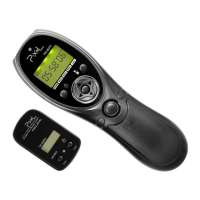
1 3
1 2
1 3
Sync Code-Matching
1. Press [MENU] enters to the menu.
2. Press the right or left button move to [SYNC] page.
3. Press the up or down button move to [YES].
4. Press [OK], the STATUS LED flash as red, the screen shows [Syncing…], and then receiver gets
into Sync Code-Matching.
5. Press and hold [Code] on transmitter for two sec, the STATUS LED flash red, and the transmitter
gets into Sync Code-Matching.
6. Finishing Sync Code-Matching, the STATUS LED of transmitter and receiver off to exit the Sync
Code-Matching status. If transmitter and receiver are in the same channel, receiver would receive
images sent by transmitter.
* If transmitter and receiver fail to sync code with each other within 15 sec, both will exit Sync Code-
Matching.
* Products without code-matching are originally under no code state, can receive signals regardless
channels.
Channel adjustment
Expert Transmitter:
Directly slide the Channel Switch to the channel you need. When power on, the times STATUS LED
blink shows the channel at present.
Expert Receiver:
When power on, the current channel would be shown on the top left corner of the screen. Slightly
press [CHANNEL SWITCH/WAKE UP] to change the channel.
Switching the channels of receiver can monitor the image from different channels.
[CHANNEL SWITCH/WAKE UP] button has the function of sleep and wake-up mode. Hold and press
it to get into the sleep or wake-up mode.
UsageUsage


 To Next Page