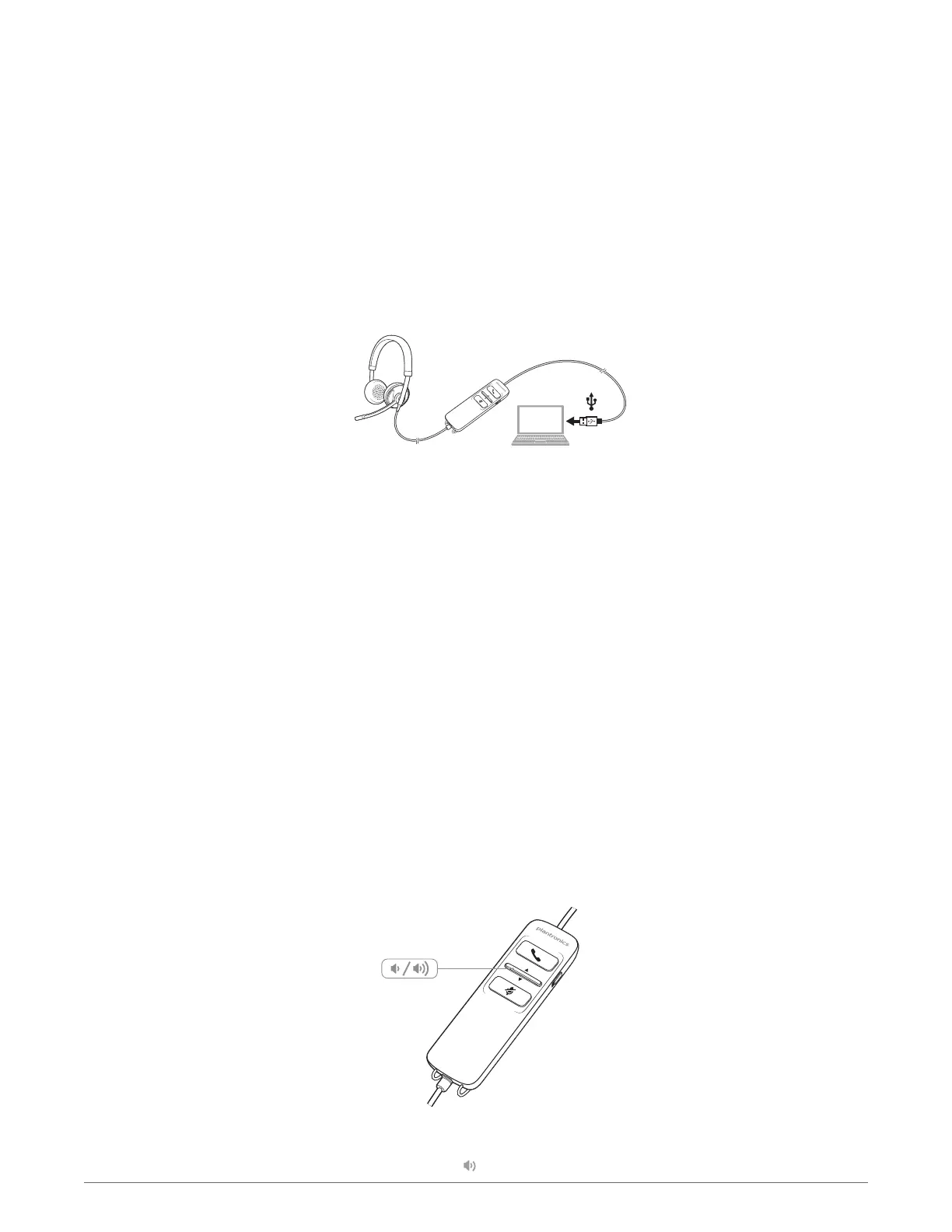
NOTE For call control and mute functionality, certain softphones require Plantronics software. See
plantronics.com/software.
1
Load Plantronics Hub software by visiting plantronics.com/software and clicking on "Download".
2
Connect the headset to the USB port of the computer. The headset will automatically power on.
3
Check your audio settings. Confirm the speaker and microphone settings for your PC softphone
are set to Plantronics 725.
•
PC audio setup for Windows 7 and Windows 8
Go to Control Panel > Sound > Playback tab and set the Plantronics 725 device as the Default
Communications Device.
•
PC audio setup for Windows XP
Go to Control Panel > Sound and Audio Devices, and in the Audio tab set the Plantronics 725
device for the Sound Playback.
4
Place a call using your softphone software.
ANC will reduce unwanted noise. Slide the switch towards ANC to activate.
1
To place a call
Dial number using your softphone software application.
2
To answer a call
• Put on headset to answer call with Smart Sensor technology or,
• If already wearing headset, press the Answer/End button
3
To end a call
Short press the Answer/End button.
Listening volume
1
Press the volume up button on the headset inline control to increase listening volume.
Daily use
Plantronics software
Connect PC and call
Active Noise Cancelling
Incoming/Outgoing calls
Adjust your headset
volume
7







 To Next Page