EasyManua.ls Logo

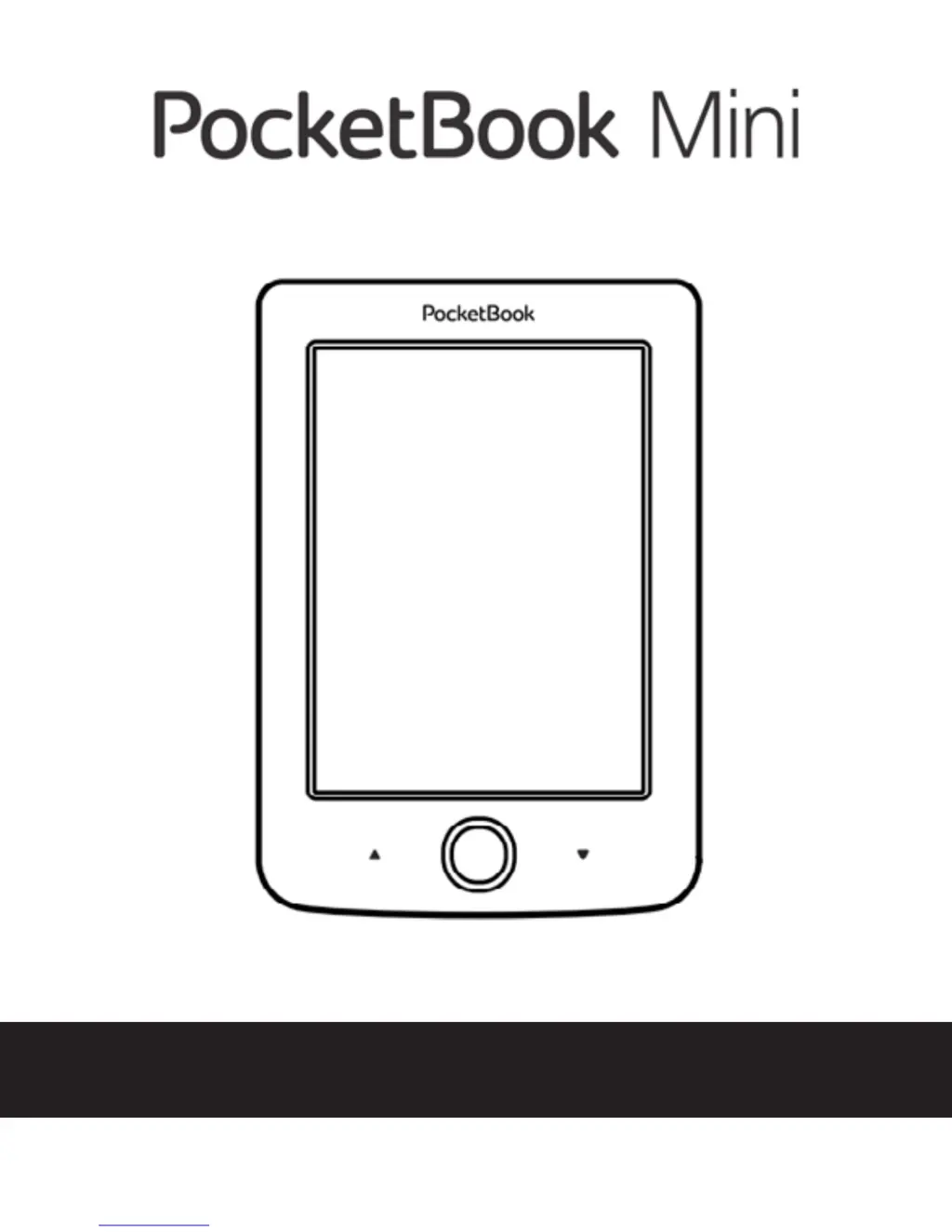
Pocketbook Mini - User Manual

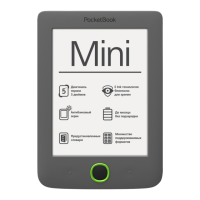
Pocketbook Mini
69 pages
Print Icon
To Next Page IconTo Next Page
Loading...
User Manual

Questions and Answers

  • D
    Dr. Dawn ConleyJul 31, 2025
    What to do if Pocketbook eBook Reader shows error about different firmware version?
    • T
      troy77Jul 31, 2025
      If your Pocketbook eBook Reader displays an error indicating that a different firmware version is installed, it means an older version of the firmware file is stored in the device's internal memory. To resolve this, delete the old version of the firmware file from the root folder of your device’s internal memory.
  • F
    Francisco LeonardAug 10, 2025
    What to do if Pocketbook Mini displays 'Upgrade image is corrupted or Image is empty'?
    • H
      hayesjohnAug 10, 2025
      If your Pocketbook eBook Reader says the upgrade image is corrupted or empty, this is because the SWUPDATE.BIN file is damaged, or there isn't enough space available on the device. To fix this, delete some files from the device to free up space. Then, copy the SWUPDATE.BIN file onto the device again. You may need to repeat the download from www.pocketbook-int.com.
  • T
    Tiffany CookAug 20, 2025
    Why does my Pocketbook eBook Reader say 'No upgrade image found'?
    • A
      Andrew PorterAug 20, 2025
      If your Pocketbook eBook Reader cannot find the upgrade image, it means the SWUPDATE.BIN file is missing. To solve this, remove some files from your device to create space, and then copy the SWUPDATE.BIN file to it again. You might need to download the file again from www.pocketbook-int.com.

Summary

Safety Precautions

Storage, Carriage and Usage Conditions

Proper handling and environmental conditions for the device's operation and storage.

Maintenance

Guidelines for keeping the device in good working order and ensuring its longevity.

Appearance

Device Controls and Ports

Description of physical buttons, ports, and their functions for device operation.

Getting Started

Charging Battery

Step-by-step guide on how to charge the device battery for initial use.

Power Management

Instructions on turning the device on/off and managing power settings for optimal battery life.

Loading Files

Process for transferring books and other files to the device via USB connection.

Navigation

Explanation of how to use the device's navigation buttons for interacting with menus and content.

Working with On-Screen Keyboard

Guide on using the virtual keyboard for text input, such as passwords or search queries.

Connecting to Internet

Steps to connect the device to Wi-Fi networks for internet access.

Main Menu

Reading Books

Turning Pages

Instructions on how to navigate between pages in a book using device buttons.

Settings

Firmware Update

Automatic Update

Steps to update the device firmware automatically via software.

Manual Update

Instructions for manually updating the device firmware using a PC.

Troubleshooting

Pocketbook Mini Specifications

General IconGeneral
ColorNo
TechnologyE Ink
Display diagonal5 \
Grayscale levels16
Display resolution800 x 600 pixels
Audio formats supportedNot supported
Image formats supportedBMP, JPG, PNG, TIF
Document formats supportedCHM, DjVu, DOC, DOCX, ePub, FB2, FB2.ZIP, HTM, HTML, PDF, PRC, RTF, TCR, TXT
RAM capacity256 MB
Maximum memory card size- GB
Internal storage capacity4 GB
Processor frequency1000 MHz
Battery voltage3.7 V
Battery capacity1000 mAh
Battery life (max)- h
Product colorGray
Housing materialPlastic
Weight and Dimensions IconWeight and Dimensions
Depth7.2 mm
Width100 mm
Height142.3 mm
Weight131 g

Related product manuals