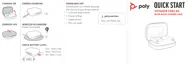
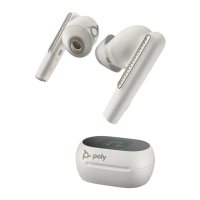
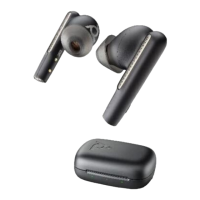
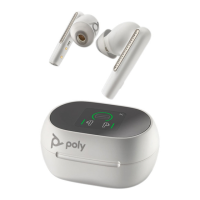
This document describes the Voyager Free 60 True Wireless Earbuds with Basic Charge Case, a system designed for easy connection to mobile phones, offering a range of features for communication and media consumption.
Function Description
The Voyager Free 60 system consists of wireless earbuds with wearing sensors and a charge case with battery-status LEDs. It facilitates true wireless audio for calls and media, integrating with various smart devices and applications. The earbuds are designed to provide an optimal fit and sound experience, with options for customization and advanced audio features.
Usage Features
Earbud Controls:
The earbuds feature raised buttons on the back, which can be pinched with the thumb and forefinger to control various functions. It's important not to press buttons on both earbuds simultaneously to ensure proper functionality.
- Call answer/end: Click once.
- Bluetooth pairing: Press and hold for 4 seconds.
- Pause/play media: Click once. Functionality may vary by application.
- Microsoft Teams: With earbuds idle, click to interact with Microsoft Teams (requires Teams model and desktop app).
- Siri/Google Assistant (Default phone assistant): Press and hold for 2 seconds.
Earbud Swipe Sensor Controls:
The swipe sensor is located next to the metallic windscreen on the top of each earbud stem. Swiping forward or backward adjusts levels or makes changes. Control can be done by swiping either earbud, but not both simultaneously.
- Volume up/down: While streaming media, swipe backward for volume up or forward for volume down. Each swipe changes the volume by one level. By default, volume control on earbuds is only active during media streaming, but this can be customized.
- Mute/unmute: During an active call, swipe to mute or unmute.
- ANC (Active Noise Canceling)/Transparency Mode: With earbuds idle, swipe to switch between selected ANC and Transparency Modes.
Power Management:
The earbud system powers on and off automatically.
- Power on: Open the charge case. If no voice alert is heard, click an earbud button once.
- Power off: Place earbuds in the case and close the lid.
- DeepSleep mode: Earbuds enter DeepSleep mode after 90 minutes if left powered on but out of range of the paired device. To exit, click each earbud button.
Connectivity and Pairing:
- Pair to mobile device:
- Put earbuds in pair mode by either pressing and holding an earbud button for 4 seconds until "pairing" is heard, or by opening the charge case lid with earbuds inside and pressing the case button for 4 seconds (charge case LEDs flash red and blue).
- Activate Bluetooth on the phone and search for new devices.
- Select "Poly VFree 60 Series." A "pairing successful" and "phone connected" voice alert confirms pairing.
- Reconnect: With Bluetooth active and in range, click an earbud to reconnect to the mobile device.
- Pair mode: Put earbuds in pair mode to connect to a new device or to pair again by pressing and holding an earbud button for 4 seconds until "pairing" is heard.
Basic Audio and Call Features:
- Adjust volume: Adjust on the connected mobile device or by swiping the earbud sensor during media streaming.
- Adjust earbud microphone volume (softphone): Place a test call and adjust volumes accordingly.
- Play or pause audio: Remove both earbuds (with active sensors) to pause, or put on one or both to resume. Alternatively, click an earbud button.
- Voice assistant (smartphone feature): Press and hold an earbud button for 2 seconds to activate the smartphone's default voice assistant (Siri, Google Assistant, Cortana).
- Use sensors: Smart sensors respond to wearing actions. Default settings include answering incoming calls when putting on earbuds and pausing/resuming music/media when taking off/putting on earbuds.
- ANC and Transparency Mode:
- Active Noise Canceling (ANC): Reduces external noise and enhances audio quality.
- Transparency Mode: Allows hearing surroundings while wearing earbuds.
- Switch between modes by swiping the earbud's sensor (when idle) or via the Poly Lens App.
- ANC settings include Adaptive (default, adjusts based on fit/movement), Standard (reduces office noise), and Off.
- Transparency Mode settings include Speech (default, optimized for face-to-face communication) and Environment (optimized for busy streets).
Make/Take/End Calls:
- Make a call: Dial using the connected mobile device.
- Answer or end a call: Press an earbud button once, or put on one or both earbuds (with smart sensors active).
- Mute: Swipe an earbud to mute/unmute, or mute from the paired mobile device.
- Answer a second call: Click the earbud button to end the current call, then click again to answer the new call.
- Redial last outgoing call: Double-click an earbud button.
- Answer calls from a second device: When on a call, a ringtone notifies of an incoming call from a second paired device. Click an earbud button to end the current call, then click again to answer the new call.
More Features:
- Customize earbud swipe settings: Use Poly Lens App to customize swipe sensor actions for idle, on-call, and streaming media activities. Options include switching ANC/Transparency Mode, adjusting volume, status check, mute/unmute, ANC on/off, hold/resume call, and track forward/backward.
- Customize ANC and Transparency Mode settings: Choose preferred settings for ANC and Transparency Mode in the Poly Lens App.
Maintenance Features
Load Software:
Poly Lens App (Desktop and Mobile) is essential for device management and updates.
- Poly Lens Desktop App: Download at poly.com/lens.
- Poly Lens Mobile App: Download at poly.com/lens, App Store, or Google Play.
- Features available via Poly Lens App: Configure call control for softphones, change headset language, enable features, battery meter, update device firmware, manage notifications and alerts, schedule health and wellness reminders, view user guide, and Find MyHeadset.
Update Your Poly Device:
Keep firmware and software up-to-date for improved performance and new features.
- Go to Poly Lens Mobile App or Desktop App.
- Select earbuds from the device list.
- Click the update button to wirelessly update firmware/software.
Replace Eartips:
Eartips can be changed and locked in place for optimal fit and sound.
- Remove: Fold down the outer cone of the eartip to reveal the base connection. Loosen the notched eartip base from the earbud with a fingernail and remove, ensuring not to tear the outer cone. Alternatively, twist the eartip base to remove.
- Replace: Place the eartip base on the earbud microphone column and press into place until it clicks for a secure fit.
Charging:
- Earbuds: Place in the charge case to begin charging. Fully charged earbuds provide up to 5.5 hours of talk time (ANC off) or 5 hours (ANC on).
- Charge case: Plug into a computer or USB charging device using the supplied USB cable, or use a third-party Qi wireless charger (not included). For fastest charging, use a power outlet. The case recharges earbuds twice, providing up to 11 hours of additional talk time.
- Charge time: Approximately 3 hours for case and earbuds, 2 hours for earbuds only, and 2 hours for case only.
- Quick charge: 15 minutes of charging provides up to an hour of listening time.
- Wireless charging (Qi charging): Place the earbuds in the charge case, then place the case on a compatible wireless charger. Earbuds only charge when in the case, not directly on the wireless charger.
Check Battery Level:
- Listen to the battery level alert when putting on earbuds.
- View charge case LEDs: The center LED indicates case battery level; left and right LEDs show earbud battery level when earbuds are in the case. (Activate LEDs by opening the lid, pressing the case button, or connecting/removing the charge case from a power source).
- View battery level in Poly Lens App.
- Voice alerts indicate battery status: "Battery high" (Green, 3+ hours), "Battery medium" (Green, 1-3 hours), "Battery low" (Yellow, 10 min-1 hour), "Battery critical" (Red, <10 min).
Connect New Earbud:
To connect a replacement earbud to the existing system:
- Place both earbuds in the charge case.
- Close the case lid and wait for 10 or more seconds for the connection to complete.
Troubleshooting:
The manual provides troubleshooting steps for common issues related to pairing, audio, and general functionality. This includes checking volume levels, ensuring Bluetooth is enabled, resetting earbuds, and using the Poly Lens App for diagnostics and customization. For best audio performance during exercise, it is recommended to turn off wearing sensors in the Poly Lens App.

 Need help?
 General

 To Next Page