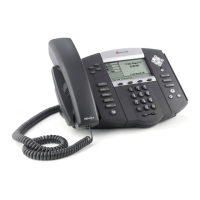
DIALING OUT:
Internal Calls
4 digit number
Ex: 5555
On Island, Neighbor Island Calls
10 digit number
Ex: 808-555-1212
Mainland Calls
10 digit number (area code + number)
Ex: (555) 555-1212
Toll-free Calls
1 + 10 digit number (1 + area code + number)
Ex: 1 + (800) 555-1212
International Calls
011 + country code + city code + number
Ex: 011 + 19 + 66 + local number
How to Place a Call
Using the Handset
1. Pick-up the handset.
2. Dial a number.
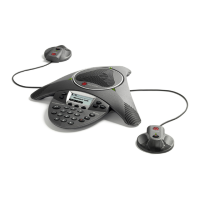
Using the Speakphone
1. Dial number with handset on cradle
and press Dial.
2. You can pick up the handset for a
private conversation.
How to Call Forward
Call Forward - Always, No Answer or Busy
Enable
1. From your home screen, press the Forward soft key
2. Select the call forwarding type. 1 for Always, 2 for No
Answer, 3 for Busy.
3. Enter the destination number for forwarding.
4. Press the Enable soft key.
Disable
1. From your home screen, press the Forward soft key
2. Select the call forwarding type.
3. Press the Disable soft key.
How to Set Do Not Disturb (DND)
To enable and disable:
1. Press the More key to see DND soft key.
2. Press the DND soft key.
How to Transfer a Call
Consultative Transfer (With Announcement)
1. While on an active call, press the Transfer soft key. (the
caller will be placed on hold)
2. Hearing dial tone, dial the number of that party you are to
transfer to.
3. When the party answers, announce the call and press the
Transfer soft key, completing the transfer of the original
caller.
Blind Transfer (Without Announcement)
1. While on an active call, press the Transfer soft key.
(the caller will be placed on hold)
2. When you hear the dial tone, press the Blind Transfer
soft key and dial the destination number of the party
you wish to transfer the call to. The call will be
transferred.
3. If you missed the Blind Transfer soft key, you can
press Complete Transfer soft key while still ringing.
Note: A consultative transfer will display the Caller ID of the phone that
transferred the call. A blind transfer will display the Caller ID of the original
caller.
How to Transfer a Call Directly to Voicemail
1. While on an active call, press the Transfer soft key.
(the caller will be automatically placed on hold)
2. Dial *55.
(You will hear an announcement play, “To transfer your call
to your mailbox, press the # key or hang up. To transfer your
call to another mailbox, enter the mailbox ID now, followed
by the # key. To cancel, press the * key.”
3. Enter the mailbox ID/extension that your wish to transfer
the call to, followed by the # key.
4. After pressing the # key, the transfer will be complete
How to Set Up a 3-Way Conference
Creating a Conference
1. While on an active call, press the More key.
2. Press the Confrnc soft key. (the caller will be placed on
hold)
3. When you hear the dial tone, enter the number of the party
you wish to have a conference with.
4. After the party answers, press the Confrnc soft key
again. All parties will be part of the active conference.
To Split and Re-join a Conference
1. Press the More soft key, select the Split soft key. (This will
place both active callers on hold as individual calls.)
2. Using the Navigation pad, choose one of the held callers.
3. Press the Resume soft key to speak with only that party.
4. To resume the conference, press the More soft key, then select
Join soft key.
To Manage a Conference
1. Press the Manage soft key.
2. Navigate between the two parties. You can use Far Mute,
Hold or Remove.
How to Access Placed/Missed/Received Call List
1. In the main screen, press the More soft key.
2. Press Recent Calls soft key. Use the Navigation pad, to
highlight the call you would like to view.
3. You can Dial, get Info, or Filter for different types of calls –
Missed, Received and Placed.
4. Press More to Clear or Sort.
How to Access Voicemail
1. To access your voicemail, press the Home key.
2. Navigate to Messages, push middle of Navigation to select.
3. Press Select or middle of Navigation pad to select.
4. Press Connect soft key.
5. Enter your voicemail passcode + # to proceed to the voicemail
options.
If you are accessing your Voicemail for the first time or
have multiple lines, please refer to the “How to Set up
and Manage Your Voicemail” guide.
05/2024


 To Previous Page
 Loading...