EasyManua.ls Logo

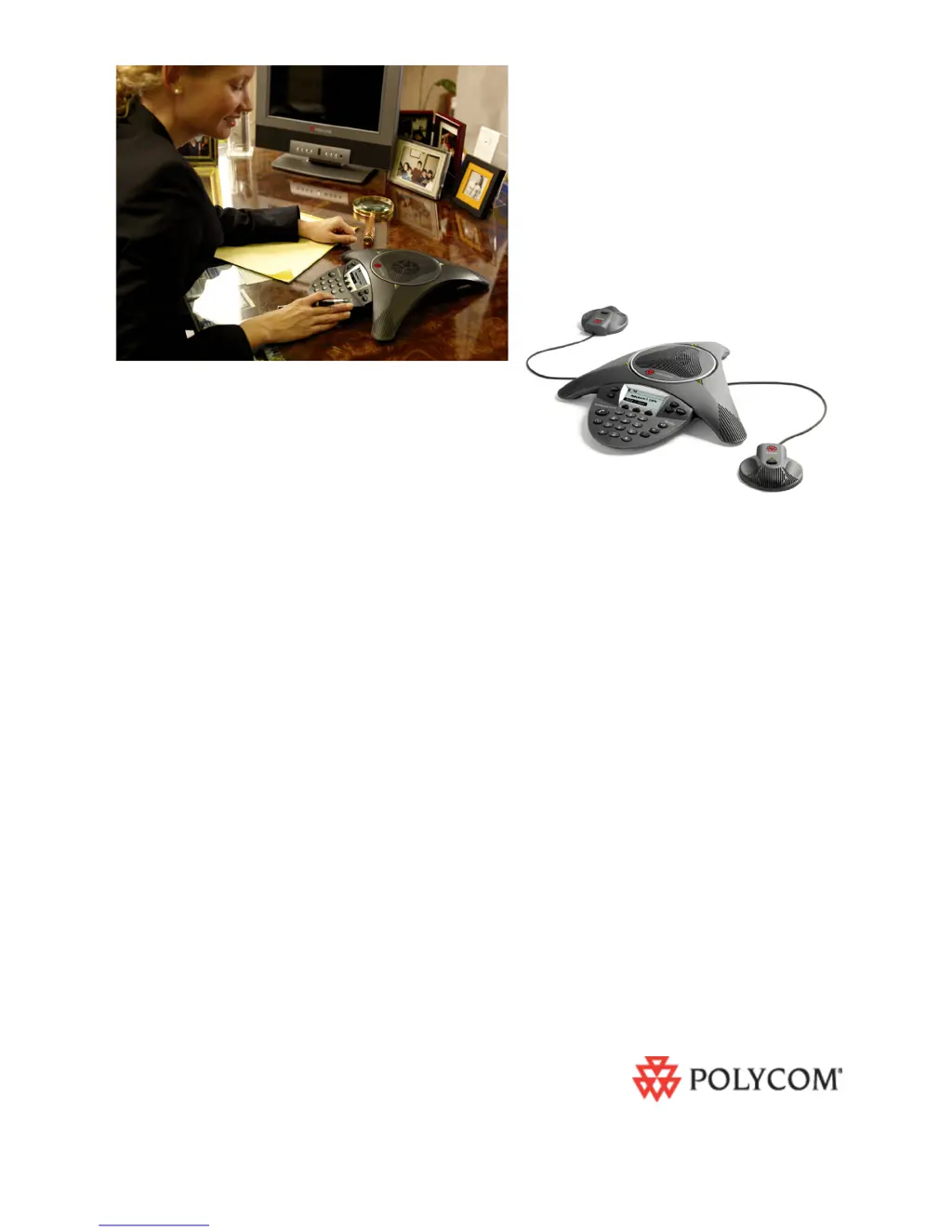
Polycom SoundStation 6000 - User Manual

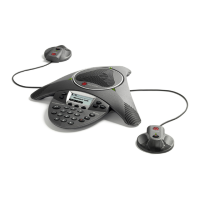
Polycom SoundStation 6000
88 pages
Print Icon
To Next Page IconTo Next Page
Loading...
April, 2008 Edition
1725-15645-001 Rev. A
SIP 3.0.2
User Guide
for the SoundStation
®
IP 6000 Phone
SIP 3.0.2

Table of Contents

Other manuals for Polycom SoundStation 6000

Questions and Answers

  • A
    Anna PageJul 26, 2025
    Why is power not correctly applied to my Polycom Conference Phone?
    • J
      James ShawJul 26, 2025
      If the Polycom Conference Phone doesn't seem to be getting power, check that the display is illuminated. Also, ensure the network cable is properly inserted on the underside of the phone; try unplugging and re-inserting the cable.
  • H
    Hayley SampsonJul 30, 2025
    What to do if the dial pad on my Polycom Conference Phone does not respond?
    • B
      burkestevenJul 30, 2025
      If the dial pad on your Polycom Conference Phone isn't responding, try the following: * Check if other feature keys are working. * Call the phone from a known working telephone to see if the display updates. * Check if the LAN port is active by pressing the Menu key, then select Status > Network > Ethernet, and verify that the LAN port is Active. * Check the network LAN cable connection at the switch or hub. Contact your system administrator to ensure the switch/hub port is operational. Before restarting your phone, it's recommended to contact your system administrator for detailed troubleshooting to avoid losing current status information.
  • W
    whitebrandonAug 3, 2025
    What to do if my Polycom Conference Phone is not in an active state?
    • J
      Jessica HigginsAug 3, 2025
      If your Polycom Conference Phone is not responding, try the following: * Press the keys more slowly. * Call the phone to confirm inbound call display and ringing are normal; then, try feature keys to access the Directory or Buddy Status screens. * To confirm the line is actively registered, press the Menu key, select Status > Lines > Line Information, and verify that your phone line is registered. Restart the phone to attempt re-registration with the call server.
  • N
    Nancy LaneAug 8, 2025
    Why is the ringer volume low on my Polycom Conference Phone, or why is the Ring Type set to Silent Ring?
    • M
      Melissa BellAug 8, 2025
      To adjust the ringer volume on your Polycom Conference Phone, press either the volume up or volume down key when the phone is in the idle state. Also, check that the Ring Type is not set to Silent Ring.
  • R
    Rachel LuceroAug 12, 2025
    How to adjust the speaker volume on Polycom Conference Phone?
    • T
      Tanya LongAug 12, 2025
      To adjust the speaker volume on your Polycom Conference Phone, press either the volume up or volume down key during a call.
  • S
    Samuel SanchezAug 17, 2025
    How to adjust the contrast on Polycom Conference Phone?
    • K
      Karen JohnsonAug 17, 2025
      To adjust the screen contrast on your Polycom Conference Phone, see the section on updating the display contrast.
  • G
    gbrownAug 21, 2025
    Why does the display of my Polycom Conference Phone flicker?
    • J
      Jackson ChapmanAug 21, 2025
      If the display on your Polycom Conference Phone appears to flicker, especially under fluorescent lighting, try moving the phone away from the lights or replacing the lights.

Summary

Getting Started with Your Phone

Parts List

Lists the items included in the basic SoundStation IP 6000 package.

Optional Accessories

Details optional accessories available for the SoundStation IP 6000 phone.

Installing the Phone

Provides instructions for installing the SoundStation IP 6000 conference phone.

Connecting Network and Power Sources

Explains how to connect the phone to network and power using PoE or AC power.

Connecting Optional Extension Microphones

Guides on connecting optional extension microphones to the phone.

Phone Features Overview

Describes the primary hardware features of the SoundStation IP 6000 phone console.

Understanding Line and Call Icons

Explains the meaning of various line and call state icons displayed on the phone screen.

Navigating Menus and Entering Data

Provides tips and procedures for navigating phone menus and entering data.

Customizing Your Phone

Configuring Basic Settings

Details how to configure basic phone settings like language, time, and display.

Adjusting Speaker and Ringer Volume

Instructions for adjusting the speaker and ringer volume levels on the phone.

Using Call Lists

Explains how to view, clear, and manage call records like missed, received, and placed calls.

Managing Contacts

Covers storing, adding, editing, and deleting contacts in the phone's local directory.

Managing Incoming Calls and Call Behavior

Covers distinguishing, rejecting, and diverting incoming calls and contacts.

Understanding Shared Lines

Explains the functionality and behavior of shared lines on the phone.

Using the Basic Features of Your Phone

Placing Calls

Provides instructions on how to place calls using different methods like off-hook and on-hook dialing.

Placing Calls Using Speed Dials

Guides on how to use speed dial index numbers for quick call placement.

Answering Calls

Details how to answer incoming calls, including handling shared lines.

Muting the Microphone

Explains how to mute and unmute the microphone during a call.

Holding and Resuming Calls

Instructions on placing calls on hold and resuming them.

Setting Up Conferences

Covers the process of setting up conference calls using soft keys.

Holding and Resuming Conferences

Instructions on placing conference calls on hold and resuming them.

Splitting and Ending Conferences

Details how to split a conference into individual calls and end a conference call.

Performing Call Transfers

Explains how to perform consultative and blind call transfers.

Forwarding Calls

Details how to set up static and dynamic call forwarding.

Using Do Not Disturb

Guides on enabling and disabling the Do Not Disturb feature to prevent calls from ringing.

Managing Speed Dial Entries

Explains how to update and use speed dial entries for quick dialing.

Using Voice Mail

Describes how to access and manage voice mail messages on the phone.

Using the Advanced Features of Your Phone

Handling Multiple Call Appearances

Explains how to manage multiple active and held calls simultaneously on the phone.

Managing Buddy Lists and Presence

Covers managing contacts, monitoring presence, blocking status, and integration with LCS 2005.

Sending and Managing Instant Messages

Details how to send, receive, and manage instant messages using the phone.

Restarting the Phone

Provides instructions on how to restart the phone for configuration or software updates.

Troubleshooting Your Phone

Installation Configuration Issues

Addresses common installation and configuration errors and their solutions.

Power and Startup Problems

Provides solutions for issues related to power and phone startup.

Controls and Input Issues

Offers guidance for problems with the phone's controls and dial pad.

Access and System Issues

Helps resolve issues with accessing screens, systems, and feature keys.

Calling Issues

Addresses problems related to making and receiving calls, including dial tone and ringing.

Display Problems

Provides solutions for display-related issues like no display or bad contrast.

Audio Problems

Offers solutions for issues with the speaker or microphone audio.

Testing Phone Hardware

Explains how to access diagnostic menus to test phone hardware components.

Safety Notices and Legal Information

Service Agreements

Information on contacting Polycom Authorized Reseller for service agreements.

Governing Law and Copyright

Details the governing law and copyright restrictions for the manual.

Limitations of Liability

Outlines Polycom's limitations of liability regarding product use and performance.

Polycom Limited Warranty

Covers the limited warranty terms and conditions provided by Polycom for the product.

Warranty Exclusions and Clauses

Lists warranty exclusions and states warranty remedies are exclusive.

Regulatory Compliance Overview

Covers FCC rules, modifications, installation, and various compliance marks (IC, CE, VCCI).

Electrical Safety Warnings

Provides crucial warnings regarding electrical safety when connecting the phone.

Polycom SoundStation 6000 Specifications

General IconGeneral
BrandPolycom
ModelSoundStation 6000
CategoryIP Phone
LanguageEnglish

Related product manuals