EasyManua.ls Logo

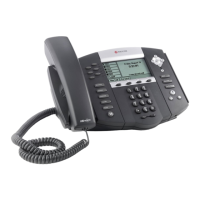
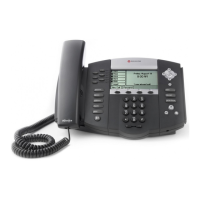
Polycom SoundPoint IP 560 - User Manual

Polycom SoundPoint IP 560
108 pages
Print Icon
To Next Page IconTo Next Page
Loading...
SIP 3.2 | July 2009 | 1725-12567-001 Rev. D
User Guide for the Polycom®
SoundPoint IP® 550/560 Phone

Table of Contents

Other manuals for Polycom SoundPoint IP 560

Questions and Answers

  • M
    Maria LeeSep 23, 2025
    Why can't I access Corporate Directory or Recording on my Polycom SoundPoint IP 560?
    • J
      Jennifer MedinaSep 23, 2025
      If you can't access features like Corporate Directory or Recording on your Polycom IP Phone, the license might not be installed or has expired. Follow these steps: * Press the Menu key, then select Status > Licenses. * Using the arrow keys, verify that the features that you want to use has a valid license. * Contact your system administrator.
  • S
    Shawn MartinAug 23, 2025
    What to do if there is no audio on the headset with Polycom SoundPoint IP 560 IP Phone?
    • C
      Caroline JenkinsAug 25, 2025
      If you can't hear audio on the headset with your Polycom IP Phone, ensure the headset is plugged into the jack marked 'Headset' at the rear of the phone. If there's an amplifier, make sure it's on and the volume is properly adjusted, and check the batteries if it uses them.
  • A
    Amanda GomezAug 25, 2025
    Why do people hear echo when using headset with Polycom IP Phone?
    • N
      nathanielblairAug 26, 2025
      If people you call hear an echo when you are using a headset with your Polycom IP Phone, enable the echo cancellation feature. Press the Menu key, then select Settings > Basic > Preferences > Headset > Echo Cancellation. Using the arrow keys, select Enabled, and then press the Select soft key. If the issue persists, contact your system administrator.
  • M
    Mark SandersAug 27, 2025
    What to do if dial pad on Polycom IP Phone does not respond?
    • S
      Stephanie HernandezAug 27, 2025
      If the dial pad on your Polycom IP Phone isn't responding, check the response from other feature keys or from the dial pad. Place a call to the phone from a known working telephone and check for display updates. Check if the LAN port is active or inactive via Menu > Status > Network > Ethernet. Also, check the network LAN cable connection. Contact your system administrator before restarting your phone, so they can troubleshoot your phone in more detail before restarting the phone and losing current status information.
  • A
    Adrian BoyerAug 27, 2025
    How to troubleshoot Polycom SoundPoint IP 560 with no power?
    • M
      Miss Jennifer MurphyAug 27, 2025
      If your Polycom IP Phone has no power, verify that no lights appear on the phone. Check if the phone is properly plugged into a functional AC outlet, and ensure it's not controlled by a light switch. If using a power strip, try plugging it directly into a wall outlet. If using PoE, the power supply voltage may be too high or too low. Try the phone in another room where the electricity is known to be working on a particular outlet.
  • K
    kwestSep 18, 2025
    Why does the line icon show an unregistered line icon on my Polycom SoundPoint IP 560 IP Phone?
    • I
      iobrienSep 18, 2025
      If the line icon shows an unregistered line icon on your Polycom IP Phone, it means the phone line is unregistered. Contact your system administrator.
  • F
    fmasonSep 15, 2025
    Why does my Polycom IP Phone display flicker?
    • B
      Benjamin AllenSep 15, 2025
      If your Polycom IP Phone display flickers, it might be due to older fluorescent lighting. Here's what you can do: * Move the SoundPoint IP 550/560 SIP phone away from the lights. * Replace the lights. * Use the screen capture feature. Contact your system administrator to determine if it is enabled.
  • B
    Brandon BallSep 17, 2025
    Why is there no audio on my Polycom SoundPoint IP 560 headset?
    • T
      tcarpenterSep 18, 2025
      If there's no audio on your headset with your Polycom IP Phone, the connections might be incorrect. Try these steps: * Make sure the headset is plugged into the jack marked 'Headset' at the rear of the phone. * If you're using a headset amplifier, ensure it's turned on and the volume is properly adjusted. If the amplifier uses batteries, check that they are fully charged.
  • J
    jennifersmithSep 6, 2025
    What to do if my Polycom SoundPoint IP 560 has no dial tone?
    • M
      Michael CarneySep 6, 2025
      If your Polycom IP Phone has no dial tone, it might not be getting power correctly. Here's what to check: * Make sure the screen lights up. * Ensure the LAN cable is properly connected at the back of the phone by unplugging and re-inserting it. * If you're using in-line power, ask your system administrator to check if the switch is providing power to the phone.
  • S
    scottloriSep 3, 2025
    Why does the display on my Polycom SoundPoint IP 560 flicker?
    • T
      Travis GonzalezSep 3, 2025
      If the display on your Polycom IP Phone flickers, it may be due to older fluorescent lighting. Try moving the phone away from the lights or replacing the lights. You can also use the screen capture feature if enabled; contact your system administrator to determine if it is enabled.

Summary

Getting Started with Your Phone

Phone Parts List

Details the physical components included in the phone package.

Assembling Your Polycom Phone

Provides instructions for connecting the phone's components.

Connecting Network and Power

Explains how to connect the phone to network and power.

Connecting Handset and Headset

Instructions for connecting the handset and optional headset.

Attaching the Phone Base

Guides on how to attach the phone base for desk or wall mounting.

Polycom Phone Features

Describes the main features and functions of the SoundPoint IP phone.

Customizing Your Polycom Phone

Configuring Basic Phone Settings

Steps for adjusting fundamental phone settings like time, date, and contrast.

Managing Incoming Calls

Customizing phone behavior for incoming calls.

Basic Phone Features

Placing Calls

Step-by-step guide to making calls using handset, speakerphone, or headset.

Answering Calls

Procedures for answering incoming calls in various scenarios.

Ending Calls

Methods for terminating active calls.

Hosting Conference Calls

Creating and managing multi-party conference calls.

Transferring Calls

Methods for transferring calls to other parties.

Forwarding Calls

Configuring the phone to forward incoming calls.

Enabling Do Not Disturb

Activating the Do Not Disturb feature to silence incoming calls.

Assigning Speed Dial Keys

Associating contacts with keys for quick dialing.

Advanced Phone Features

Multiple Call Appearances

Managing and viewing multiple active calls simultaneously.

Using Text Messaging

Sending and receiving text messages via the phone.

Troubleshooting Your Phone

Troubleshooting Power and Startup

Solutions for problems related to phone power and startup.

Troubleshooting Controls

Troubleshooting issues with the phone's buttons and dial pad.

Troubleshooting Access Issues

Resolving problems with accessing phone menus and network links.

Troubleshooting Calling Issues

Solutions for issues with making or receiving calls.

Troubleshooting Display Issues

Troubleshooting problems related to the phone's screen.

Troubleshooting Audio Issues

Solutions for issues with headset or speaker audio.

Polycom SoundPoint IP 560 Specifications

Display IconDisplay
display resolution320 x 160 pixels
display typebacklit grayscale graphical LCD
LED backlightcustom intensity control
Power IconPower
power over ethernetIEEE 802.3af
external power source48V DC @ 380mA
Operating Environment IconOperating Environment
operating temperature+10 to 40°C (+50 to 104°F)
operating relative humidity20% to 85%, non-condensing
storage temperature-40 to +70°C (-40 to +160°F)
Weight and Dimensions IconWeight and Dimensions
dimensions26.5 cm x 15 cm x 19 cm x 6.5 cm
phone weight1.1 kg
unit box dimensions12.5 in x 13.25 in x 3.5 in
unit box weight1.8 kg

Related product manuals