EasyManua.ls Logo

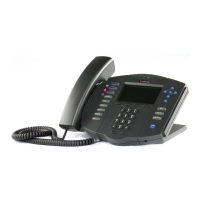
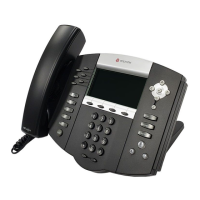
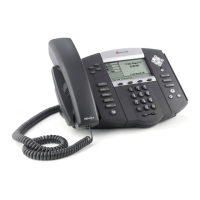
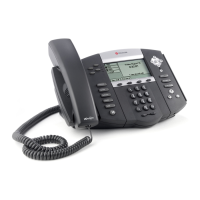
Polycom SoundPoint IP 550 - User Manual

Polycom SoundPoint IP 550
108 pages
Print Icon
To Next Page IconTo Next Page
Loading...
SIP 3.2 | July 2009 | 1725-12567-001 Rev. D
User Guide for the Polycom®
SoundPoint IP® 550/560 Phone

Table of Contents

Other manuals for Polycom SoundPoint IP 550

Questions and Answers

  • S
    stephensjillianSep 12, 2025
    Why is there no display or a bad display on my Polycom SoundPoint IP 550?
    • E
      erinmclaughlinSep 12, 2025
      If your Polycom IP Phone has no display, an incorrect display, or bad contrast, the phone might not be getting power. Try these steps: * Check that the screen is lit. * Ensure the LAN cable is properly inserted at the back of the phone (try unplugging and re-inserting it). * If using Power over Ethernet (PoE), have your system administrator check that the switch is supplying power to the phone. * Use the screen capture feature. Contact your system administrator to determine if it is enabled.
  • T
    Tracy Rogers DDSAug 25, 2025
    Why is there no audio on my Polycom IP Phone headset?
    • J
      John AdamsAug 25, 2025
      If you're not getting any audio on your headset with your Polycom IP Phone, make sure the headset is plugged into the jack labeled 'Headset' on the back of the phone. Also, ensure that the headset amplifier (if you're using one) is turned on and the volume is properly adjusted. If the amplifier uses batteries, check to see that they are fully charged.
  • C
    Cassie GarciaAug 25, 2025
    What to do if the dial pad on my Polycom SoundPoint IP 550 does not respond?
    • D
      Douglas RiveraAug 26, 2025
      If the dial pad on your Polycom IP Phone isn't responding, first verify that the phone is unlocked and that the information status doesn't say 'This Phone is Locked'. Next, check to make sure the phone is turned on by checking the display, other keys, and lights, and try to place a call. If these steps don't resolve the issue, contact your system administrator.
  • K
    Kimberly TuckerSep 23, 2025
    Why is the display flickering on my Polycom SoundPoint IP 550?
    • H
      horozcoSep 23, 2025
      If the display on your Polycom IP Phone is flickering, it might be due to certain types of older fluorescent lighting. Try moving the phone away from the lights or replacing the lights.
  • M
    Melissa ReynoldsSep 12, 2025
    Why do people hear an echo when I use my headset with Polycom SoundPoint IP 550?
    • K
      Kimberly GarnerSep 12, 2025
      If people hear an echo when you use a headset with your Polycom IP Phone, there might be an issue with the headset's echo cancellation feature. Here's how to address it: * Press the Menu key, then select Settings > Basic > Preferences > Headset > Echo Cancellation. * Using the arrow keys, select Enabled, and then press the Select soft key. * Contact your system administrator.
  • D
    Donald SmithSep 17, 2025
    How to troubleshoot a Polycom SoundPoint IP 550 IP Phone with no power?
    • Z
      Zachary SandersSep 17, 2025
      If your Polycom IP Phone has no power, try the following: Ensure no lights appear when the unit is turned on. Check if the phone is correctly plugged into a functional AC outlet, and ensure it's not controlled by a light switch that is off. If plugged into a power strip, plug it directly into a wall outlet. Test the phone in another room to rule out outlet issues.
  • D
    Daniel MoraSep 5, 2025
    How to check power supply on Polycom SoundPoint IP 550 IP Phone?
    • L
      leonmatthewSep 5, 2025
      If your Polycom IP Phone is not getting power correctly, ensure the screen is illuminated. Make sure the LAN cable is properly inserted at the back of the phone. If using in-line powering, have your system administrator check that the switch is supplying power to the phone.
  • L
    louis44Sep 5, 2025
    What to do if feature key on Polycom IP Phone is not working?
    • J
      Jill EvansSep 5, 2025
      If a feature key on your Polycom IP Phone isn't responding, press the keys more slowly. Check with your system administrator to see if the key has been mapped to a different function or is disabled. Place a call to the phone to check that inbound call display and ringing is normal. If successful, try to press feature keys within the call to access the Main Menu, for example. To confirm that the line is active, press the Menu key, and then select Status > Lines > Line Information. Verify that your phone line is registered. Reboot the phone to attempt re-registration to the call server. Contact your system administrator.
  • V
    Victoria PorterSep 18, 2025
    Why is there no audio on the headset connected to my Polycom SoundPoint IP 550?
    • S
      Stephanie CaseySep 18, 2025
      If there is no audio on the headset connected to your Polycom IP Phone, check these things: Ensure the headset is plugged into the jack marked 'Headset' on the phone's rear. If you're using a headset amplifier, make sure it's turned on and the volume is properly adjusted.
  • D
    Dr. Caleb BaldwinAug 30, 2025
    What to do if power is not correctly applied to my Polycom SoundPoint IP 550 or the SoundPoint IP Color Expansion Module?
    • S
      sschwartzAug 30, 2025
      If power is not correctly applied to your Polycom IP Phone or the SoundPoint IP Color Expansion Module, check that the screen is illuminated and make sure the LAN cable is properly inserted at the back of the phone. If using Power over Ethernet (PoE), have your system administrator check the PoE switch, and that EM power is enabled in the Network Configuration menu (if using an expansion module).

Summary

Getting Started with Your Phone

Parts List

Lists all components included in the phone package for initial setup.

Assembling Your Phone

Provides step-by-step instructions for physically putting the phone together.

Connecting Network and Power Source

Details methods for connecting the phone to the network and obtaining power.

Attaching the Base

Explains how to attach the phone base for desk or wall mounting.

Registering Your Phone

Guides users through the process of registering the phone with the network.

Features of Your Phone

Provides an overview of the phone's key functionalities and hardware components.

Using the Navigation Keys

Explains how to use the phone's navigation keys for menu interaction and data entry.

Customizing Your Phone

Configuring Basic Settings

Covers initial setup options like time, date, and display preferences.

Changing the Display Contrast

Instructions on adjusting the screen's contrast for better readability.

Changing the Backlight Intensity

Guides on modifying the screen's backlight level for different conditions.

Managing Contacts

Explains how to store, edit, and manage phone contacts in the local directory.

Managing Incoming Calls

Details how to customize phone behavior for incoming calls, like distinctive rings.

Diverting Calls

Instructions on setting up call forwarding rules for specific contacts or conditions.

Using the Basic Features of Your Phone

Placing Calls

Covers various methods for initiating phone calls using handset, speakerphone, or headset.

Answering Calls

Explains how to receive incoming calls using different available audio modes.

Ending Calls

Details the procedures for terminating active phone calls.

Transferring Calls

Provides steps for transferring an active call to another party.

Forwarding Calls

Guides on setting up rules to redirect incoming calls to another number.

Using the Advanced Features of Your Phone

Using Multiple Call Appearances

Explains how to manage and view multiple active calls simultaneously.

Using Text Messaging

Instructions on sending and receiving instant text messages via the phone.

Using Buddy Lists

Details how to manage a list of contacts to monitor their presence status.

Restarting Your Phone

Provides instructions for rebooting the phone to apply configurations or resolve issues.

Troubleshooting Your Phone

Power and Startup

Troubleshooting steps for issues related to powering on and initial startup of the phone.

Calling

Common problems and solutions related to making and receiving calls.

Displays

Troubleshooting tips for issues concerning the phone's screen display.

Audio

Solutions for audio-related problems, such as no sound or echo.

Regulatory Notices

Service Agreements

Information on obtaining service agreements for Polycom products.

Governing Law

Specifies the legal framework and jurisdiction applicable to the product.

Limitations of Liability

Outlines restrictions on Polycom's liability regarding product use and performance.

Safety and Compliance

Important safety warnings and compliance information for the device.

Index

Polycom SoundPoint IP 550 Specifications

General IconGeneral
Full duplexYes
Camera includedNo
Frequency range150 - 7000 Hz
Base station keys26 + 4
Channels quantity2 channels
Dimensions (WxDxH)265 x 150 x 190 mm
Networking featuresDHCP/Static IP
Ethernet LAN (RJ-45) ports2
Supported network protocolsFTP, TFTP, HTTP, HTTPS
Supported data transfer rates10/100 Mbit/s
Product colorGray
Storage temperature (T-T)-40 - 70 °C
Operating temperature (T-T)10 - 40 °C
Operating relative humidity (H-H)20 - 85 %
Power requirements48V DC
Volume controlDigital
Voice codecsG.722
Backlight color-
Display resolution320 x 160 pixels
SafetyUL/C-UL; CE Mark-1; EN 60950-1; IEC 60950-1; AS/NZS 60950
Certification- FCC Part 15 (CFR 47) Class B - ICES-003 Class B - EN55022 Class B - CISPR22 Class B - AS/NZS CISPR 22 Class B - VCCI Class B - EN55024 - EN61000-3-2; EN61000-3-3 - ROHS - Anatel - GOST - C-tick - CCC
Compliance industry standardsIEEE 802.3af; IEEE 802.1p;IEEE 1329; RFC 1889
Weight and Dimensions IconWeight and Dimensions
Weight2045 g

Related product manuals