EasyManua.ls Logo

Polycom SoundPoint IP 501 - User Manual

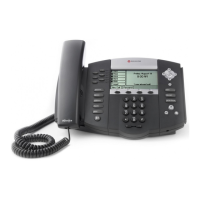
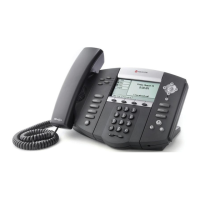
Polycom SoundPoint IP 501
8 pages
Print Icon
To Next Page IconTo Next Page
Loading...
Polycom SoundPoint/SoundStation/VVX IP
Series
Manual Reconfiguration Procedure
BroadSoft BroadCloud PBX 07/19/2017
WARNING: THIS PROCEDURE DESCRIBES HOW TO MANUALLY RECONFIGURE A POLYCOM SOUNDPOINT IP DEVICE TO WORK
ON THE BROADSOFT BROADCLOUD PBX NETWORK. ONCE THIS PROCEDURE HAS BEEN COMPLETED, ANY PRIOR
CONFIGURATION SETTINGS ON THE DEVICE WILL BE OVERRIDDEN, INCLUDING THE ADMINISTRATOR PASSWORD, AND THE
DEVICE WILL ONLY BE USABLE ON THE BROADSOFT BROADCLOUD PBX NETWORK. THE DEVICE MUST BE RETURNED TO THE
POLYCOM FACTORY DEFAULT CONFIGURATION BEFORE IT CAN BE USED ON ANY NETWORK OTHER THAN BROADSOFT
BROADCLOUD PBX.
Reset the phone to Factory Defaults before continuing.
For SoundPoint IP Series Models: 320*, 321*, 330*, 331*, or 335 (*unsupported)
1. Press the Menu button
2. Select “3. Settings…”
3. Select “2. Advanced…”
4. At the password prompt, enter key in 456 then press the Enter soft key
Note:
If the password is a known value other than 456, then enter that value instead
If the password is not 456 and the actual password is not known, then the remainder of this procedure cannot
be performed, and the device cannot be modified for use in the BroadSoft BroadCloud PBX network.
5. Select “1. Admin Settings…”
6. Select “1. Network Configuration…”
7. Using the up/down arrows, highlight “DHCP Menu: …” then press Select
8. Using the up/down arrows, highlight “Boot Server: …” then press Select
9. Using the right/left arrows, highlight “Static” then press the Ok soft key
10. Press Back/Left to return to the Network Configuration menu
11. Using the up/down arrows, highlight “Server Menu: …” then press Select
12. Using the up/down arrows, highlight “Server Type: …” then press Select
13. Using the right/left arrows, select “HTTPS” then press the Ok soft key
14. Using the up/down arrows, highlight “Server Address: “ then press Select
15. Press the # key to change the input type to URL
16. Using the numeric keypad, enter the following case sensitive URL:
For North America
OLDER DEVICES - https://polycom.sipflash.com
For North America
NEWER DEVICES - https://plcm.sipflash.com
For Europe
All DEVICES - https://polycom.broadcloud.eu

Other manuals for Polycom SoundPoint IP 501

Questions and Answers

  • P
    Pedro SmithSep 23, 2025
    Why can't I access Corporate Directory or Recording on my Polycom SoundPoint IP 501 IP Phone?
    • K
      Kelsey McgeeSep 23, 2025
      If you can't access features like Corporate Directory or Recording on your Polycom IP Phone, the license might not be installed or has expired. Follow these steps: * Press the Menu key, then select Status > Licenses. * Using the arrow keys, verify that the features that you want to use has a valid license. * Contact your system administrator.
  • D
    Danny RodriguezAug 23, 2025
    What to do if there is no audio on the headset with Polycom SoundPoint IP 501?
    • K
      Kelly RamirezAug 23, 2025
      If you can't hear audio on the headset with your Polycom IP Phone, ensure the headset is plugged into the jack marked 'Headset' at the rear of the phone. If there's an amplifier, make sure it's on and the volume is properly adjusted, and check the batteries if it uses them.
  • A
    atorresAug 25, 2025
    Why do people hear echo when using headset with Polycom IP Phone?
    • A
      annabyrdAug 25, 2025
      If people you call hear an echo when you are using a headset with your Polycom IP Phone, enable the echo cancellation feature. Press the Menu key, then select Settings > Basic > Preferences > Headset > Echo Cancellation. Using the arrow keys, select Enabled, and then press the Select soft key. If the issue persists, contact your system administrator.
  • A
    Angela KellyAug 27, 2025
    What to do if dial pad on Polycom IP Phone does not respond?
    • S
      Sara CollinsAug 27, 2025
      If the dial pad on your Polycom IP Phone isn't responding, check the response from other feature keys or from the dial pad. Place a call to the phone from a known working telephone and check for display updates. Check if the LAN port is active or inactive via Menu > Status > Network > Ethernet. Also, check the network LAN cable connection. Contact your system administrator before restarting your phone, so they can troubleshoot your phone in more detail before restarting the phone and losing current status information.
  • K
    Katelyn LongAug 27, 2025
    How to troubleshoot Polycom IP Phone with no power?
    • J
      juliarandolphAug 27, 2025
      If your Polycom IP Phone has no power, verify that no lights appear on the phone. Check if the phone is properly plugged into a functional AC outlet, and ensure it's not controlled by a light switch. If using a power strip, try plugging it directly into a wall outlet. If using PoE, the power supply voltage may be too high or too low. Try the phone in another room where the electricity is known to be working on a particular outlet.
  • R
    raymondamySep 18, 2025
    Why does the line icon show an unregistered line icon on my Polycom IP Phone?
    • J
      jeffgomezSep 18, 2025
      If the line icon shows an unregistered line icon on your Polycom IP Phone, it means the phone line is unregistered. Contact your system administrator.
  • T
    Tracy TaylorSep 15, 2025
    Why does my Polycom SoundPoint IP 501 display flicker?
    • P
      prubioSep 15, 2025
      If your Polycom IP Phone display flickers, it might be due to older fluorescent lighting. Here's what you can do: * Move the SoundPoint IP 550/560 SIP phone away from the lights. * Replace the lights. * Use the screen capture feature. Contact your system administrator to determine if it is enabled.
  • A
    Anne DurhamSep 17, 2025
    Why is there no audio on my Polycom SoundPoint IP 501 headset?
    • C
      Casey EstesSep 18, 2025
      If there's no audio on your headset with your Polycom IP Phone, the connections might be incorrect. Try these steps: * Make sure the headset is plugged into the jack marked 'Headset' at the rear of the phone. * If you're using a headset amplifier, ensure it's turned on and the volume is properly adjusted. If the amplifier uses batteries, check that they are fully charged.
  • J
    Jocelyn FullerSep 6, 2025
    What to do if my Polycom SoundPoint IP 501 IP Phone has no dial tone?
    • J
      Jose HallSep 6, 2025
      If your Polycom IP Phone has no dial tone, it might not be getting power correctly. Here's what to check: * Make sure the screen lights up. * Ensure the LAN cable is properly connected at the back of the phone by unplugging and re-inserting it. * If you're using in-line power, ask your system administrator to check if the switch is providing power to the phone.
  • D
    dennis79Sep 3, 2025
    Why does the display on my Polycom SoundPoint IP 501 flicker?
    • S
      Samuel GonzalesSep 3, 2025
      If the display on your Polycom IP Phone flickers, it may be due to older fluorescent lighting. Try moving the phone away from the lights or replacing the lights. You can also use the screen capture feature if enabled; contact your system administrator to determine if it is enabled.

Polycom SoundPoint IP 501 Specifications

General IconGeneral
Network Interface10/100 Mbps Ethernet
Number of Lines2
ProtocolsSIP
Audio CodecsG.711, G.722, G.729
Power over EthernetYes, IEEE 802.3af
SpeakerphoneFull-duplex
Headset SupportYes (via RJ-9)

Related product manuals