EasyManua.ls Logo

Polycom SoundPoint IP 650 - User Manual

Polycom SoundPoint IP 650
136 pages
Print Icon
To Next Page IconTo Next Page
Loading...
UC Software 4.0.1 | November 2011 | 1725-12648-001 Rev. F
Polycom® SoundPoint IP® 650
Phone User Guide

Table of Contents

Other manuals for Polycom SoundPoint IP 650

Questions and Answers

  • A
    Andrew LivingstonSep 23, 2025
    Why my headset isn't working with Polycom SoundPoint IP 650?
    • L
      Larry PrattSep 23, 2025
      If your headset isn't working with your Polycom IP Phone, check these: * Ensure the headset is plugged into the jack marked 'Headset' on the back of the phone. * If you're using a headset amplifier, make sure it's turned on and the volume is adjusted correctly.
  • D
    Donald WareAug 25, 2025
    How to troubleshoot no power on Polycom SoundPoint IP 650?
    • H
      Haley JonesAug 25, 2025
      If your Polycom IP Phone has no power, try the following: Ensure the phone is properly plugged into a functional AC outlet. If using PoE, check that the Ethernet cable is correctly plugged into both the phone and the outlet port. Contact your system administrator to confirm you're using a powered port enabled for PoE. Also, ensure the phone isn't plugged into an outlet controlled by a light switch that's turned off. If it's plugged into a power strip, try plugging it directly into a wall outlet. Finally, test the phone in another room with a known working outlet.
  • T
    tracicampbellAug 25, 2025
    What to do if power is not correctly applied to Polycom IP Phone?
    • A
      Alejandra AllenAug 26, 2025
      If power is not correctly applied to your Polycom IP Phone, ensure that the screen is illuminated. Check that the LAN cable is properly inserted at the back of the phone by unplugging and re-inserting it. If you are using in-line power, ask your system administrator to verify that the switch is supplying power to the phone.
  • C
    Christopher HernandezAug 27, 2025
    How to check LAN cable connection on Polycom SoundPoint IP 650 IP Phone?
    • S
      Sherri DoyleAug 27, 2025
      To check if the LAN cable is properly connected to your Polycom IP Phone, verify the termination at the switch or hub. Ensure the switch or hub is operational by checking for flashing link/status lights, or contact your system administrator. Check if the LAN port is active: press the Menu key, then select Status > Network > Ethernet. From the Ethernet page, scroll to the LAN port field and verify that it is active. Contact your system administrator if needed.
  • F
    fergusonallenSep 23, 2025
    Why does Polycom IP Phone screen flicker?
    • T
      Thomas CamposSep 23, 2025
      If your Polycom IP Phone display flickers under fluorescent lights: * Move the phone away from the lights. * Replace the lights.
  • K
    Kathleen FitzgeraldSep 12, 2025
    What to do if Polycom SoundPoint IP 650 IP Phone is not registered?
    • C
      Christopher ThompsonSep 12, 2025
      If you tried to make a call on your Polycom IP Phone and it wasn't registered, check with your system administrator to find out when your phone will be registered.
  • K
    kaitlyn05Sep 10, 2025
    How to adjust ring volume on Polycom IP Phone?
    • A
      Ana BradshawSep 10, 2025
      If the ringer on your Polycom IP Phone is too quiet, adjust the ringing level using the volume up/down keys on the front panel. Also, check the volume status of the handset, headset (if connected), and the hands-free speakerphone.
  • A
    Andrea RiceSep 12, 2025
    How to adjust contrast on Polycom SoundPoint IP 650?
    • B
      Brad HallSep 12, 2025
      To adjust the contrast on your Polycom IP Phone, refer to Display Contrast on page 2-3, or reboot the phone to return to a default contrast level (refer to Restarting Your Phone on page 4-17).
  • J
    jmcfarlandSep 3, 2025
    How to check license status on Polycom IP Phone?
    • K
      Kayla OdonnellSep 4, 2025
      To check the license status on your Polycom IP Phone, press the Menu key, then select Status > Licenses. Using the arrow keys, verify that the features you want to use have a valid license. If the license is missing or expired, contact your system administrator.
  • N
    njimenezSep 1, 2025
    Why is there no audio on my Polycom SoundPoint IP 650 IP Phone headset?
    • H
      harrismaureenSep 1, 2025
      If there is no audio on your headset when using your Polycom IP Phone, ensure the headset is plugged into the jack marked 'Headset' at the rear of the phone. Also, make sure the headset amplifier (if present) is turned on and the volume is correctly adjusted. If the amplifier uses batteries, check that they are fully charged.

Summary

Getting Started with Your Phone

Features of Your Phone

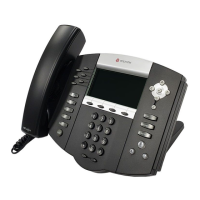
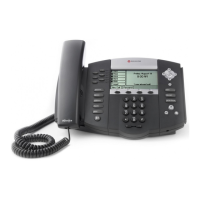
Describes the physical features and buttons of the Polycom SoundPoint IP 650 phone.

Before You Use Your Phone

Provides information on navigating menus, entering data, and understanding the phone's status bar.

Registering Your Phone

Explains the process of registering the phone with the system administrator.

Using the Polycom Web Configuration Utility

Details how to access and use the web interface for phone configuration.

Using the Basic Features of Your Phone

Placing Calls

Explains how to place calls using the handset, speakerphone, or headset.

Answering Calls

Details how to answer incoming calls when not on another call or when on an active call.

Hosting Conference Calls

Guides on creating and managing conference calls with multiple parties.

Locking and Unlocking the Phone

Covers features for securing the phone and managing access.

Using the Advanced Features of Your Phone

Using Multiple Call Appearances

Explains how to manage and view multiple active and incoming calls simultaneously.

Using Text Messaging

Details how to send and receive instant text messages on the phone.

Recording a Call

Guides on how to record active calls using a USB flash drive.

Broadcasting Messages Using Push-to-Talk and Group Paging

Describes how to send broadcast messages using PTT or group paging features.

Using the SoundPoint IP Backlit Expansion Module

Connecting the SoundPoint IP Backlit Expansion Module

Instructions for physically attaching the expansion module to the phone.

Features of the SoundPoint IP Backlit Expansion Module

Details the components and capabilities of the expansion module.

Assigning Speed Dial Keys

Explains how to configure line keys on the module for speed dialing.

Using the Busy Lamp Field

Describes how to monitor the status of other users via BLF indicators on the module.

Customizing Your Phone

Configuring Basic Settings

Allows adjustment of time, date, display contrast, ring type, and language.

Managing Contacts

Covers adding, editing, and deleting contacts in the phone's directory.

Managing Incoming Calls

Explains how to set distinctive rings and handle specific callers.

Troubleshooting Your Phone

Power and Startup

Addresses issues related to the phone not powering on or starting up.

Audio

Solves problems related to sound, speaker, and headset functionality.

Displays

Covers troubleshooting steps for display-related issues like no display or incorrect contrast.

Regulatory Notices

Polycom Limited Warranty and Limitation Liability

Outlines the product warranty terms, exclusions, and limitations of liability.

Safety and Compliance

Details FCC rules, installation guidelines, and industry compliance statements.

End-User License Agreement for Polycom Software

GRANT OF LICENSE

Defines the nonexclusive license granted for using the software with the product.

WARRANTY AND WARRANTY EXCLUSIONS

Details the software warranty period, exclusions, and limitations.

Polycom SoundPoint IP 650 Specifications

General IconGeneral
Full duplexYes
Camera includedNo
Frequency range150 - 7000 Hz
Base station keys26 + 4
Channels quantity2 channels
Dimensions (WxDxH)265 x 150 x 190 mm
Networking featuresDHCP/Static IP
Ethernet LAN (RJ-45) ports2
Supported network protocolsFTP, TFTP, HTTP, HTTPS
Supported data transfer rates10/100 Mbit/s
Product colorGray
Volume controlDigital
Voice codecsG.722
Display resolution320 x 160 pixels
Display number of colorsMonochrome
Storage temperature (T-T)-40 - 70 °C
Operating temperature (T-T)10 - 40 °C
Operating relative humidity (H-H)20 - 85 %
Power requirements24V DC / 500mA
SafetyUL 60950-1;CE Mark;CAN/CSA-C22.2 No. 60950-1-03;EN 60950-1;IEC 60950-1;AS/NZS 60950-1
Certification- FCC Part 15 (CFR 47) Class B - ICES-003 Class B - EN55022 Class B - CISPR22 Class B - AS/NZS CISPR 22 Class B - VCCI Class B - EN55024 - EN61000-3-2; EN61000-3-3 - ROHS
Weight and Dimensions IconWeight and Dimensions
Weight1260 g
Package weight2045 g

Related product manuals