
 Need help?
Do you have a question about the Polycom SoundStation IP335 and is the answer not in the manual?
Initiates dialing or redialing calls.
Dynamic buttons that change based on screen context.
Places the active call on hold.
Activates the built-in speakerphone.
Explains how to interpret icons and text on the phone's screen.
Step-by-step guide to receiving incoming calls.
Instructions for initiating phone calls.
Procedures for placing calls on hold and resuming them.
Information on accessing and managing voicemail.
Steps to retrieve voicemail messages from the IP335.
This document serves as a quick guide for the Polycom SoundStation IP335, an entry-level Voice over IP (VoIP) telephone designed to integrate with Broadcore communication systems. It's particularly suited for environments like lobbies or kitchens, offering essential communication features in a user-friendly package.
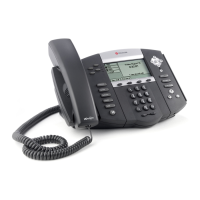
The SoundStation IP335 provides revolutionary voice quality through Polycom HD Voice technology, ensuring clear conversations. Its display is a high-resolution 102 x 33-pixel backlit graphical screen, which provides important information at a glance. The phone supports two lines, making it versatile for handling multiple calls. It also features integrated Power over Ethernet (PoE) support (Class 2), simplifying installation by allowing both power and data to be transmitted over a single cable. A hands-free speakerphone is included for convenience, enabling users to participate in calls without holding the handset. Advanced functionalities such as shared lines, busy lamp field, three-way conferencing, and XML microbrowser support enhance its utility. For connectivity, it has a two-port 10/100 Ethernet switch and a dedicated RJ-9 headset port for those who prefer using a headset. The phone is also wall-mountable, offering flexible placement options.
Understanding the phone's display is crucial for efficient use. When the phone is idle and ready, the display shows the day, date, and time, accompanied by a solid phone icon. For incoming calls, the display shows "Call from:" followed by the caller ID, with dancing musical notes and a blinking green Line 1 indicator. When making a call, it displays "Connecting to:" and the caller ID, along with a handset/speakerphone/headset icon and a solid green Line 1. During an active call, the display shows the time and duration of the call, the caller ID, a handset/speakerphone/headset icon, and a solid green Line 1. If a call is on hold, it indicates "Hold:" and the caller ID, with a phone icon featuring a blinking upside-down handset and a blinking red Line 1. A blinking red light and an envelope icon signify a voicemail message waiting, with "1 new message" and "Msgs" appearing as a softkey. A missed call is indicated by "1 new missed call" with no change to the icon. For a three-way call, "Active conference" is displayed with a handset/speakerphone/headset icon. If the phone is not registered, it shows a hollow phone icon, indicating it cannot place or receive calls, even for emergencies. The display also scrolls to show missed calls and voicemail messages, with the highlighted number indicating the number of screens to scroll through.
Answering calls is straightforward. To answer a call, simply pick up the handset. If using a headset, press the headset button. For a second incoming call while already on a call, the display will show "Call From" with the caller ID, and a call waiting beep will sound. The icon will show dancing musical notes. To answer the second call, press the "ANSWER" softkey, which automatically puts the first call on hold. To return to the first call, scroll down once and press the "RESUME" softkey. To mute a call, press the mute button. The display will show a microphone with an X through it, and the indicator light will turn solid red.
Making a call is best done by dialing all digits first, then picking up the handset or pressing the "Dial" hardkey. To put a call on hold, press the "HOLD" hardkey. To pick up a call from hold, press the "RESUME" softkey or pick up the handset. Alternatively, you can press the "Hold" hardkey or the "Line 1" hardkey and then pick up the handset.
Voicemail functionality requires initial setup. Users should confirm with their system administrator that voicemail is enabled and obtain the voice mail portal number and default password. More information is available on the broadcore.com support page. The first time accessing voicemail, users will need to set up a new passcode and record their spoken name by following the prompts. A blinking red message light, scrolling "new messages" on the display, an envelope icon on the phone, and a "Msgs" softkey indicate new voicemail. To check messages from the IP335, press the "Msgs" softkey, enter the passcode, and press pound (#). It's important to listen to, save, or delete all messages to clear the message waiting light. From any other phone, dial the voice mail portal number, press star (*), enter the passcode, and press pound (#). To clear the message waiting indicator without listening to messages, press star 99 (*99) and then the "Dial" hardkey.
The SoundStation IP335 also supports call transfer. For an announced transfer, while on a call, press the "Trans" softkey, dial the extension or phone number, and if needed, press "send" or "#". Once the second party answers, inform them of the transfer, then press "Trans" again to connect the calls. If the recipient declines, press "CANCEL" to speak to the caller. An announced transfer is recommended for mobile phones, as a blind transfer might go directly to mobile voicemail. For a blind transfer, press "Trans," then "Blind," dial the extension or phone number, press "send" or "#" if needed, and hang up. The call will transfer automatically. To transfer a call directly to voicemail, press "TRNSFER," dial Star 55 (*55), enter the extension number, press pound (#), and hang up.
Three-way calling is also supported. To make a three-way call, dial the first number or receive a first call, then press the "More" softkey, followed by the "Conf" softkey. The first call will be automatically put on hold, and a dial tone will be heard. To separate a three-way call, press the "Split" softkey, which puts both calls on hold. To pick up a specific call, scroll down to it and press "RESUME." To disconnect a call, select it and press "EndCall."
Redialing is simple: while the phone is idle, press the "Dial" button to view recent calls. Scroll to see other numbers, and press "Dial" again when the desired number is highlighted.
Call Park is a unique feature that allows a call to be put on hold and picked up from any other extension within the company. It's not a transfer, and once parked, the original phone is free for other calls. This feature is most efficient with overhead paging. Only one call can be parked at an extension at a time. If a parked call isn't picked up within a set period, it will ring back to the phone where it was originally answered and parked. This timer is configurable by the group administrator. To park a call using a PARK button, while on the call, press "More" twice, then "Park," dial the extension of the intended recipient, and press "Enter." It's recommended to use Instant Message or overhead paging to inform the person that a call is parked for them. To pick up a parked call, press the "ParkPck" softkey, enter the extension, and press "Enter."
The phone's top settings include speakerphone, volume adjustment, and ring type customization. To use the speakerphone, press the grey speaker button. Volume keys (located below the * 0 # buttons) adjust the ringer volume when idle, and call volume when on handset, headset, or speakerphone. To change the ring type, press "Menu," then "Settings" (three), "Basic" (one), and "Ring Type" (three). Use the down arrow key to scroll through ring types, press "Play" to preview, and "Select" to choose.
For maintenance, the phone may require a user reboot for new configurations or software upgrades. There are two ways to reboot: simultaneously press and hold the "Messages," "Mute," and both "Volume" keys for more than 3 seconds until a beep is heard and the display reads "Reboot Initiated." Alternatively, unplug the power supply, wait ten seconds, and then plug it back in. The reboot process is complete when the idle display is shown.
The phone also has an RJ-9 port for a headset. Refer to the headset manufacturer's instructions for use. Once set up, the phone can be configured to default to headset mode instead of speakerphone.
Missed call alerts can be cleared easily. When the phone is idle, press the down arrow key to review the calls. This list includes both received and unanswered calls, indicated by a telephone icon for unanswered calls and a handset icon for answered calls. Press the left arrow key to exit the list. It's important to note that a missed call doesn't necessarily mean a voicemail message; the caller might have hung up or the call could have been answered from another phone.
 General
| Full Duplex Speakerphone | Yes |
|---|---|
| Lines | 2 |
| Display | Graphical LCD |
| Audio Features | Acoustic Clarity Technology |
| Network Protocols | SIP |
| Ethernet Ports | 2 x 10/100 Mbps |
| Power over Ethernet (PoE) | Yes |
| Headset Port | Yes (RJ9) |



 To Next Page