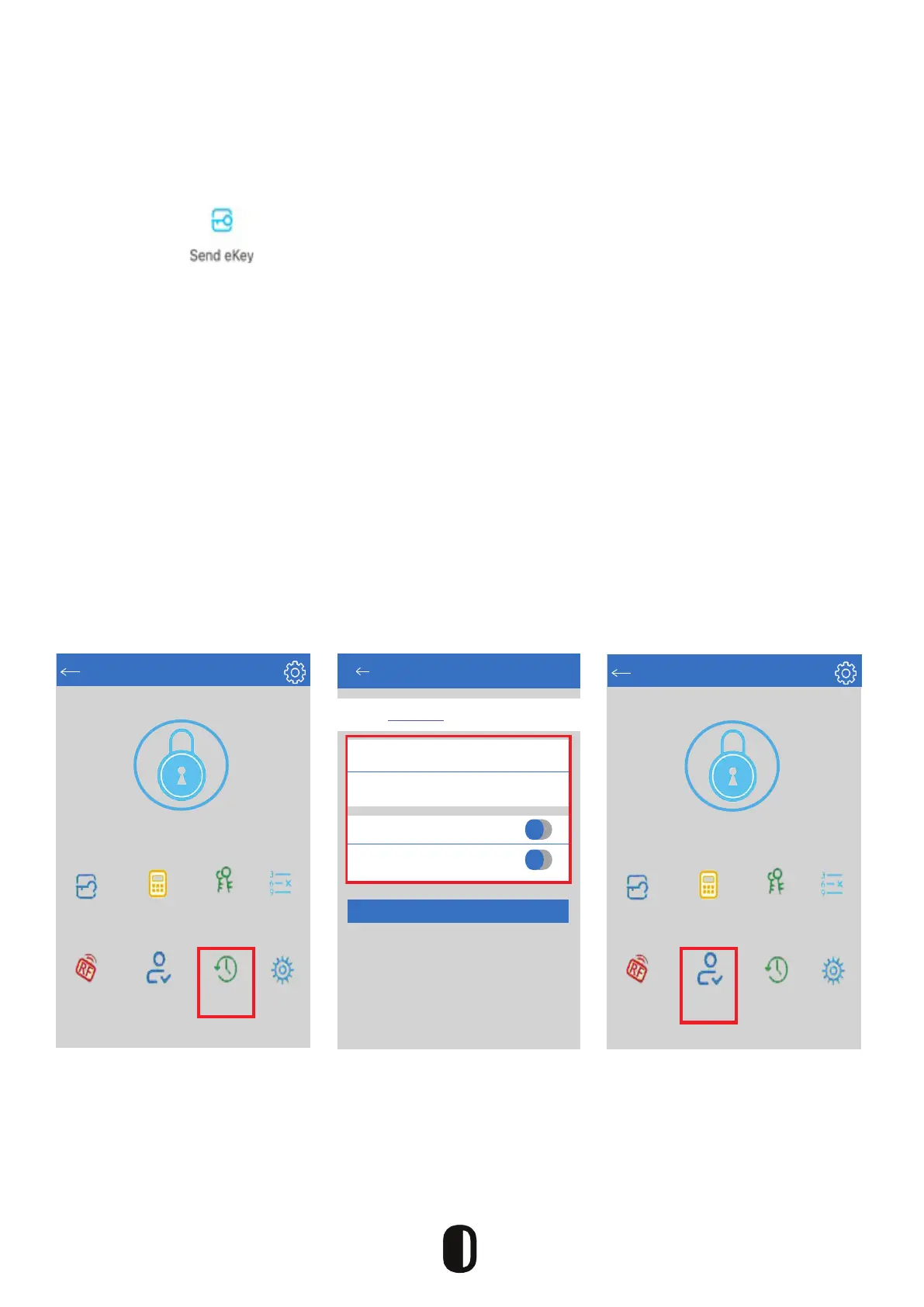
1. Click on “ ” as shown in the gure below. You can send the eKey to
other users of TTLock to authorize the unlock (the receiver must download the
app and setup an account).
2. Select e-key format (timed, permanent, one-time, recurring).
3. Enter the recipient’s account of TTLock, then set the name and effective time
of the eKey (The admin can choose to allow remote un-locking or disallowing,
authorized administrator or not, as shown below).
4. Then click “Send” (The recipient’s account has Bluetooth unlock permission
and only the administrator can authorize the ordinary key).
5. After the authorization is successful, the authorized key is the same as the
administrator’s interface.
*You can send keys, passwords, etc. to others. However, the authorized
administrator can not authorize others; only the main administrator.
Send eKey
Recipient
Enter Recipient’s Account
Name
Please enter a name for this eKey
Allow Remote Unlocking
Authorized Admin
Send
Timed
Permanent One-Time Recurrig
TTLock
T1A
Touch to UnLock. Long Press to Lock
Passcodes
IC Cards
Authorized
Admin
Records
Settings
Generate
Passcode
Send eKey
eKeys
TTLock
T1A
Touch to UnLock. Long Press to Lock
Passcodes
IC Cards
Authorized
Admin
Records
Settings
Generate
Passcode
Send eKey
eKeys
Sending E-Keys
13


 To Next Page