22
4.2.4 Meanings of Icons
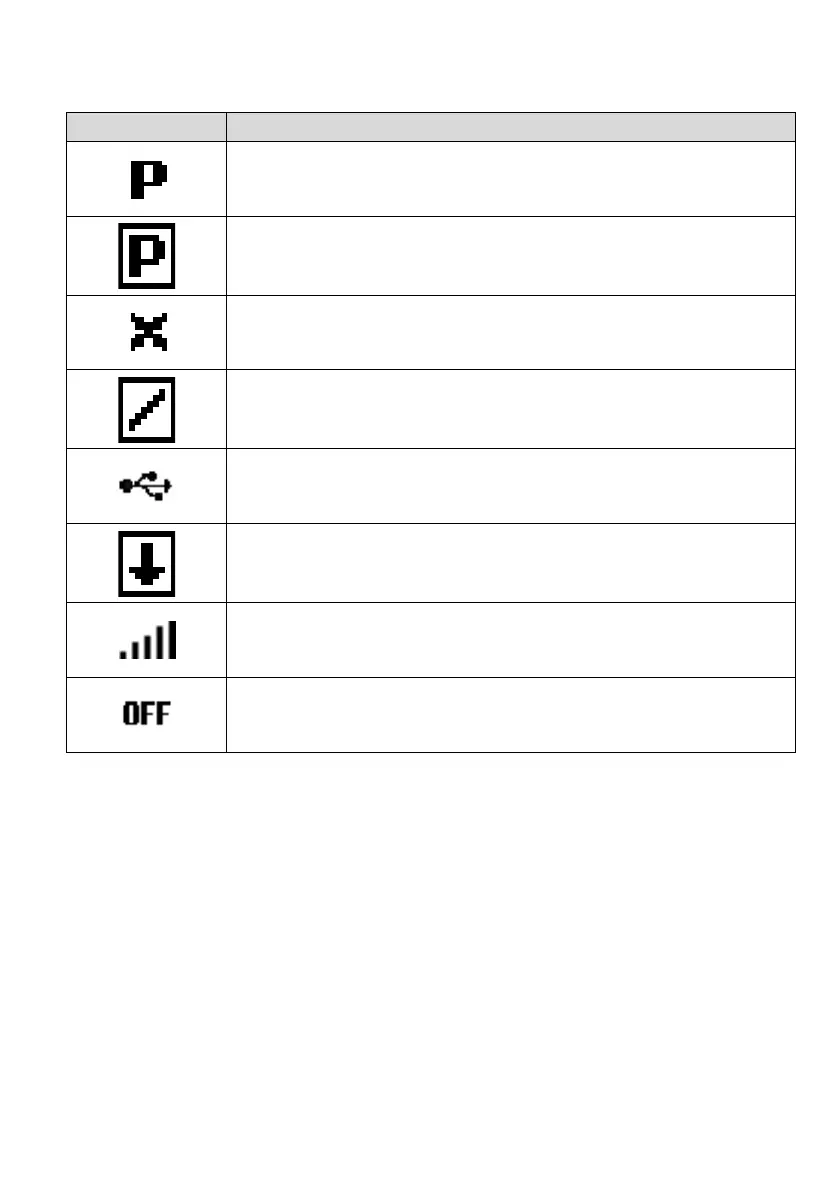
Failed to get into polling mode. Waiting for 15 minutes before retry
In polling mode but temporarily disabled because user is using the menu
Device is in SIM update mode. This means the modem will be kept powered on for a fixed
period of time, in case you are waiting for a SIM update to come through.
This is the signal strength indicator. This ranges from five flat lines (no signal) to 5 bars
increasing in height.
This replaces the signal strength indicator when the modem is switched off. It means that
the modem is fully powered off and that no communications to or from the network can
currently be made.
4.3 Important notes about how the Metron 2 operates
SIM updates
If the unit is in polling mode then it will automatically receive sim updates. Options are available from the
system menu to force the unit into a sim update mode for varying lengths of time, as well as the facility to view
the log of received updates (though please note these messages are inconsistent and cannot be relied upon –
please refer to your network provider to verify if relevant updates have been delivered to the device.
Timekeeping
The Metron 2 has 3 potential time sources. The first is manual setting of the time – this can be set using the
config tool under the tools menu and ‘set clock to PC time’. If you wish to set it using a command (locally or
remotely), see the ,0, command in the ‘configuration commands guide’. The second method is using NITZ –
this is when the network provides the time for you. It is only supported on some networks, so it cannot be relied


 To Next Page