14
When applying Switch Session and Home Screen Controls, you will be leaving current
stimulation session and disconnecting from currently used PowerDot PD-02 devices.
Although the devices will be continuing maintaining your stimulation session
parameters, you won’t be able to control them programmatically (e.g. adjust intensities or
stop/resume session using App controls) until your select your original stimulation
session and re-connect to your devices again. Re-connection is not immediate and it can
take up to 10 seconds, therefore, in all emergency situations, we strongly advice to get
yourself familiar and follow manual Terminating Stimulation protocols 2 and 3, as
provided below.
timulation session will resume at only 80% of the previous intensity values.
7. Terminating Stimulation
It’s important to know the quick ways to stop the stimulation session when something unexpected happens
(e.g. pads get detached or partially detached; patient starts feeling pain; the stimulation area gets wet, etc.).
There are 3 main ways to immediately terminate stimulation:
1) The recommended/most commonly used option: Tap Pause or Stop on the Stimulation Dashboard
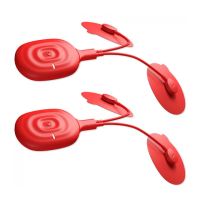
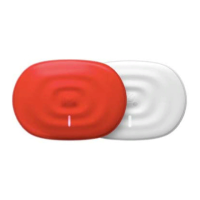
2) Alternatively press the Multifunctional Button on the PowerDot device
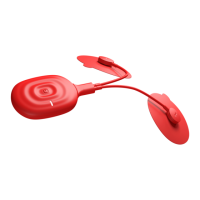
3) Or: quickly unplug the lead cable from PowerDot device
8. Carrying & Storing PowerDot
PowerDot PD-02 carry case is specifically designed for carrying and storing up to 2 PowerDot devices, their
lead cables and electrode pads.
To keep electrode pads clean and make them last longer, always re-attach them to the safety film in between
use, then store them in your carrying case pocket. You can use both sides of a single safety film to attach one
set of PowerDot electrode pads (one side for the rectangular pad and the other for the two round pads).
In multi-patient environment, it is always a good idea to mark patient pads with the patient name or initials on
the top surface or on the pads film, e.g. using resistant marker pen.
9. Deactivating PowerDot
PowerDots can be deactivated from your Doctor App either from within the Patient or or by manually
resetting the PowerDot device.
For manual deactivation: when PowerDot is OFF, press and hold Multi-function button for 3 seconds until
you see the power indicator blinking. Now you can activate your PowerDot.
Deactivation from the PowerDot Doctor App is performed from the Devices screen as per on-screen
instructions.
Upon successful deactivation, the power indicator will blink several times.


 To Next Page
 Loading...