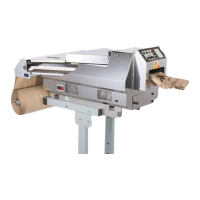
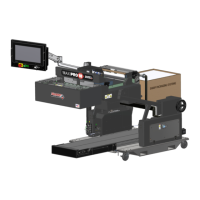
MAX PRO 18
©
Operator Manual
Original Printed in English
OPERATOR BUTTON
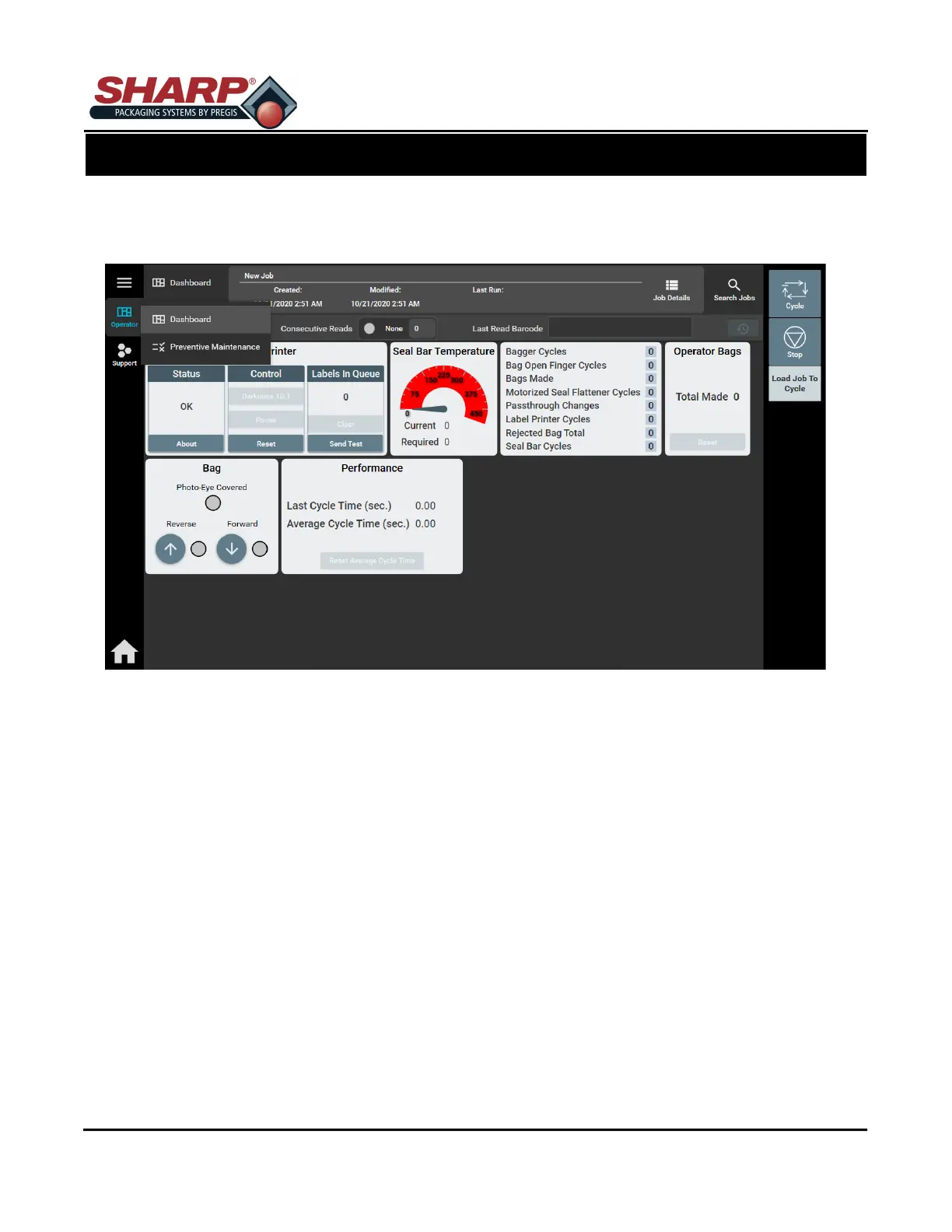
Pressing the Operator Button from the Home Screen opens the Operator Dashboard Screen. This screen al-
lows Operator to monitor bagger function. Access to this screen is not password protected.
JOB DETAILS
Pressing the Job Detail button opens a pop-up window with bag dimensions and bag feed speed.
SEARCH JOBS
Opens a window that lists all jobs saved in bagger. Green light indicates which job is currently loaded.
LABEL PRINTER
Status: Reported status from Zebra Label Printer. Pressing About button shows details of the printer.
Control: Pause button pauses printer. Only works if you are Service/Factory User.
Darkness: Allows user to change darkness of print. Only works if you are a Service/Factory User.
Reset: Resets internal printer faults (e.g.. Printhead errors)
Labels in Queue: Clear button clears out all labels from printer.
Send Test: Sends 1 test label to printer.
BAG
Photo-eye Covered: When Lit bag is over Photo-eye.
Reverse and Forward: Buttons jog film.
SCREEN NAVIGATION
SECTION 2 - CONTROLS
2-3


 To Next Page