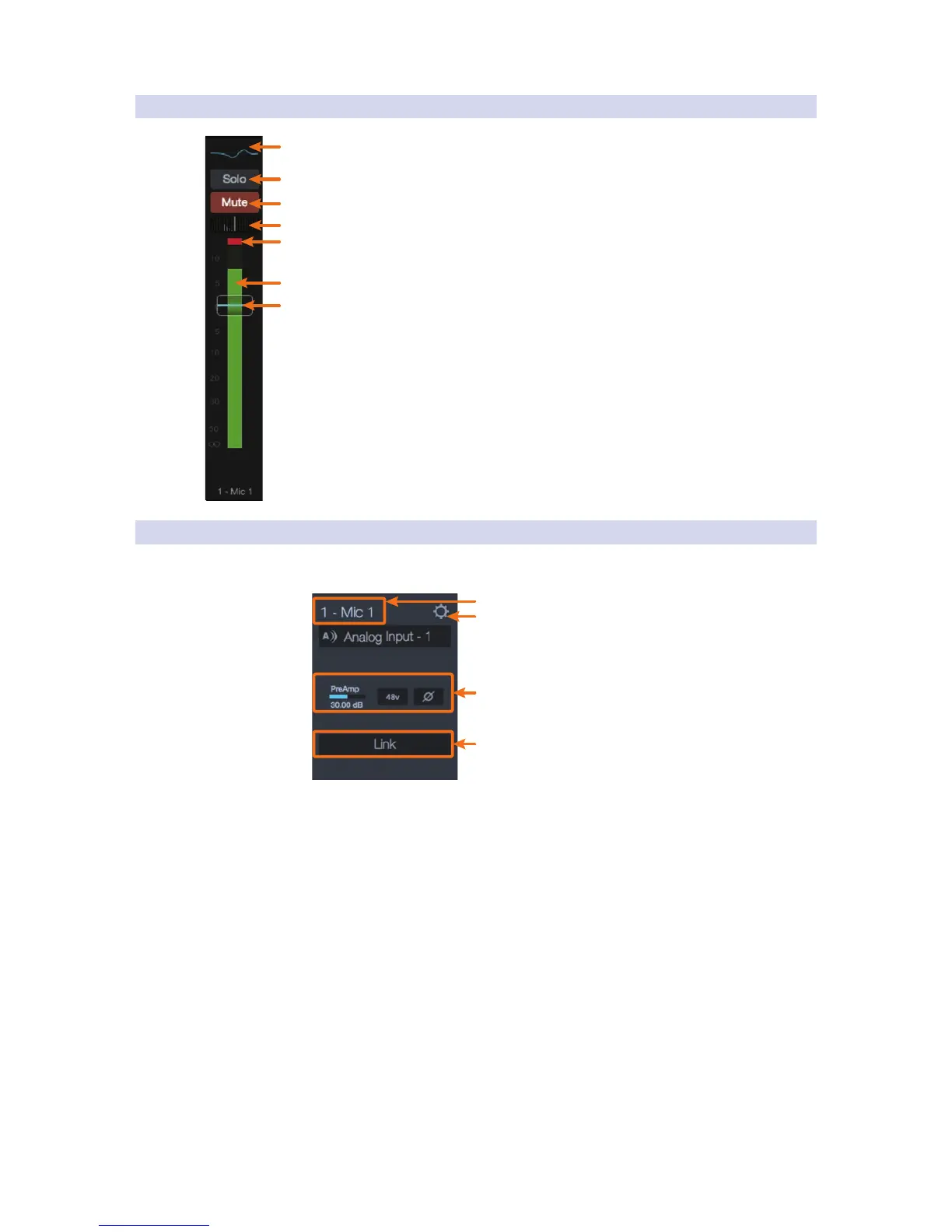
4.2.1 Channel Controls
1. Fat Channel Select. Opens the Fat Channel controls for the channel/mix. For
Inputs 1-8/4 and 11/7-18/14, this microview displays an overview of the EQ curve
you set in the Fat Channel. See Sections 4.2 for more information about the Fat
Channel section and its functions.
2. Solo button. Turns soloing on and off.
3. Mute button. Turns muting on and off.
4. Pan controls. The Pan control sets the channel’s relative position in the
left/right stereo mix. When a pair of channels is stereo linked, the Pan
control sets the spread of the channels in the left/right stereo mix.
5. Input Clip indicator. This indicates that your input
has exceeded 0 dB FS. Click to clear.
6. Level meter. Displays the pre-fader level of each channel.
7. Channel fader. Controls the overall level of the channel.
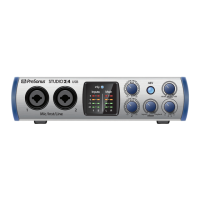
4.2.2 Channel Detail
When an input channel is selected, the following controls
will be available at the far left of the Fat Channel:
3
4
1
2
1. Channel name. To give each a custom name, simply
click on the default name to open a text field.
2. Preamp controls. For all analog input channels, phantom power
and polarity control are available from the Fat Channel.
Power User Tip: The Polarity control inverts the polarity of the selected
channel’s preamp signal by 180°. The Polarity button can be used to correct
audio signals that are out of phase and are canceling/reinforcing each
other. When recording with more than one open microphone, use the
polarity invert to combat phase cancellation between microphones.
3. Link. Stereo links channels in odd/even pairs
4. Channel Settings. Click on the Channel Settings button to assign
an icon to your channel. From the Channel Settings page you can
also choose to record the post-Fat Channel processing signal.
By default, all input signals are recorded pre-processing.


 To Next Page