9. Copy/Paste. To copy the Fat Channel settings to another channel,
simply click on Copy, select the channel you’d like to load the
settings to from the Channel Select menu, and click Paste.
10. Fat Channel A/B. UC Surface lets you create two complete Fat Channel
settings and compare the two. In this way, you can experiment with a
new sound without having to struggle to re-create your old standby, and
after several minutes of careful adjustment, you can verify that a new Fat
Channel setting is better than it was before you started tweaking.
11. Close. Closes the Preset Manager and returns to the mixer view.
4.4 Adding Effects
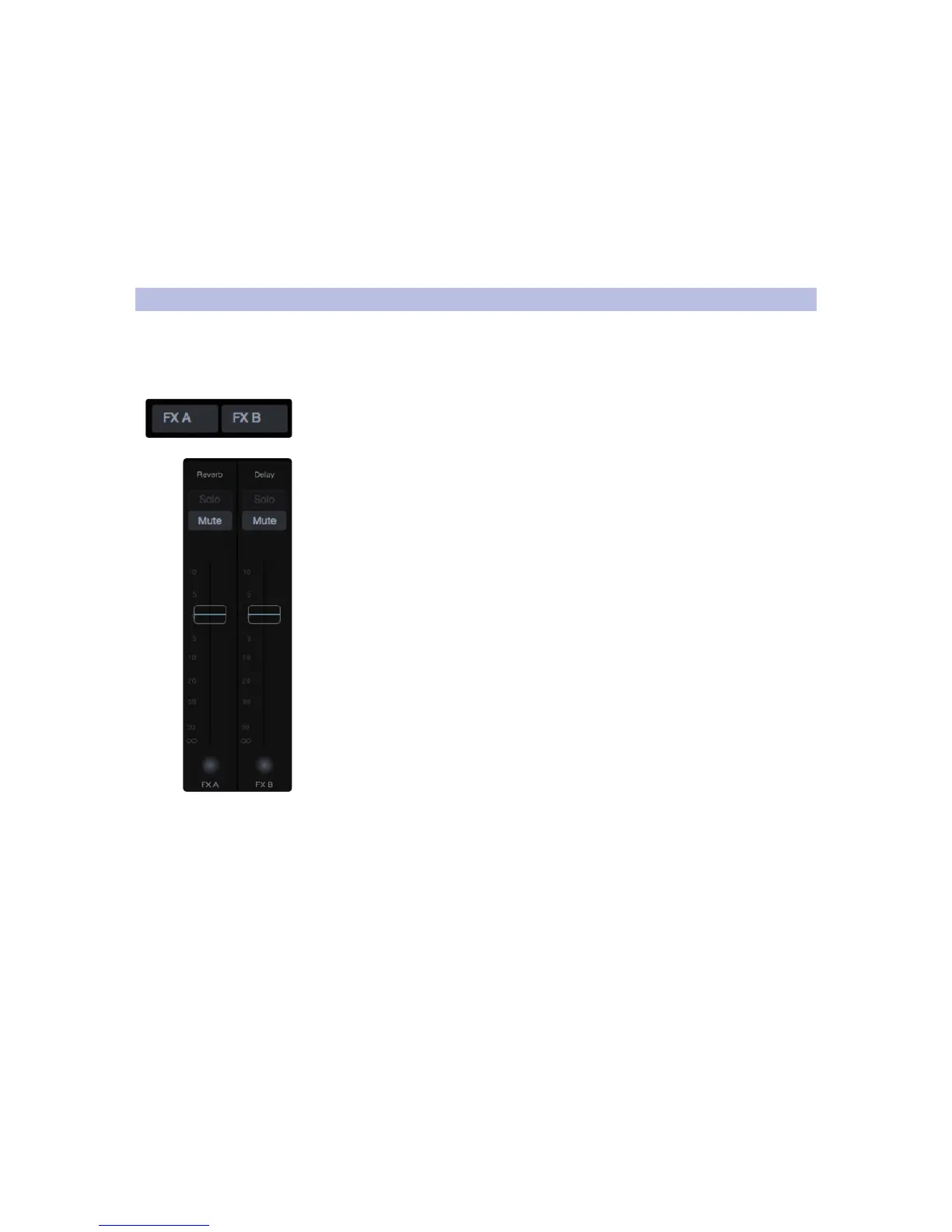
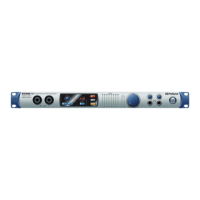
Your Studio 192-series interface is equipped with two internal effects
processors, each with a dedicated mix bus. The processor for FXA is dedicated
to reverb. The processor for FXB is dedicated to delay effects. The effects
returns for both of these buses can be routed to any of the mixes.
Creating an effects mix is just like creating a monitor mix: Simply click on the effects
mix and select and set the level for each channel to which you would like to apply
reverb or delay.
Effects returns for each processor are available at the end of the input channels in
each mix.


 To Next Page