43
5 Studio One Artist Quick Start
5.4 Monitor Mixing with Z-Mix
Studio 192 and Studio 192 Mobile
Owner’s Manual
5.4.1 Z-Mix Functions
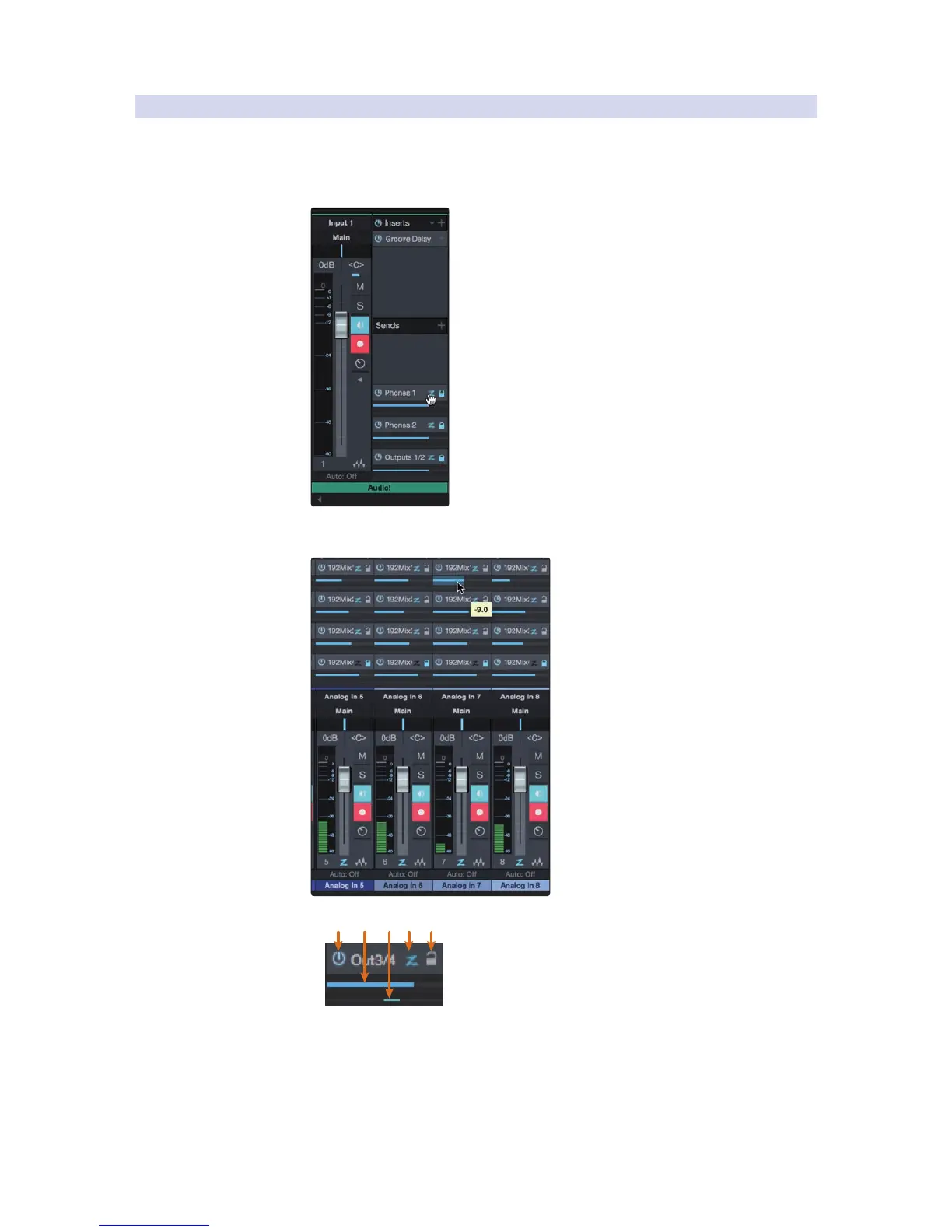
Once you have created a cue mix output, you will notice a special Send object
in the channels of the Console. This Send object is called a Z-Mix object.
In the Small Console view, Z-Mix objects appear in the
far left column of the extended channel.
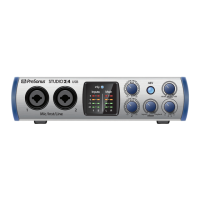
In the Large Console view, Z-Mix objects appear below
the Send device rack on each channel.
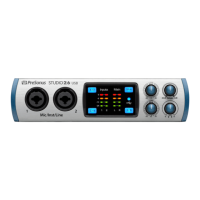
1. Activate Button. To completely remove any channel from
a Z-Mix, simply deactivate the Z-Mix object for that channel.
In most instances, you will leave this enabled.
2. Horizontal Level Fader. This is the channel’s Z-Mix volume control. By
default this level will be identical to the level set on the channel’s fader. Once
you move the Z-Mix level fader, the volume of that channel in the Z-Mix will
be independent of the main mix or any other cue mix in the session.


 To Next Page