• Undo. Reverts the mixer to the last recalled scene state.
• Quick Scenes 1-8. Loads the stored Quick Scene. This will override
all the current settings on the mixer based on the Scene filters
(see next portion for more information on Scene filters).
Scene Library
UC Surface allows you to create and store a library of scenes. A scene is like a
snapshot of your mix. It stores each Fat Channel parameter for every analog input, as
well as each fader’s position, the aux and effects mixes, channel mutes and solos, etc.
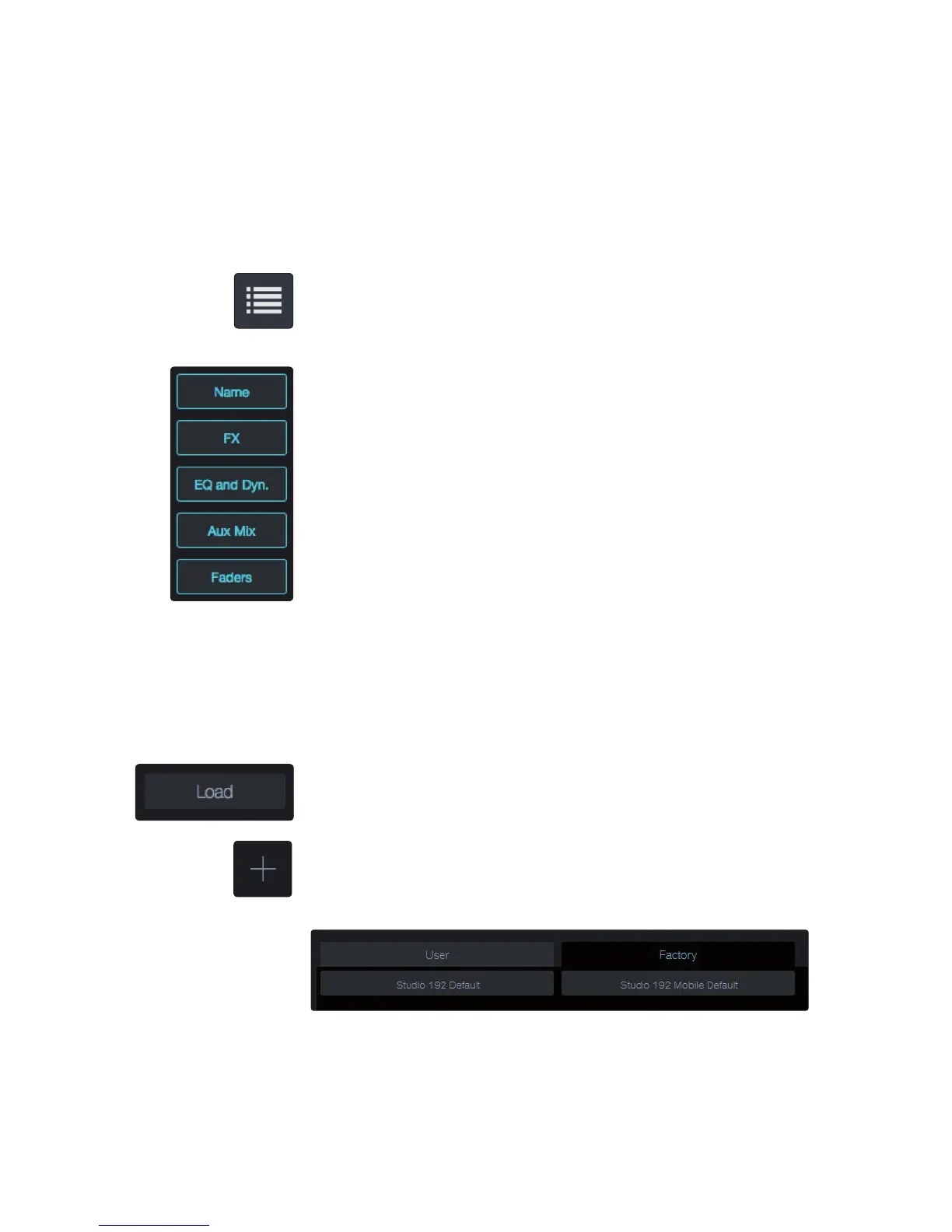
Click or tap on the Scene library button to open the Scene library.
Scene Filters
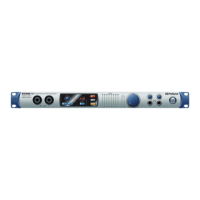
UC Surface mix scenes store every setting for your Studio 192-series interface.
You can choose to load the entire scene or filter out various portions of it.
• Name. All channel names and channel types
• FX. All parameters for the internal effects assigned to FXA and FXB
• Assigns. All output and bus routing, including:
- Channel and bus routing to mains and subgroups
- Stereo linking for all channels and buses
- Channel and bus solo states
- Talkback assignments and talkback on/off
• EQ and Dyn. All Fat Channel dynamics processing, filter
parameters, and pan positions for every channel and bus
• Aux Mix. All aux mixes parameters, including:
- Channel sends to aux mixes
- Channel sends to FXA and FXB
- Pre1/Pre2/Post position for each aux and FX bus
• Faders. All fader positions
• Preamps. All preamp settings
Load. Click on this button to load the currently select scene.
Add Scene (+). Click on this button to create a new scene from the current mixer
settings in the effect.
Studio 192 / Studio 192 Mobile Default
This scene returns each parameter to its default setting.


 To Next Page