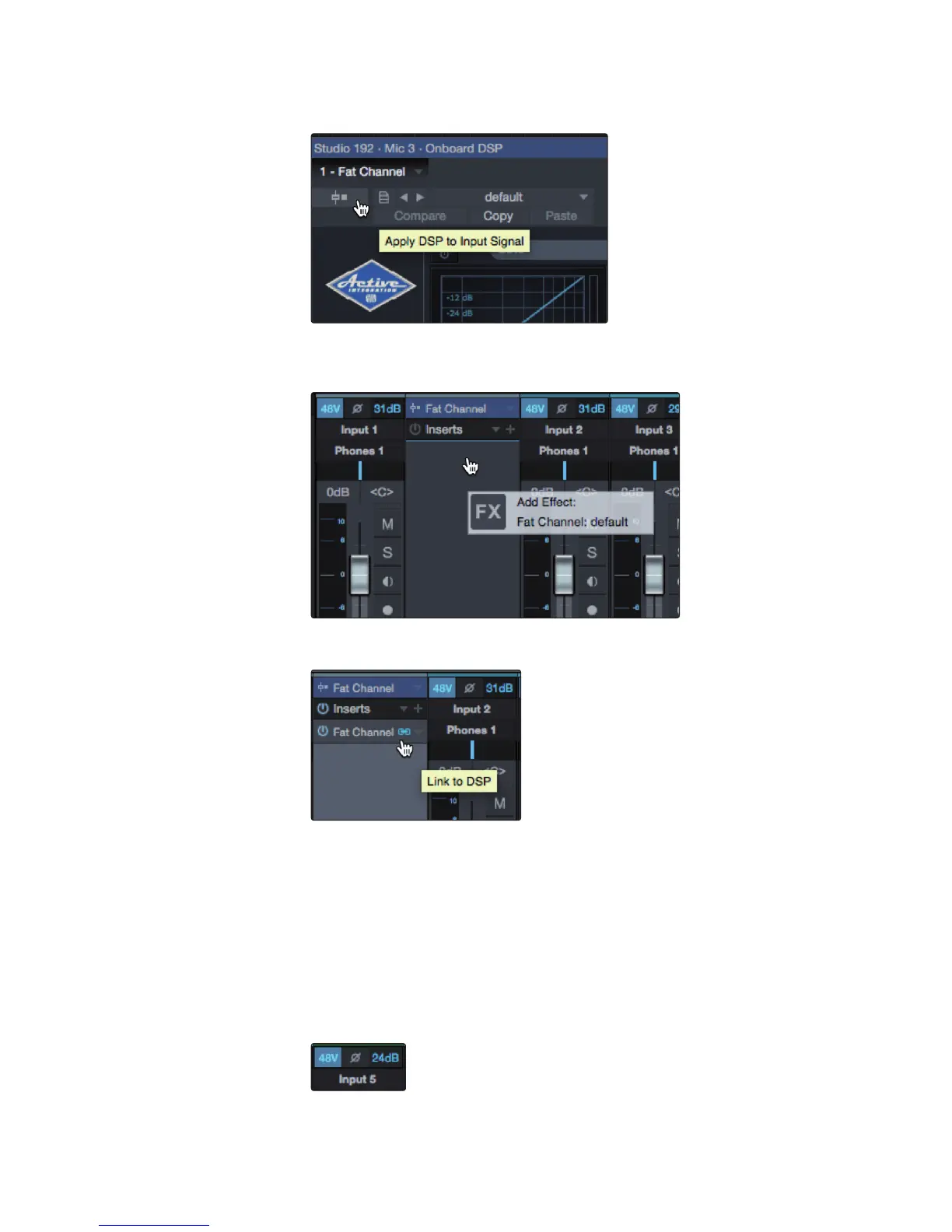
Click on the Apply DSP to Input Signal button in the upper left hand corner of
the Fat Channel plug-in to record the Fat Channel settings with your audio.
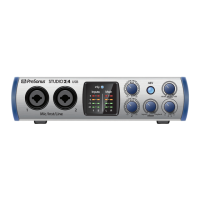
To listen your recordings through the same Fat Channel processing as the
audio you are monitoring, simply drag the DSP Fat Channel plugin down to
the channel insert to load an instance of the native Fat Channel plugin.
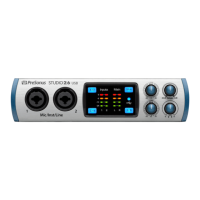
By default, the “link to DSP” button will be enabled. This links the parameters
between the native and DSP Fat Channel plugins. Editing either will change both.
Power User Tip: You can also drag in your favorite Fat Channel plugin presets from
the Browser. Once inserted on your channel, clicking the “link to DSP” button will
copy that preset to your DSP Fat Channel. This bidirectional workflow allows you
to copy settings from your DSP Fat Channel to your DAW insert or vice versa.
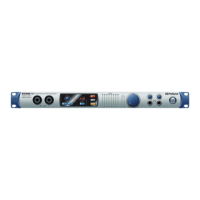
Preamp Control (Studio 192-series only). Controls the onboard
preamp controls on your Studio 192-series interface.
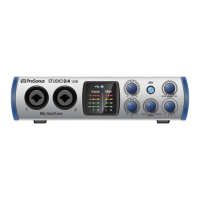
As soon as you set an analog Studio 192 or Studio 192 Mobile input as the input
source for a track in Studio One, you’ll find its preamp controls in the Studio One
mixer. If a DigiMax DP88 is connected to the ADAT inputs on your Studio 192, you’ll
find these controls available for those inputs as well. To adjust your preamp gain
from Studio One, simply click on the dB read-out. This will open the slider control.


 To Next Page