39
5 Buses and Routing
5.6 Main Mono/Center Bus (StudioLive 64S only)
StudioLive™ Series III
Owner’s Manual
5.5.1 Creating Internal Bus FX Mixes
There are at least two main advantages to creating an effects mix instead of inserting
an effect on a channel. First, several channels can be sent to a single processor. In
addition to greatly simplifying the number of parameters you have to control, this
can help to create a cohesive sound for your mix. Second, you can vary the level sent
from each channel to the processor, rather than patching the output directly into the
effect. This allows you to add a lot or a little of an effect to any given channel.
The internal effects buses are used much in the same way the Aux buses are used to
create monitor mixes. Let’s create a mix for FX A:
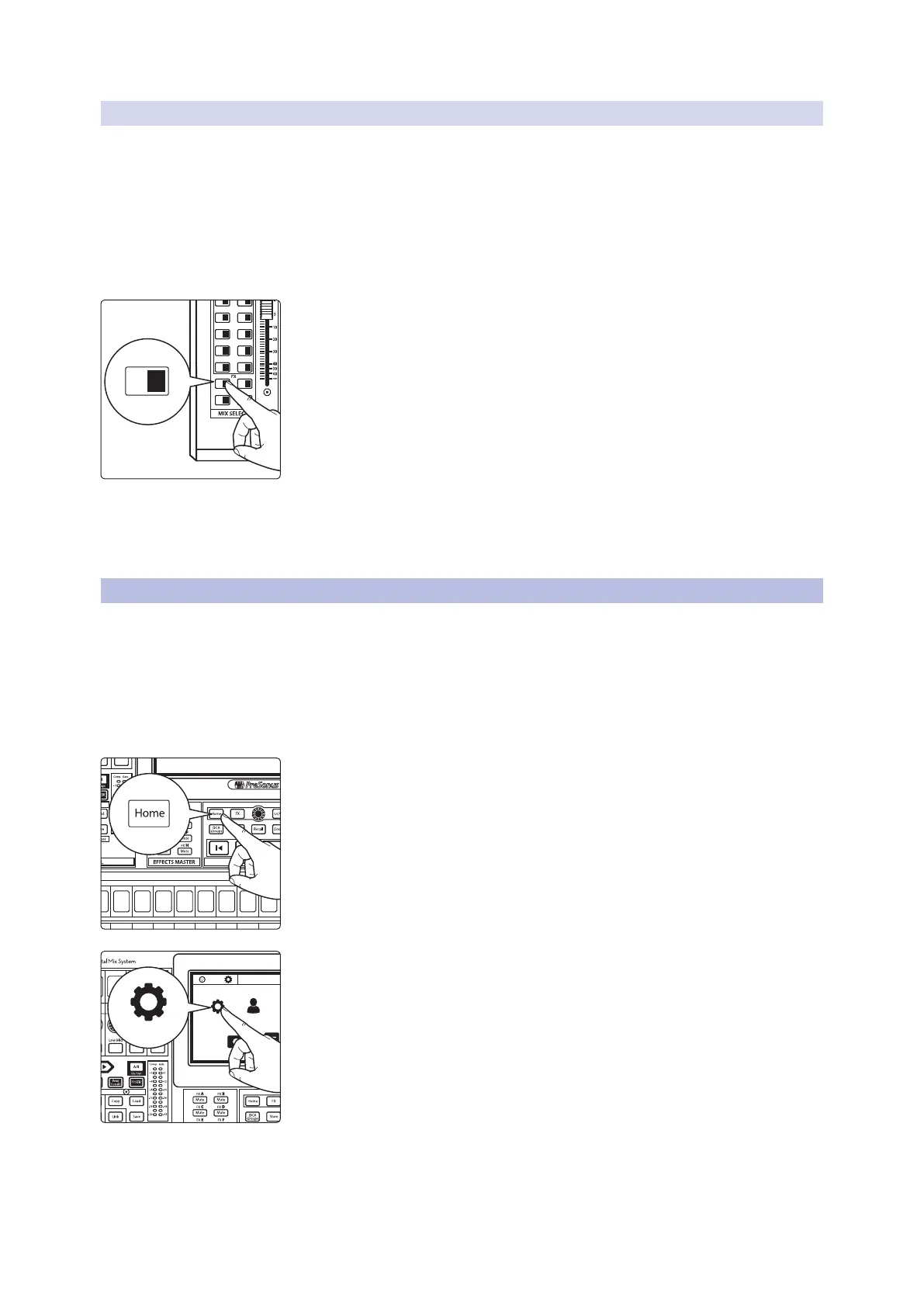
1. Press the FX A button in the Mix Select section to access settings for the FX
A mix. The faders move to show FX A send levels for each channel in your
mix.
2. For each channel that you wish to send to FX A, move the related fader to
the desired level. Increasing the fader level increase how processed, or “wet”,
any given channel will sound.
3. Using the Fat Channel, you can apply Compression and EQ to the FX A
Output. This can help quell unwanted resonance and make the effected
signal sound more polished.
4. Move the Flex fader to adjust the overall level of the effected output of FX A.
5. The FX A bus has a return in every FlexMix as well as the Mains. To adjust the
FX A Return in any mix, press its Mix Select button and navigate to the “FX A”
channel.
5.6 Main Mono/Center Bus (StudioLive 64S only)
Unlike the other StudioLive Series III mixer models which are equipped with with
a Mono Sum output that shares the Main bus with the Main stereo outputs, the
StudioLive 64S’s Mono output is provided with its own mix bus.
This bus can either be configured as a mono bus for the stereo main mix or as the
center channel in an LCR configuration.
Selecting Pan Mode
1. By default, your StudioLive 64S is set to Stereo Pan Mode; to change this to
LCR Pan Mode, press the Home button.
2. Press the System icon to open the System menu.
11 27
13 29
15 31
12 28
14 30
16 32
A E
C G
B F
D H
23 247 8
25 269 10
A E
Select Select Select Select Select Select Select Select Select
1
Ch. 1
System User Profiles Audio Routing
UtilsCapture
System









 To Next Page