>
Using the A10 Integrated Amplifier
4
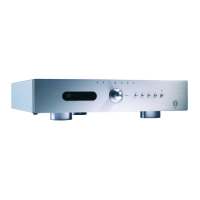
FRONT PANEL DISPLAY
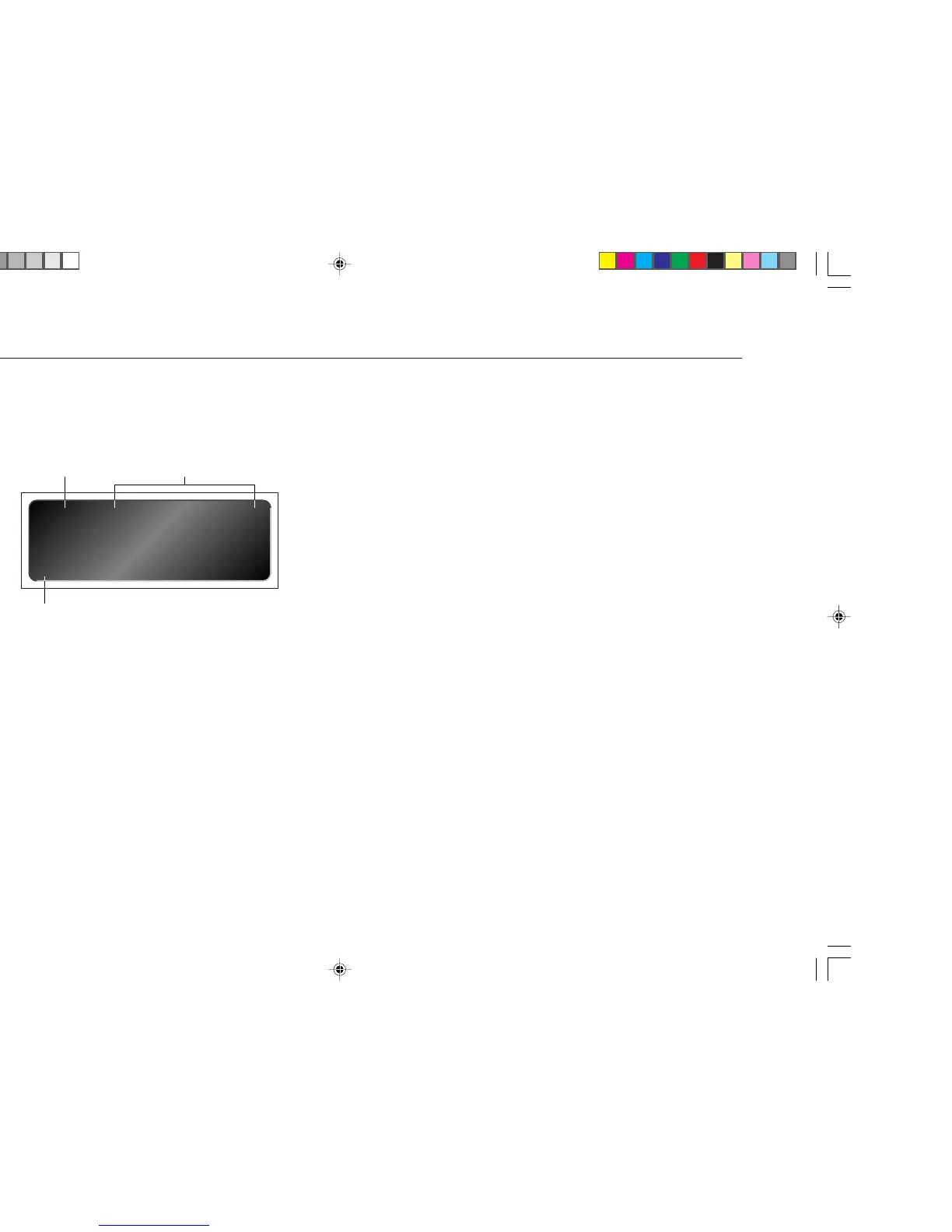
The following illustration shows the information on the front panel display:
57
A
AUX2
]C
]A ]B
]A Volume setting.
]B Currently selected input.
]C Indicates that the tape monitor is active.
To dim the front panel display
• Press the DIM button on the remote control.
The display will dim to show just the currently selected source.
To restore the normal display
• Press the DIM button again.
Alternatively the normal display will be restored if you adjust any setting.
SWITCHING ON AND OFF
To switch on
• Use the switch under the left-hand edge of the front panel.
During normal operation you can leave the A10 switched on and in standby.
To switch to standby
• Press the STANDBY button on the front panel or the STBY button on the
remote control.
To switch on from standby
• Press the STANDBY button on the front panel.
Selecting any function with the remote control will also switch on the A10 from
standby.


 To Next Page