44
3B PrintHub Settings
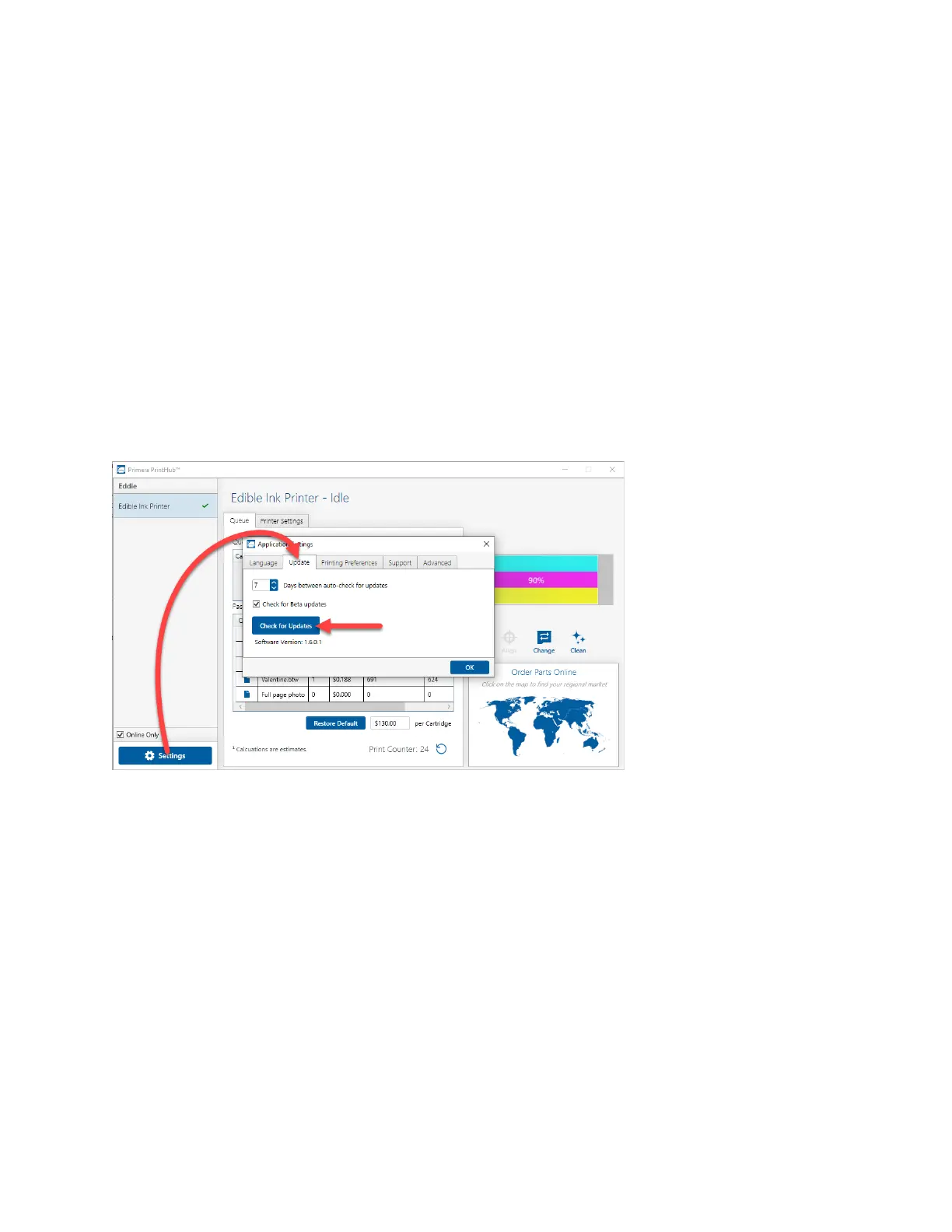
General application settings that apply to the software and all printers can be found by clicking
the blue “Settings” button in the lower left. Printer-specific settings can be found on the
“Printer Settings” Tab. See the next section.
Language. Typically, the language is set to match the language setting in the operating system.
However, you can override currency settings on the Language Tab.
Automatic Updates. Automatic Updates will update PrintHub, the printer driver, and the
printer firmware. Every seven days, you will be prompted to update the software if there are
any newer versions. You can choose to increase or decrease that automatic check. You can
also perform a check for updates immediately by clicking the “Check for Updates” button.
Finally, if you would like to receive beta software, check the “Check for Beta updates” box
Printing Preferences. You can choose to close PrintHub after printing completes by checking
the “Close this application after printing completes” box. PrintHub automatically opens
whenever you send a print job to the Printer. If you do not want PrintHub to open in front of
other programs, you can check the “Launch minimized during print” option.
Support. Click the “Generate Support Report” button to generate a zip file on your desktop
containing all recent log files. Send this to tech support so they can help solve any printing
problems.
Advanced. Check the “Generate Printer Status XML” box to create an XML at
"C:\ProgramData\PTI\PrintHub\PrinterStatus.xml".
Software developers can use this file to display status information such as error messages and
ink levels in 3rd party applications.


 To Next Page