63
4D Removing Image background with Paint 3D
Paint 3D is a free program that comes with Windows 10.
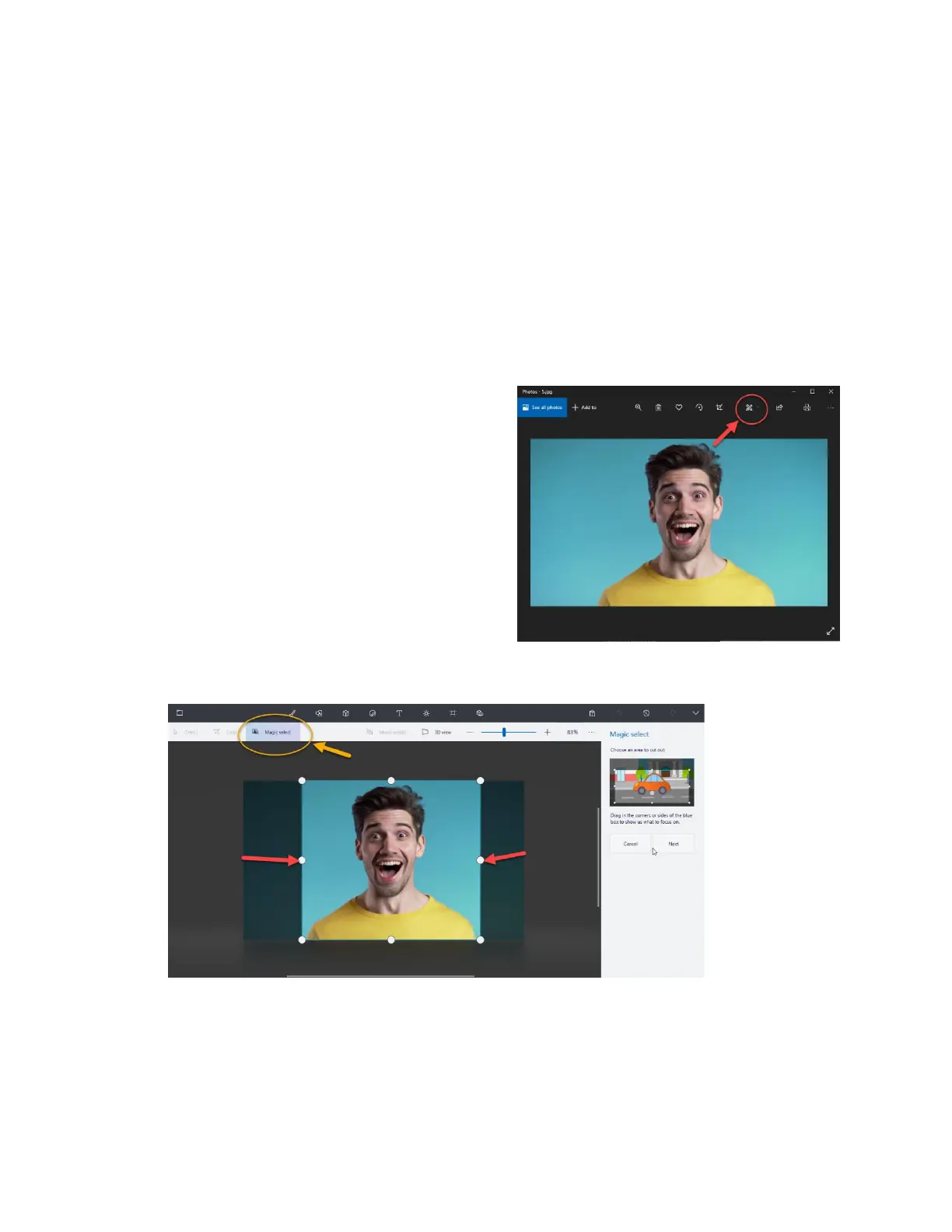
1. Choose an image and open it in Windows Photo Viewer. You can choose any image that
you would like to remove the background from. Simply click on the image to open it
automatically with Windows Photo Viewer.
Note: There are some images that work better for this than others, particularly images
that have a distinct difference between the background image and the foreground
image.
2. Click on “Get Creative with this image” This
is effectively the Edit image button. Click on
the icon in the upper right and select “Edit
with Paint 3D”.
3. Edit the Image with Magic Select. When
your image opens in Paint 3D, choose
“Magic Select” in the upper left of the
toolbar. When this is chosen, a crop box
will appear around your image. Drag the
crop box around the image you selected to
be removed from the background. When
you are done, choose “next” in the side panel on the right.


 To Next Page