64
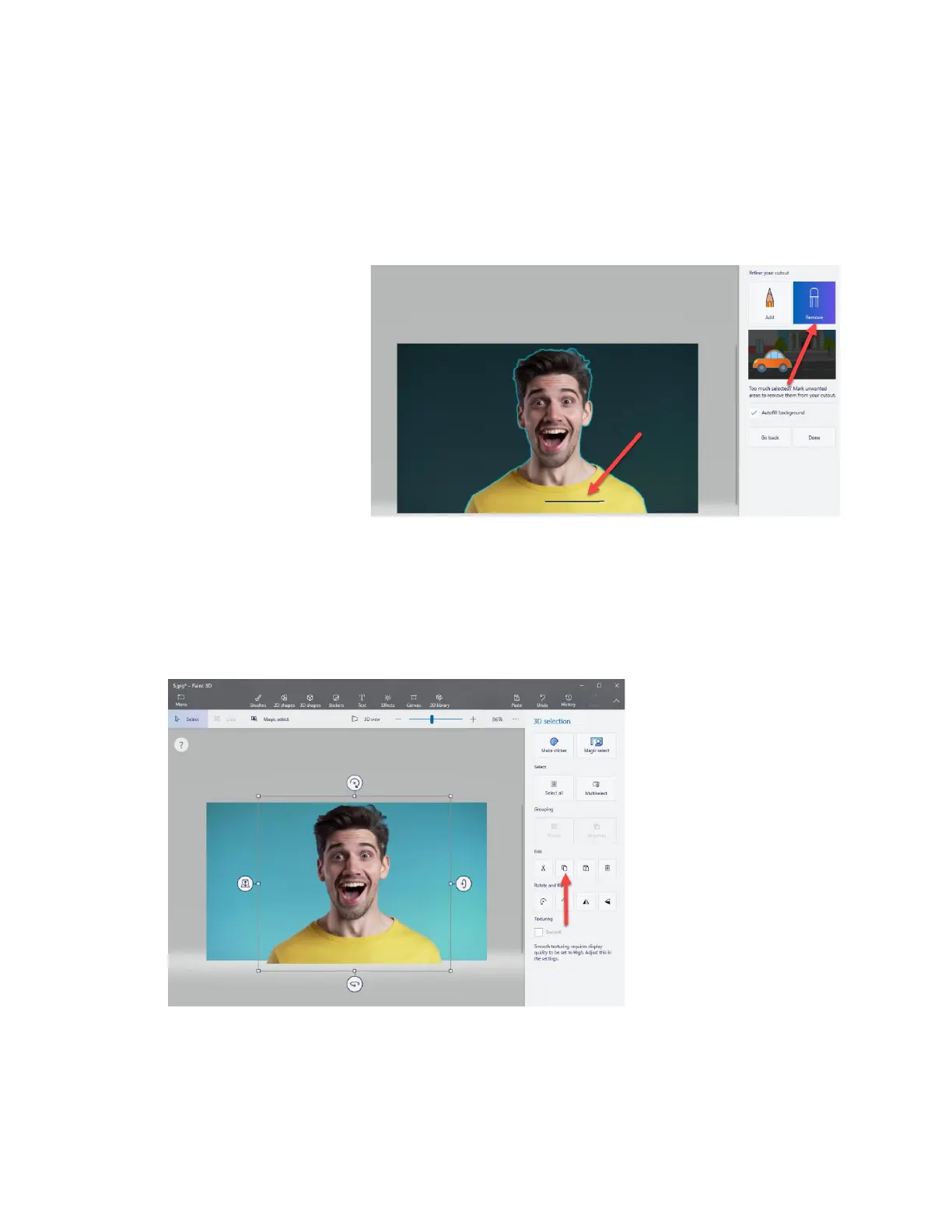
4. Refine the part of the image you would like. After pressing next in step 3, you will see
that the outside edges of your image are now highlighted. Sometimes the software
(depending on how complex/busy the background is) will take more or less image than
you want and highlight that as well, such as extra space around the shoulder of the
person in the image. If this is the case, you can use the remove tool in the sidebar on
the right to “draw” the
spots that you do not
want included in the
image out of the
highlighted area. The
line drawn over the
yellow shirt will remove
it from the crop in the
example below. Once
you are happy with the
selection, click Done.
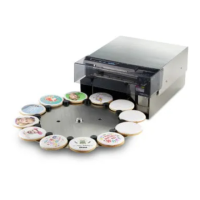
5. Remove the image from the background and copy it. After pressing next in the last step,
your image will pop out of the background, and it will be free to be copied. Right-Click
on the selected image and select copy or select copy from the side menu to set the
image up to be pasted into a different image or program. (Such as a Bartender cookie
template)
6. Paste the image into your bartender template.


 To Next Page