ProgrammingProgramming
Tech Settings & Programming Programming
This feature will start heating or
cooling early to bring the building
temperature to its programmed
setpoint by the begining of the
WAKE time period.
Morning
Recovery
ON
You can congure this thermostat
to have 5+1+1 programming or
non programmable.
Program
Options
5d
Use the and key to
select 5d for 5+1+1, or
0d for non programmable.
Next Step
Prev Step
Next Step
Prev Step
Use the and key to turn
ON or OFF.
Tech Settings
Adjustment Options Default
LCD Will Show
Select GAS for systems that control
the fan during a call for heat. Select
ELEC to have the thermostat control
the fan during a call for heat.
Fan
Operation
GAS
GAS - GS
or
ELEC - EL
Next Step
Prev Step
Set Time
1.
With system switch set to OFF, press the MENU button
2. Press SET TIME
3. Day of the week will be ashing. Use the or key
to select the current day of the week.
4. Press NEXT STEP
5. The current hour is ashing. Use the or key to
select the current hour. When using 12-hour time, make sure
the correct a.m. or p.m. choice is selected.
6. Press NEXT STEP
7. Minutes are now ashing. Use the or key to
select current minutes.
8. Press DONE when completed.
(If using programming)
Programming
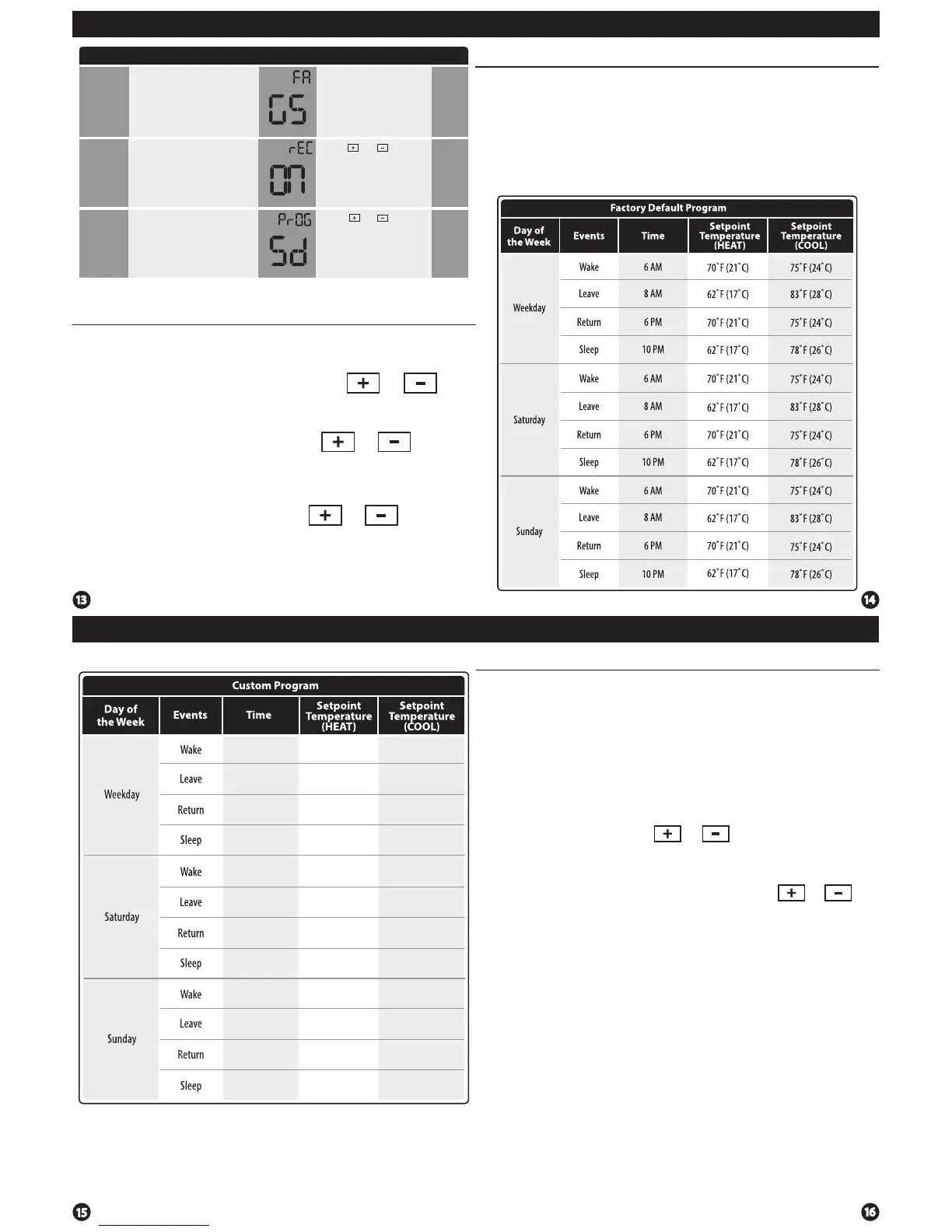
All of our programmable thermostats are shipped with an
energy saving pre-program. You can customize this default
program by following the steps on page 14.
Your thermostat can be programmed to have all the weekdays
the same, a seperate program for Saturday, and a seperate
program for Sunday. There are four time periods for each
program (WAKE, LEAVE, RETURN, SLEEP).
Set Program Schedule
1. Select HEAT or COOL with the system switch. Note: You have
to program heat and cool each seperately.
2. Press the MENU button
(If menu does not appear rst press RUN SCHED)
3. Press SET SCHED. Note: Monday-Friday is displayed and the
WAKE icon is shown. You are now programming the wake
time period for the weekday setting.
4. Time is ashing. Use the or key to make your time
selection for the weekday WAKE time period.
5. Press NEXT STEP
6. The setpoint temperature is ashing. Use the or key
to make your setpoint selection for the weekday wake period.
7. Press NEXT STEP
8. Repeat steps 4 thru 7 for weekday LEAVE time period, for
weekday RETURN time period, and for weekday SLEEP time
period.
To customize your program schedule, follow these steps
Weekday:
Repeat steps 4 thru 7 for the Saturday WAKE time period, for the
Saturday LEAVE time period, for the Saturday RETURN time
period, and for the Saturday SLEEP time period.
Saturday:
Repeat steps 4 thru 7 for the Sunday WAKE time period, for the
Sunday LEAVE time period, for the Sunday RETURN time period,
and for the Sunday SLEEP time period.
Sunday:
You can use the table below to plan your customized program schedule.


 To Previous Page
 Loading...