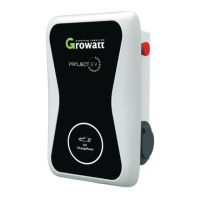
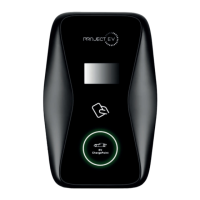
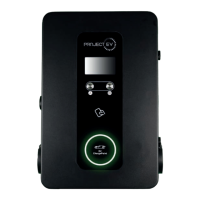
3XWWKHFKDUJHSRLQWRQWRWKHEUDFNHWDQGIL[LWZLWKWKHVFUHZVDWWKHERWWRPRI
WKHFKDUJHSRLQW7KHLQVWDOODWLRQLVGRQH
&ULPSWKHEHORZVKRZQLQVXODWHGIHUUXOHRUULQJWHUPLQDOVRQWKHHQGRIWKH$&LQSXW
ZLUHV&RQQHFWWKHZLUHVLQWRWKHWHUPLQDOEORFNRIWKHFKDUJHSRLQWDVEHORZ&KHFNWKH
ZLULQJDQGWKHQFORVHWKH5&'LQWKHVLGHZLQGRZ&ORVHWKHVLGHZLQGRZZLWKWKHFRYHU
WKHQWKHZULQJLVGRQH
0RXQWRQDSROH
2SHQWKHSDFNDJLQJRIWKHSROHWDNHRXWWKHSROHDQGPRXQWLQJDFFHVVRULHV
7KHSROHPXVWEHLQVWDOOHGRQDKDUGVXUIDFHFRQFUHWHVXUIDFHLVUHFRPPHQGHGLW
FDQDOVREHPRXQWHGRQDVROLGJURXQG'ULOOKROHVDFFRUGLQJWRWKHUHTXLUHPHQWVPDUNHG
RQWKHLOOXVWUDWLRQIRUIL[LQJH[SDQVLRQEROWV
)L[WKHSROHRQWRWKHKROHVZLWKH[SDQVLRQEROWV7KHLQSXWFDEOHVVKDOOJRLQWRWKH
SROH IURP WKH ERWWRP PLGGOH DUHD DQG FRPH RXW RI LW IURP WKH DUHD EHORZ WKH FDEOH
KRRNHU
3.1.3 Put the charge point onto the bracket, and x it with the 2 screws at the bottom of
the charge point. The installation is done.
3.1.4 Crimp the insulated ferrule or ring terminals on the end of the AC input wires.
Connect the wires into the terminal block of the charge point as below. Check the
wiring and then close the RCD in the side window. Close the side window with the
cover, then the wiring is completed.
3.2.2 The pole must be installed on a hard surface, concrete surface is recommended,
it can also be mounted on a solid ground. Drill holes according to the requirements
marked on the illustration for xing expansion bolts.
3.2.3 Fix the pole onto the holes with expansion bolts. The input cables shall go
into the pole from the bottom middle area and come out of it from the area below the
cable hooker.
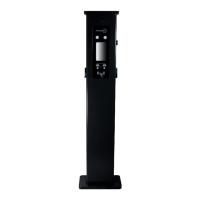
3.2 Mount on a pole
3.2.1 Open the packaging of the pole, take out the pole and mounting accessories.
8 9
20
1. Firmware version of the Charger. This item cannot be modified here on the setting page.
2. Charger ID: this is the unique identification of the Charger. If the charger is to be
connected to Project EV back-office server, this ID must be set as the serial number on the
nameplate of the Charger. Otherwise the Charger cannot be registered on the server.
3. Charger IP: The default IP is 192.168.1.5. It is not suggested to change the default IP. If you
have changed the default IP and forgot the new IP, you can reset the charger to factory
setting by long press the reset button(the reset button on control board, not the emergency
stop button) until the charger reboot. Then you can use the default 192.168.1.5 for access.
Please note: ID(same as serial number, can be found on the nameplate sticker) and server
url, otherwise the charger won’t be connected to the back-office server. After restoring the
charger to factory setting, you’ll need to reset the charger
4. Charger Subnet mask: The default value is 255.255.255.0. It is not suggested to change. If
the subnet mask has been reset to other value and you have forgotten the new value, you
can restore the charger to factory setting by long press the reset button.
5. Net MAC Address
6. Change the charger from static IP to DHCP- It is recommended to use static to allow
future access if required.
7. RFID TAG Limit
8. WiFi SSID(wireless network name)
9. Server URL is to set the domain name or IP address of the back office server to be
connected. The domain name of Project EV is ws://projectevcharger.com:80/ocpp/ws. For
electric miles use ws://occpp.electricmiles.io/
10. Charger Internal Time - This is when the unit is online as the time is trieved from the
server.
11. To be used to alter the time zoes should the charger be installed outside GMT time zone.
12. Max Temperature the charger internals will reach before triggering a fault.
13. Meter value time in Seconds - The charger sends these to the server to be displayed in the
app.
Laptop commissioning
settings explained


 To Next Page