EasyManua.ls Logo

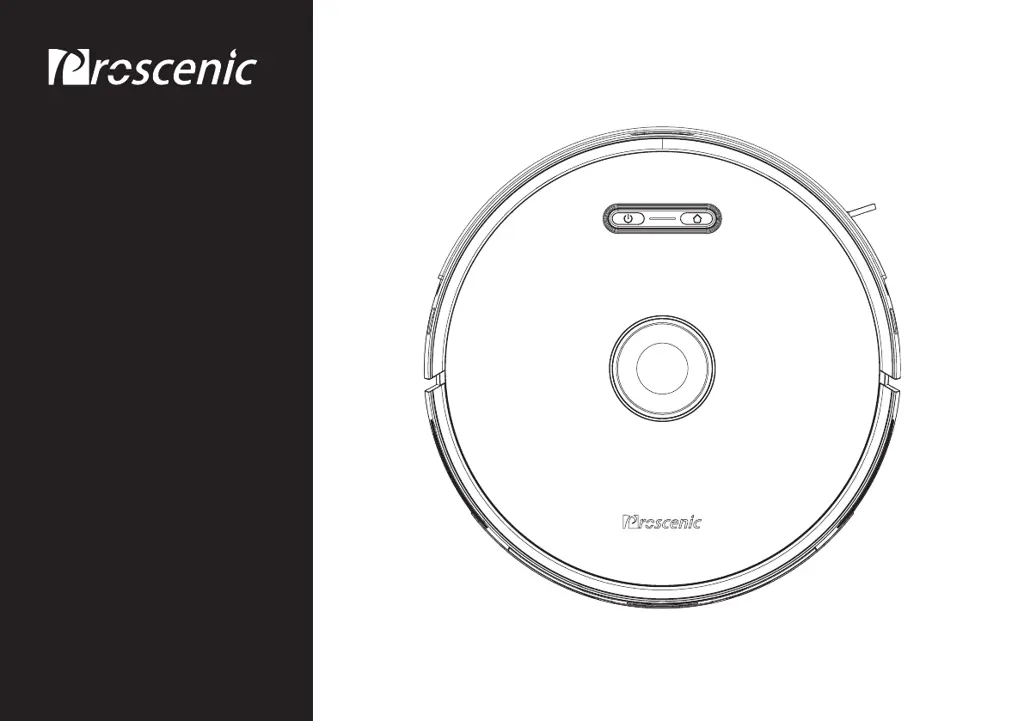
Proscenic M8 PRO - User Manual

Proscenic M8 PRO
140 pages
Print Icon
To Next Page IconTo Next Page
Loading...
M8 PRO
Instruction manual
Uživatelský manuál
Užívateľský manuál
Használati utasítás
Bedienungsanleitung
Proscenic Technology Co., Ltd.
Service support
Web:www.proscenic.com
E-mail:support@proscenic.com
V9.3.1

Questions and Answers

  • N
    Nicholas DelgadoAug 17, 2025
    What to do if my Proscenic Vacuum Cleaner is not charging?
    • N
      Nicholas BriggsAug 17, 2025
      What to do if my Proscenic Vacuum Cleaner is not charging? First, ensure you are using the original power adapter. Then, check that the dust collector is horizontally positioned. Also, clean the charging contact area.
  • N
    Nicole RobinsonAug 20, 2025
    What to do if the Proscenic M8 PRO Vacuum Cleaner flashes red due to a fan error or overheating?
    • M
      Michael GonzalesAug 20, 2025
      If your Proscenic Vacuum Cleaner is flashing red due to a fan error or overheating, it might be because collecting dust too frequently can cause the fan to malfunction. It's recommended to wait for 30 minutes before attempting to collect dust again. Also, ensure the dust collector cover is completely closed and securely sealed, and that the robot is correctly placed on the dust collector for charging before trying again.
  • N
    Norma CainAug 22, 2025
    What to do if my Proscenic M8 PRO flashes red because the dust bag is not installed?
    • D
      Donna ThorntonAug 22, 2025
      If your Proscenic Vacuum Cleaner is flashing red because of the dust bag, check if the dust bag is installed. If it isn't, install the dust bag. Also, verify that the dust bag is correctly installed and properly in place.
  • R
    Richard DavisAug 26, 2025
    What to do if my Proscenic M8 PRO reports a collision sensor error?
    • X
      xcortezAug 26, 2025
      If your Proscenic Vacuum Cleaner reports a collision sensor error, try pressing the front bumper and clearing any foreign objects around it. Then, restart the device.
  • B
    Brooke SantosAug 28, 2025
    What to do if my Proscenic Vacuum Cleaner detects a strong magnetic field?
    • J
      Julie SchwartzAug 28, 2025
      If your Proscenic Vacuum Cleaner detects a strong magnetic field, move the machine to a new location and try again.
  • Y
    ytaylorAug 30, 2025
    How to fix Proscenic M8 PRO Vacuum Cleaner cliff sensor error?
    • J
      John FergusonAug 30, 2025
      To fix a cliff sensor error on your Proscenic Vacuum Cleaner, wipe the main power cliff sensor and try again. Refer to the manual for the sensor location.
  • J
    josephnewtonSep 2, 2025
    How to fix Proscenic M8 PRO laser radar error?
    • D
      Dennis MillerSep 3, 2025
      To fix a laser radar error on your Proscenic Vacuum Cleaner, check for and remove any foreign objects around the lidar. Alternatively, move the device to a new location and restart it.
  • L
    Lorraine RodriguezSep 5, 2025
    Why does my Proscenic Vacuum Cleaner say the temperature is abnormal?
    • B
      Brian CrossSep 5, 2025
      Why does my Proscenic Vacuum Cleaner say the temperature is abnormal? This happens when the host temperature is either too high or too low. Please wait until the temperature returns to normal before using the device.
  • D
    David PetersonSep 8, 2025
    How to fix collision sensor error on Proscenic Vacuum Cleaner?
    • M
      Michele SpencerSep 8, 2025
      How to fix collision sensor error on Proscenic Vacuum Cleaner? Try pressing the front bumper and removing any foreign objects that may be obstructing it. Then, restart the device.
  • E
    Erin RobersonSep 12, 2025
    What to do if the laser radar is blocked on Proscenic Vacuum Cleaner?
    • S
      Sarah JohnsonSep 12, 2025
      What to do if the laser radar is blocked on Proscenic Vacuum Cleaner? Check the area around the lidar for any obstructions and remove them. Alternatively, move the device to a different location and restart it.

Summary

Robot Overview

Dust Collector Unit Components

Installation Notes

Instructions for Use

Robot Operation Instructions

Covers powering on/off, starting, pausing, and auto-recharging the robot.

Mobile App Connectivity

Connecting to the Mobile Client

Step-by-step instructions for connecting the robot to the mobile client via Wi-Fi.

Remote Control Operation

Installing the 2-in-1 Dust Bin and Water Tank

Routine Maintenance

Dust Bin and Water Tank Maintenance

Weekly cleaning procedures for the dust bin, water tank, and mop.

Rolling Brush Maintenance

Weekly cleaning instructions for the robot's main rolling brush.

Side Brush Maintenance

Weekly cleaning instructions for the robot's side brush.

Main Unit and Sensor Maintenance

Monthly cleaning of the robot's sensors and charging contacts.

Dust Collector Maintenance

Basic Parameters

Troubleshooting

Common Problems and Solutions

Troubleshooting guide for common issues encountered with the robot and dust collector.

Robot Specific Troubleshooting

Specific fault prompts and solutions for the robot unit.

Dust Collector Unit Troubleshooting

Troubleshooting guide for common errors indicated by the dust collector unit's lights.

Proscenic M8 PRO Specifications

General IconGeneral
StyleRobot
ColorBlack
Total Power50 W
Suction Power3000 Pa
Dust Bin Capacity11 L (water tank)
Power Controls-
Operating Radius-
Cord Length-
Hose Length-
Automatic Cord Rewind-
Exhaust FilterHEPA Filtration
Motor Protection Filter-
Park system-
?leaning Area-
Noise Level60-68 dB
Cleaning ModesAuto Mix
FeaturesSelective cleaning modes
Brushes and AccessoriesCloth Plate
Power Consumption-
Battery Life250 min
Battery Capacity5200mAh Lithium-Ion
Weight and Dimensions IconWeight and Dimensions
Depth350 mm
Height98 mm
Width350 mm
Net Weight6.7 Kg

Related product manuals