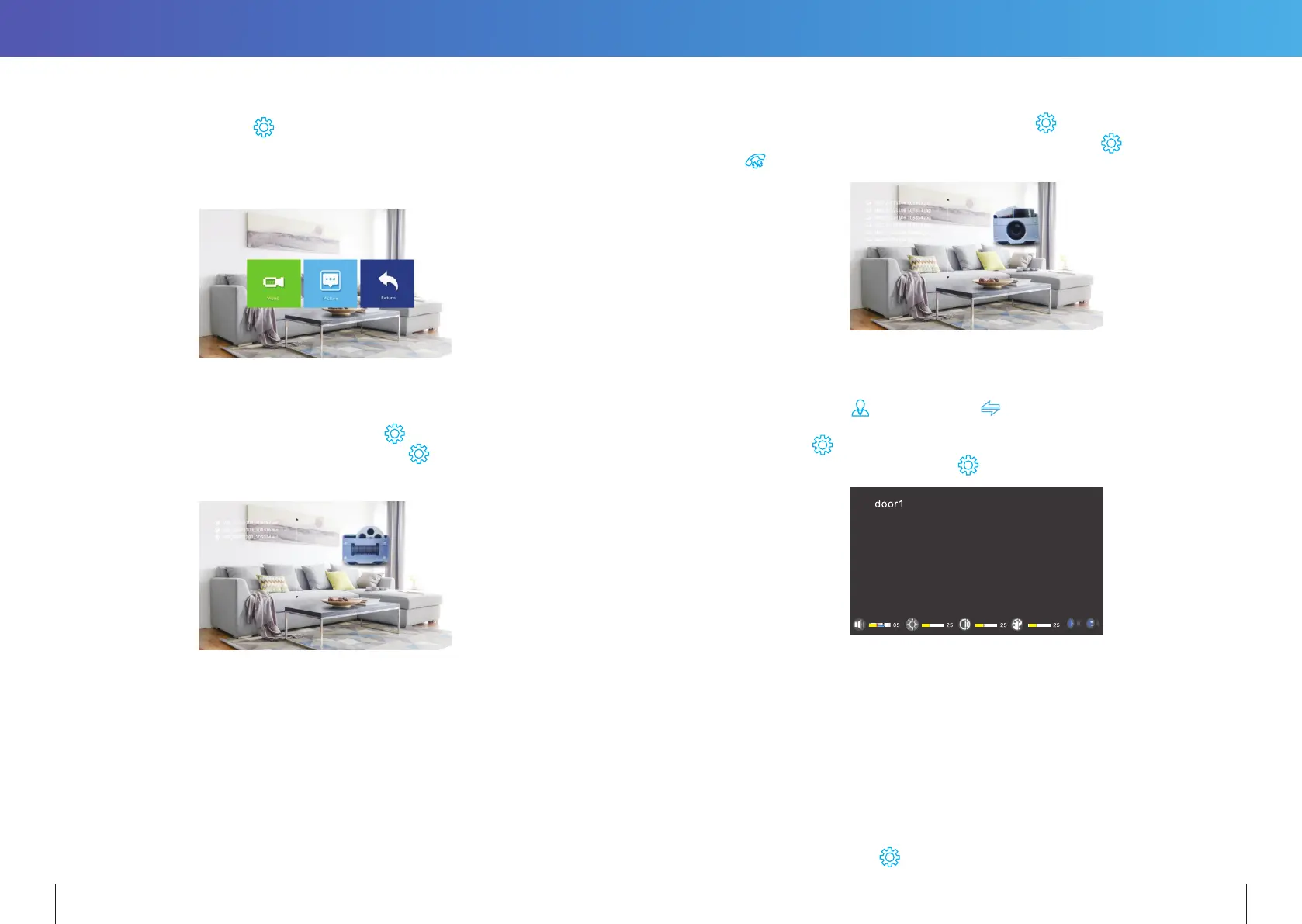
14.2.6 Record Centre (for the models with MicroSD card)
Select “Record Centre” and press
to enter “Record Centre” submenu.
This submenu includes video and photo icons.
To delete the videos and snapshot pictures in the Record Centre, please delete them from
the DCIM folder on the microSD card.
14.2.6.1 Video Recordings
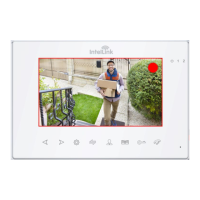
In the Recording Centre menu, select “Video” and press
to show list of recorded videos.
With the Arrow keys, select a video for playback, then press
to start playback.
Note: This submenu only displays video messages recorded by the indoor Monitor.
14.2.6.2 Photo
In the Recording Centre menu, select “Photo” and press
to show list of snapshot
photos. With the Arrow keys, select a photo for viewing, then press
to view photo.
Press
to return to the current menu.
14.2.7 Colour Parameter Settings
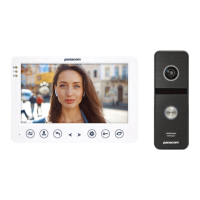
In Standby mode, press
to monitor. Press during monitoring to bring up colour
adjustment mode. It includes: brightness, contrast, saturation, refresh, and return. Select the
option and press
. When the setting value changes its font colour, use the Arrow Keys to
increase or decrease its value. Then press
again to save the changes.
Note: The Colour Parameters can be changed on the screens while monitoring, calling, or
when in alarm.
[Bright]: Values adjustable from 0 to 50. (Default: 25).
[Contrast]: Values adjustable from 0 to 50. (Default: 25).
[Saturation]: Values adjustable from 0 to 50. (Default: 25)
[Refresh]: If Monitor has registered the wrong video format for a Door Station or camera, no
video would be displayed on the Monitor. Tap “(R)” (Refresh) repeatedly to change
the video signal format to match the Door Station.
[Return]: Select return, press
to close colour adjustment mode.
28 29


 To Next Page