15. INTELLINK WIFI INTERCOM
MOBILE APP- SETUP GUIDE
A. Introduction
This section shows you how to configure the IntelLink WiFi Intercom to connect with
the IntelLink app. It also shows you how to share the connection with other people
(e.g. members of your household).
The screenshots in this guide are taken from an iPhone. Similar steps apply for Android
phones.
B. Getting the IntelLink App
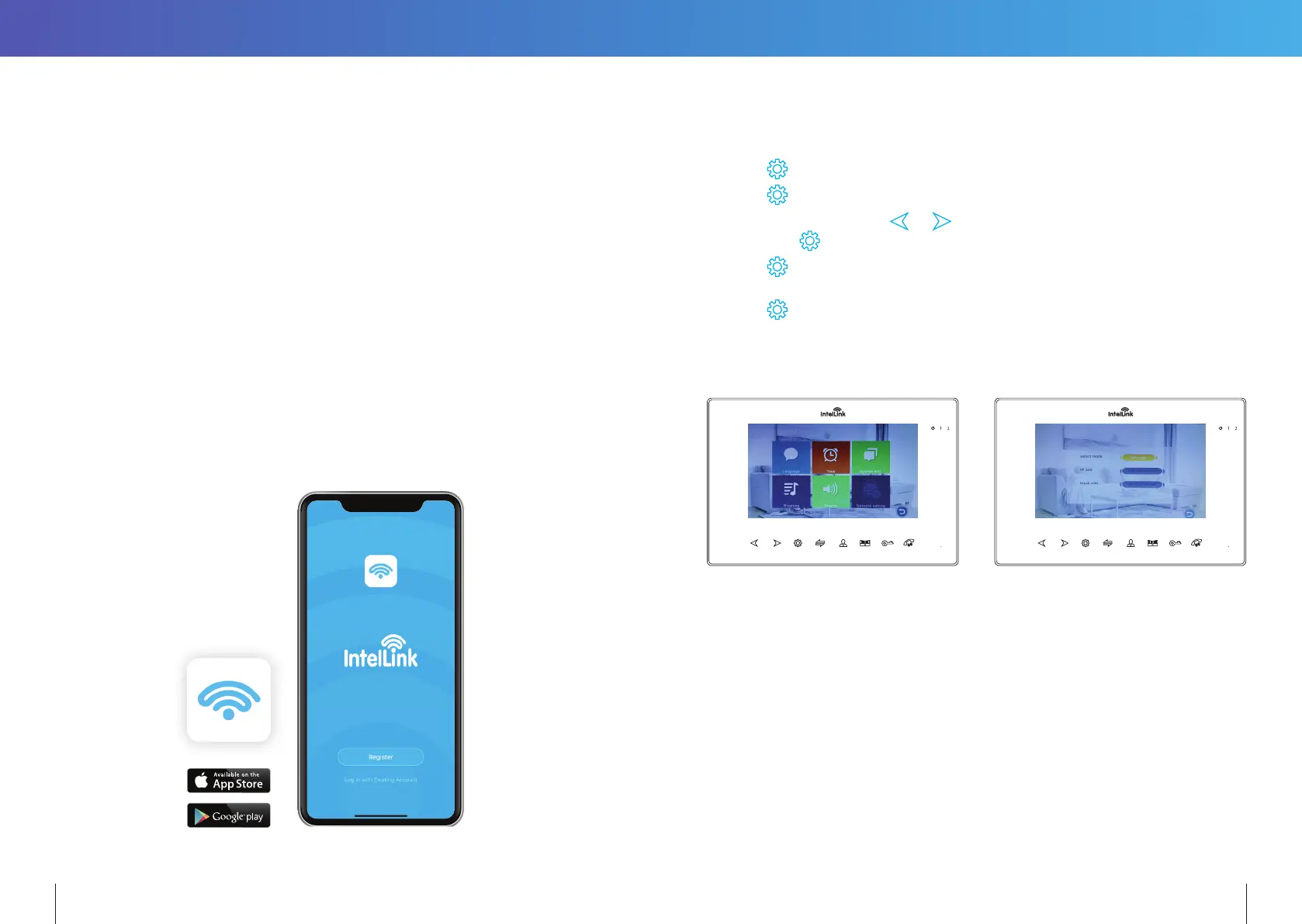
1. Download the free “IntelLink” App from the Apple App Store, or the Google Play Store.
2. Tap the IntelLink app icon to start the mobile app.
3. Register a free account (Please use an email address as your Username)
Note: The mobile App requires access to the Internet via 3G/4G or Wireless network.
C. Preparing the IntelLink Intercom for Connection
1. Power up the IntelLink Intercom
2. Press
to enter the Main Menu
3. Press
again to select the “System” icon.
4. In the System menu, press
& to highlight the “Network Setting” icon.
Then press
to confirm selection.
5. Press
again to choose the “Wi-Fi Set” icon.
6. In the next submenu, the ‘AP-Mode’ is already selected by default.
Press
twice to confirm this default selection.
The Monitor will reboot itself to enter AP-mode,
and start a temporary hotspot (“Smartlife-xxxxxx”)
30 31
GET IT ON


 To Next Page