D. Pairing Intercom to IntelLink App (Steps for AP-mode connection)
We are now ready to connect Intercom to IntelLink App.
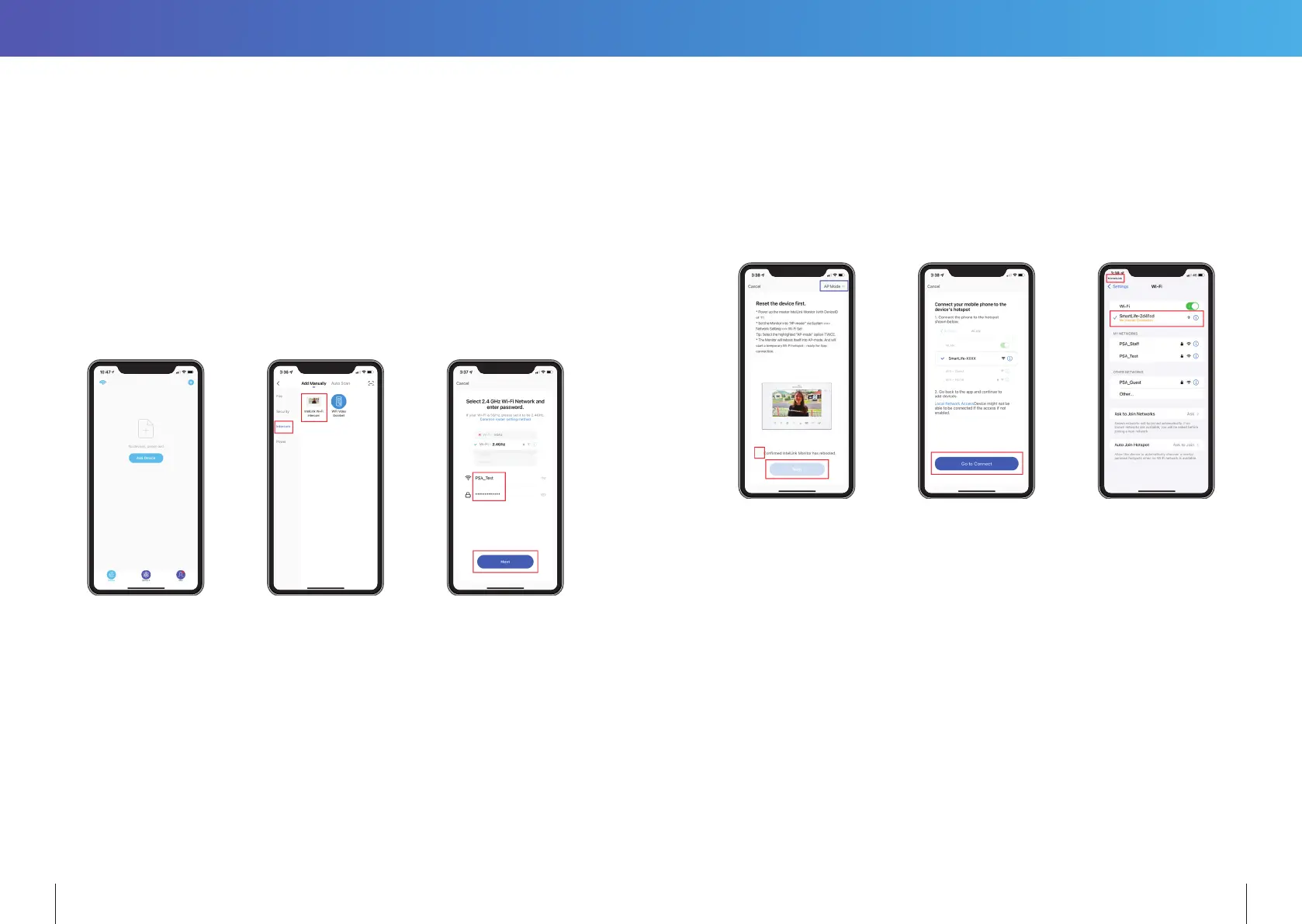
1. With your mobile phone, temporarily turn Airplane Mode to ON (with Mobile Data
to OFF). Then re-enable the Wi-Fi function only on your phone.
2. In the IntelLink App, tap “Add Device”. Or tap the “+” icon on top right corner. (See Fig 1)
3. In the left column, tap “Intercom”. Tap the “IntelLink WiFi Intercom” icon. (See Fig 2)
4. Enter the login details of your local WiFi network, together with its password.
Then tap “Next”. (See Fig 3)
Important: Use your 2.4GHz WiFi settings, not the 5GHz band.
Figure 1. Figure 2. Figure 3.
4. Confirm “AP Mode” is shown on top right corner of App screen. Tap the small circle to left
of “Confirmed IntelLink Monitor has rebooted” . Tap “Next” to continue. (See Fig 4).
5. When prompted, go to the iPhone Settings, and select the Intercom’s hotspot
(“SmartLife-xxxxx”) as your Wi-Fi connection. Once successful, a check mark
appears against the SmartLife (Intercom) in the WiFi menu. (See Fig 5 & 6)
Figure 4. Figure 5. Figure 6.
32 33


 To Next Page