17
To change the brightness of the screen when switched on:
1. Press
.
2. Press the Select buttons to choose ‘Display’.
3. Press the Select buttons to choose 'Backlight'.
4. Press the Select buttons to choose ‘On Level’.
5. Press the Select buttons to choose a brightness level. To make your screen brighter, choose a
higher number. To automatically set the screen brightness, choose ‘Auto’.
To dim the screen after 10 seconds of inactivity:
1. Press
.
2. Press the Select buttons to choose ‘Display’.
3. Press the Select buttons to choose 'Backlight'.
4. Press the Select buttons to choose ‘Duration’.
5. Press the Select buttons to choose ‘Timed’.
To change the brightness of the screen when dimmed:
1. Press
.
2. Press the Select buttons to choose ‘Display’.
3. Press the Select buttons to choose 'Backlight'.
4. Press the Select buttons to choose ‘Dim Level’.
5. Press the Select buttons to choose a brightness level. To make your screen brighter, choose a
higher number.
Clock settings
Setting the time and date
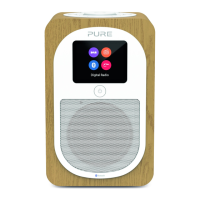
Your Evoke H3 can use FM and digital radio signals to set the time and date automatically. If the time and
date do not update automatically, you can set them manually.
To set the time and date automatically:
1. Press
.
EN


 To Next Page