EasyManua.ls Logo

Rath Command Center - User Manual

Rath Command Center
12 pages
Print Icon
To Next Page IconTo Next Page
Loading...
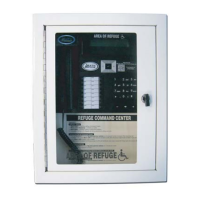
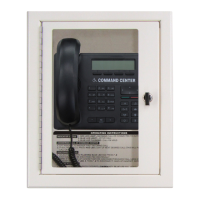
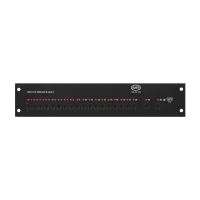
VoIP Command Center
Installation & Operations Manual
N56W24720 N. Corporate Circle Sussex, WI 53089
800-451-1460 www.RATHCommunications.com
RP8500PBXVOIPG
Ver. 5
10/19
Made in the USA
3 Year Warranty

Questions and Answers

  • C
    christiandavisAug 20, 2025
    Why won't Rath Command Center phones register?
    • J
      Jonathan BurnsAug 20, 2025
      Several factors could prevent your Rath Conference System phones from registering: * The SIP Extension settings on the Distribution Module may not match the Emergency Phones. * The Authentication Password may not meet the system complexity requirements. * The IP address might be blacklisted. To check, log into the Distribution Module, go to VoIP Configuration, click Blacklist IP Address, SIP Extensions, and Clear All. * Another device on the network might be sharing the IP address assigned to the phone. * The IP address of the Emergency Phone might not be in the same network as the SIP Server.
  • N
    Nicole JonesAug 21, 2025
    What to do if Rath Conference System calls won't forward out?
    • M
      Michael CostaAug 22, 2025
      If calls from your Rath Conference System aren't forwarding, here are a few things to check: * First, ensure that call forwarding has been properly set up on the Command Center. * Verify the Command Center can place outgoing calls by lifting the handset, dialing 9, then a phone number. * If the Command Center screen displays “All Trunks Busy”, the system may not have an active phone line connected. * Make sure the phone line is connected to the TWT port using the blue, blue white pair, and that the phone line has voltage and a dial tone. * Also, verify the dialing string for the forwarding number is correct.
  • T
    Thomas HollowayAug 25, 2025
    How to fix insufficient volume on Rath Command Center phones?
    • K
      Kathryn VaughnAug 25, 2025
      If you're experiencing insufficient volume on your Rath Conference System phones, try these steps: 1. Adjust the local volume potentiometer (VR1) on the Emergency Phone. 2. If the volume is still poor, log into the Distribution Module and go to VoIP Configuration in the left side menu. 3. Click SIP Gain Settings and modify the SIP-SYSTEM Rx-Gain settings in the Template 1 column. It isn’t recommended to exceed 6 dB as it may cause feedback. 4. Click Submit to save.
  • N
    nandersonAug 26, 2025
    What to do if Rath Conference System phones won't call the Command Center?
    • A
      Alison SnowAug 26, 2025
      If your Rath Conference System phones aren't calling the Command Center, consider the following: * Ensure the Command Center is fully booted and displays 3001 on the screen. * Confirm that the phones show as Registered under SIP Extension Status. * Check that the phones are programmed to dial 3931.
  • E
    Ethan DavisAug 27, 2025
    How to fix Rath Command Center Conference System phones that won't hang up?
    • D
      Dominique SnowAug 27, 2025
      If your Rath Conference System phones are not hanging up properly: RATH® 2100 Series IP Phones require an Open-Loop Disconnect signal to properly hang up, this setting should be pre-programmed into the phones but may need to be increased. Follow the instructions provided with the Emergency Phones to navigate and modify this setting. Alternatively, the operator at the Command Center or monitoring location can press *, # before they hang up to force the Emergency Phone to hang up.
  • R
    Robert McbrideAug 29, 2025
    How to stop the blue light blinking on Rath Conference System Command Center?
    • R
      Roger MaddoxAug 29, 2025
      A blinking blue light on the top right corner of the Rath Conference System Command Center indicates a missed call. To clear the missed calls, click the button under “LOGS” on the Command Center screen. When the screen displays “Missed Calls” click the green button and use the arrows to scroll up and down to view the calls. Press the speaker phone button to exit.
  • K
    Kara BaileyAug 31, 2025
    How to troubleshoot a Rath Conference System Command Center that won’t power on?
    • D
      Daniel HallAug 31, 2025
      If your Rath Conference System Command Center won’t power on: * Check the wires for voltage. The Command Center Phone uses the blue, blue white pair of wires and should have 28vdc on them. * If the wires show 0v, verify the DKP port on the Distribution Module is being used. * If the wires show 48vdc, the Command Center Phone is connected to an SLT port and needs to be moved to the DKP port. * Verify the RJ11 jack is plugged into the correct plug on the back of the Command Center phone.
  • M
    Mr. Anthony Lopez IISep 2, 2025
    Why does the blue light keep blinking on my Rath Conference System Command Center?
    • W
      Walter AnthonySep 2, 2025
      A blinking blue light in the top right corner of the Rath Command Center indicates a missed call. To clear missed calls, click the button under “LOGS” on the Command Center screen. When the screen displays “Missed Calls” click the green button and use the arrows to scroll up and down to view the calls. Press the speaker phone button to exit.
  • J
    jenniferbellSep 4, 2025
    How to troubleshoot power issues on a Rath Conference System Command Center?
    • B
      Bradley CamachoSep 4, 2025
      If the Rath Conference System Command Center will not power on, check the wires for voltage, which should be 28vdc. If no voltage is detected, confirm you are connected to the DKP interface on the Distribution Module. If you have 48vdc, you are incorrectly connected to an SLT interface.
  • S
    Sheila CollinsSep 6, 2025
    Why won't my Rath Command Center phones call out?
    • E
      estradastephanieSep 6, 2025
      If your Rath Conference System phones won't call out, first check the wires for voltage. The voltage should be 48vdc. If no voltage is detected, confirm you are connected to the SLT interface on the Distribution Module (some SLT interfaces only use the blue and orange pairs). If you have 28vdc, you are incorrectly connected to the DKP interface. Also, make sure you dial any access digit that may be required to dial out of the building.

Summary

Items Needed

Typical System Layout

Installation Steps

Distribution Module Wiring

Connecting System to Network

VoIP Card Programming

Registering Emergency Phones

Emergency Phone Programming

Setting the Date and Time

Command Center Operating Instructions

Indicator Status

Lists the status of Red and Blue LEDs for incoming calls, active calls, and calls on hold.

Answering Call at Command Center

Instructions for answering the first incoming call and handling multiple incoming calls.

Disconnecting Calls

Procedures for disconnecting calls using LED indicators and specific button presses.

Joining a Call Already in Progress

Steps to join an ongoing call, creating a three-way conversation.

Calling a Location

Method for initiating a call to a specific location from the Command Center.

Sub-Master Phones

IP Command Center Phones

Troubleshooting

Rath Command Center Specifications

General IconGeneral
BrandRath
ModelCommand Center
CategoryConference System
LanguageEnglish

Related product manuals