- 27 - V02 en, SCC_WE
1 Software update Only possible when SD card is properly
inserted
2 PCB New - No SD card in-
serted
Unit will not function
3 PCB new - Old SD card
(standard service call)
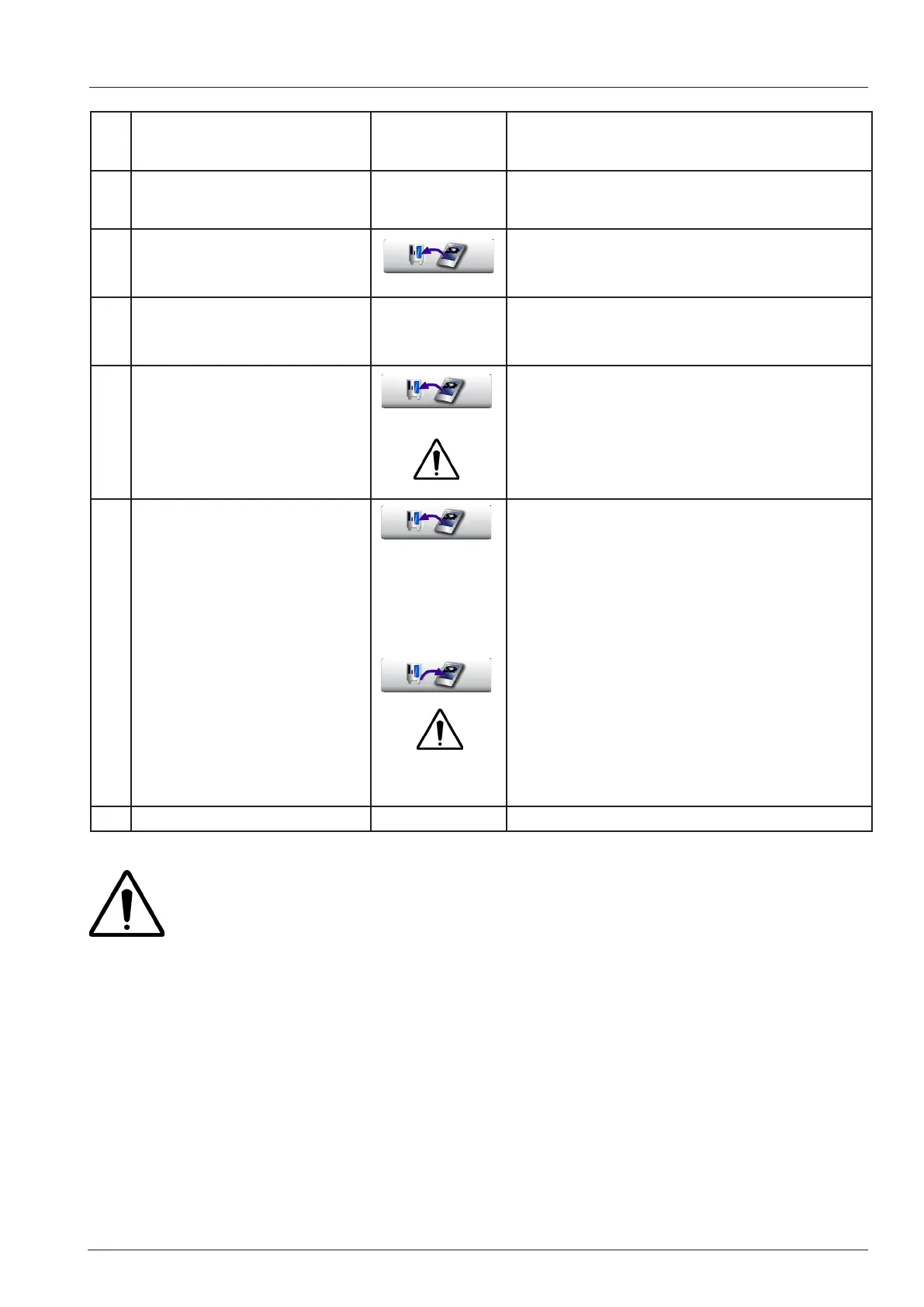
Upload icon key is shown, When pressing the
icon for 10 seconds, data are copied from SD
card to pcb
4 PCB old - New SD card
(Service 19.1)
Data are copied automatically from pcb to SD
card.
5 PCB new - SD card from
other unit
(only in case of emergency,
e.g from unit from shown
room, when no SD card is
available as a service part)
Upload icon key is shown, When pressing
respective key for 10 seconds, data are copied
from SD card to pcb
6 a) SD card old - PCB from
other unit
(only in case of emergency,
e.g from unit from shown
room, when no PCB is
available as a service part)
b) PCB old - SD card from
other unit
(only in case of emergency,
e.g from unit from shown
room, when no SD card is
available as a service part)
Upload icon and download icon keys are
shown,
Display: Please select for recovery:
PCB was replaced (a)
SD card was replaced (b)
When pressing respective key for 10 seconds,
data are copied from pcb to SD card or vice
versa.
NOTE: Emergency only!
A SD card from another unit can ONLY be used, when this unit is of the same size and
energy (electric or gas)!
After using a new SD card (Case 5 and 6 (SD - card to unit) the Selftest must be re-activa-
ted in Basic Setting > Selftest.



 To Next Page