PART I. User & Installation Manual
66 1417WCE
3.
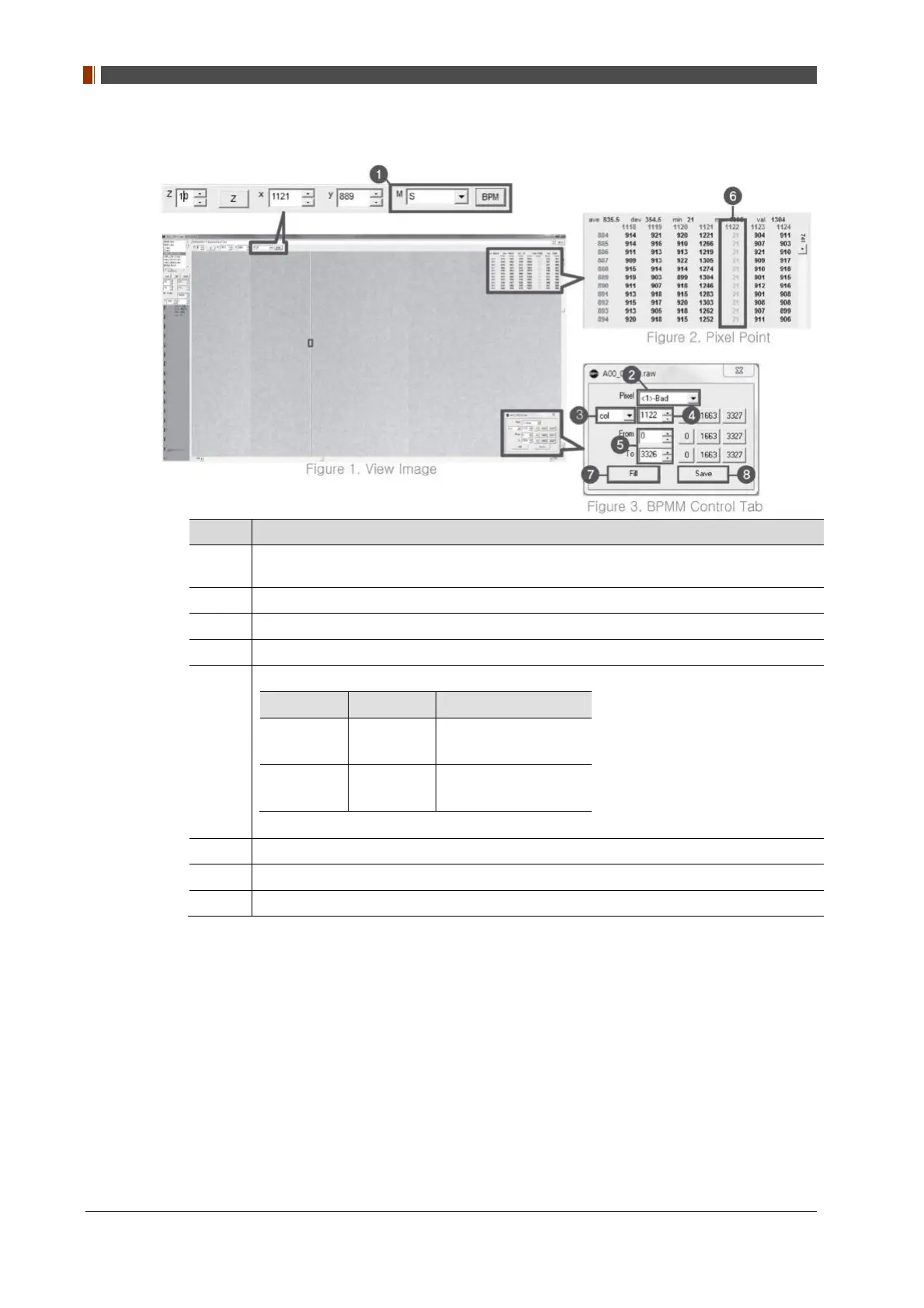
Set Manual bad pixel map (BPMM) as below.
No. Overview
1
At Figure 1, choose S from the list of M(❶) and click "BPM". Check if BPMM window is
popped up as Figure 3.
2
Choose "Bad" from Pixel list (Figure 3 - ❷ ).
3
Choose either “row” or “col” from Figure 3 - ❸.
4
Put the coordinate of pixel to set bad pixel at Figure 3 - ❹.
5
If bad pixel is a line, put the range as below at Figure 3 – ❺.
From To
Row 0
4301 (100type)
2499 (140type)
Col 0
3533 (100type)
3051 (140type)
If bad pixel is not a line but some pixels, put the rest coordinate at Figure 3 - ❺.
6
After completing step 5, check if bad pixel has been changed to green as Figure 2 - ❻.
7
Click “Fill” at Figure 3 - ❼.
8
Click "Save" at Figure 3 - ❽.
4.
Once setting BPMM is done, “BPMM.raw” file will be saved at “C:\Davinci\CAL”.


 To Next Page
 Loading...